How to optimize images in WPBakery: sizes, formats, backgrounds and common fixes
Learn how to optimize images in WPBakery, choose the right format and size, use image elements correctly, avoid background image cropping and fix blurry or inconsistent images.
Blurry images, slow-loading pages, inconsistent layouts and unexpected cropping are among the most common image-related issues seen in WPBakery support tickets and, in many cases, the problem is not WordPress or WPBakery but the image itself, long before it is uploaded. Here are the most common external issues that, once resolved, can make your working with WPBakery much more efficient and easy.
Using images without a clear license
What should go without saying and yet, people are still overlooking this important fact: just because you found an image online, via search, doesn’t mean it’s free or available to use. Images are subject to copyright and have various licenses attached to them, meaning, some images restrict commercial use or limit how they can be modified.
For agencies and client projects, it’s considered a good practice to maintain a shared document that contains approved images along with their sources and license information. If the source of an image cannot be verified, replacing it is often safer than risking a licensing issue later.
Platforms such as Unsplash, Pexels or Pixabay provide royalty-free images, but you should still review their photo license terms before use.
Uploading oversized images
Uploading a 6000×4000 image or exporting a photo-based hero image as PNG can add unnecessary page weight without improving visible quality.
Before uploading images to your WordPress page, resize them based on how they will be used on the page. A full-width hero image usually does not need to be wider than the largest screen size it is expected to fill. In many cases, exporting a hero image around 1920px wide is a practical starting point, while smaller content images, thumbnails, logos and gallery images should be resized according to their actual layout dimensions.
This keeps WPBakery pages lighter, easier to manage and less likely to suffer from slow-loading image sections.
Choosing the wrong image format
The image format matters because different file types are made for different use cases. As a general rule:
- JPEG (JPG) for photographs, hero images and blog thumbnails.
- PNG for logos, screenshots and images that require transparent backgrounds.
- SVG for logos and icons that need to remain sharp at any size.
- WebP or AVIF when supported and when reducing file size is a priority.
Images saved as PNG files are often much larger than equivalent JPEGs without providing a quality improvement.
Choosing the correct format will not fix every image issue, but it prevents unnecessary file weight before the image even reaches WordPress.
Before uploading, resize images to the dimensions required by the design and compress them to reduce file size. A properly optimized image can look almost identical to the original while loading much faster.
Tools such as Squoosh, for example, can resize images, adjust quality settings and convert between formats before upload.
Choosing the right format helps reduce file size before the image reaches WPBakery, WordPress, or any optimization plugin.
Relying only on manual image optimization
Preparing images before upload is important, but on an actual WordPress site, it’s not always enough.
The reality is that many websites have more than one person adding content: marketers, editors, clients, designers, developers, or agency team members. Do each and every one of them resize images, compress files, or choose the right format before uploading them to the Media Library? Most probably not. Over time, this can lead to heavy image files, slower pages and inconsistent image quality across the site which is why you need image optimization plugins to help.
Tools such as ShortPixel can automatically compress uploaded images, optimize existing images in the WordPress Media Library and generate modern image formats such as WebP or AVIF, depending on the selected settings. It refines images, shortens loading times and reduces the load on network resources, including data usage on mobile data plans. Using a tool like ShortPixel helps in providing additional load speed of a page or site, but contributes to better SEO outcomes as well.
For WPBakery websites, this gives you an additional layer of protection. Even when images are added through elements such as Single Image, Image Gallery, Image Carousel, Media Grid, or background image settings, optimization can help cut down extra file weight and improve loading performance.
Still, image optimization plugins should not be treated as a replacement for a good upload workflow. The best approach is to prepare images before uploading them, then use WordPress image optimization as a second layer to keep the site lighter and more consistent over time.
How to add images in WPBakery
WPBakery provides several ways to add images to a page, depending on how the image will be used.
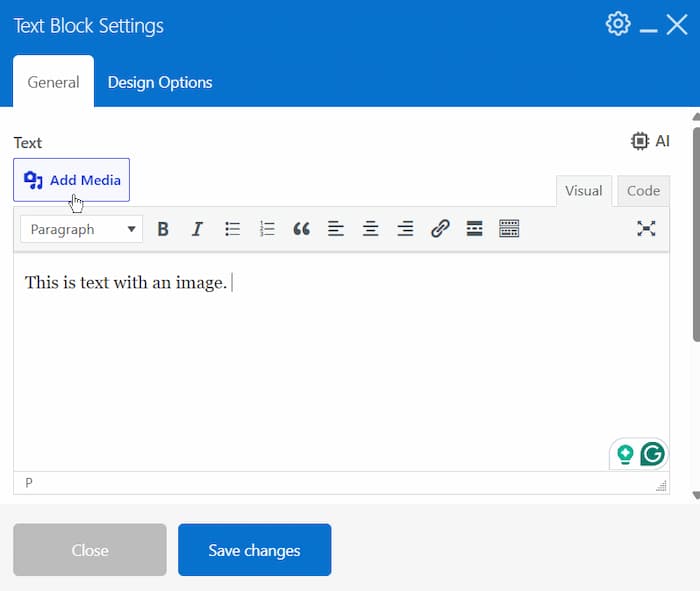
If you need to place an image within article content, you can insert it through the Text Block element using the Add Media button. This works well for content where images appear alongside paragraphs of text.
For most page layouts, dedicated image elements provide more control and consistency. Use:
- Single Image for standalone images such as logos, illustrations, team photos, product images, or featured content.
- Image Gallery when you need to display multiple images in grid or slideshow-style layouts.
- Image Carousel when you need a slider-style section with navigation, autoplay, speed and orientation settings.
- Hover Box when the image is part of an interactive content block where text and visuals change on hover.
- Media Grid or Masonry Media Grid when you need to display multiple images or media items in structured grid layouts.
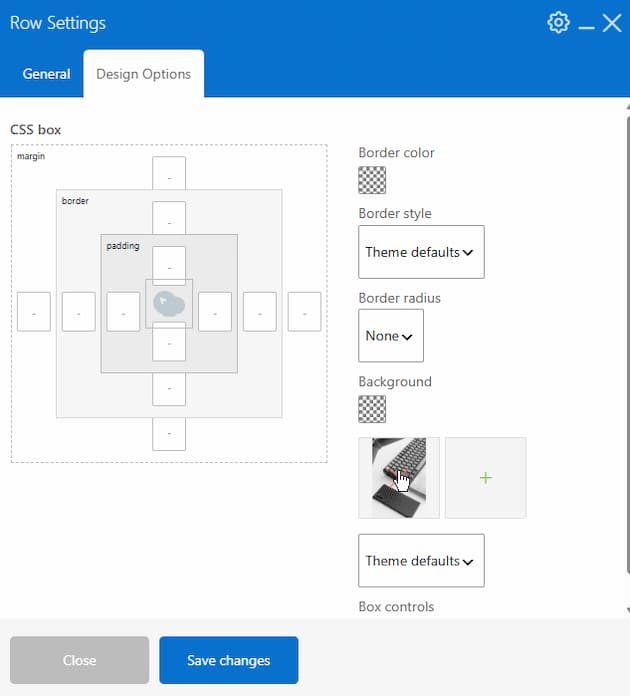
Images can also be added as background images through the Design Options tab available on rows, columns and other WPBakery elements.
Internal images issues and how to fix them
Once you know the difference between the external issues and the right way images should be added within WPBakery, it’s easier and more efficient to build what you need out of a page or a site. Still, mistakes can occur so here are the most common mistakes to look out for.
Using background images when you need image elements
One of the most common image-related issues happens when an image is used as a background when it should have been added as an image element. A useful rule is this: if removing the image would change the meaning of the page, it should probably be an image element.
If the image contains information visitors need to see or understand, use a WPBakery element such as Single Image, Image Gallery, or Image Carousel. Image elements can support alt text, caption, and responsive image behavior.
Background images are better suited for decorative visuals, section backgrounds and design atmosphere. They are useful when the image supports the layout visually, but does not carry important information by itself.
This matters for responsiveness, accessibility and SEO but also for editing, because content images are usually easier to manage, replace and control across screen sizes.
Ignoring how image sizes work in WPBakery
Most WPBakery image elements, including Single Image, Image Gallery and Image Carousel, allow you to choose which image size to display using the Image Size field. You can enter a registered WordPress image size such as thumbnail, medium, large, or full and you can also specify custom dimensions, for example 425×110.
Using registered WordPress image sizes is often the safer option for responsive behavior because WordPress can generate responsive image markup for attachment images which helps browsers select a suitable image size for different screen sizes and device resolutions.
Custom dimensions can be useful when a layout needs a very specific image size, but they should always be tested. After setting a custom size, check how the image appears on desktop, tablet and mobile to make sure it is clear, properly cropped and not heavier than needed.
Background images work differently. Since they are applied through CSS rather than the standard image tag <img>, they don’t use the Image Size field in the same way. Instead, they rely on background settings such as Cover, Contain, Repeat and positioning.
Not checking background image cropping on mobile
A background image may look perfect on desktop and still crop unexpectedly on smaller screens. This usually happens when the background image uses the Cover setting. Cover makes the image fill the available space, but depending on the screen size and section height, parts of the image may be cropped. That does not necessarily mean something is broken – it’s how background images behave when they are used to fill a container.


If the full image needs to remain visible, use an image element instead of a background image. If the image is decorative and cropping is acceptable, a background image can work well.
Before publishing, check important image sections on desktop, tablet and mobile. This is especially important for hero images, banners, product sections and any visual where people, text, or important details appear close to the edge of the image.
Assuming blurry images are caused by WPBakery
Blurry images are often caused by the image workflow around the page and not by WPBakery itself. Image optimization plugins, caching plugins, CDN services, aggressive compression settings, incorrect image sizes, or low-quality source files can all affect how an image appears on the page.
If an image looks blurry, start by checking the original image quality. Then check which image size is selected in the WPBakery element, whether an optimization plugin is compressing the image too aggressively, whether a CDN is serving a resized version and whether caching is showing an older image file.
This kind of issue is easier to solve when you look at the full image path: source file, upload, optimization, WPBakery element settings, caching and final page output.
Not regenerating thumbnails after theme or layout changes
After changing themes, image settings, or layout requirements, existing thumbnails may no longer match the image sizes needed by the website. This can result in stretched images, inconsistent gallery layouts, soft thumbnails, or images that do not align properly across the page.
In these cases, regenerating thumbnails can help WordPress recreate the needed image sizes based on the current theme and media settings. A plugin such as Regenerate Thumbnails can be used for this purpose.
This is especially useful after redesigns, theme changes, layout updates, or changes to registered image sizes.
Fixing image issues only after they affect the page
Image issues are much easier to prevent than to fix later. Once a page is already built, a badly prepared image can create several problems at once: slower loading, poor mobile display, inconsistent spacing, blurry output, or unnecessary work for the person editing the page later.
For WPBakery sites, a better workflow is quite simple: prepare the image before upload, choose the right format, use the right element, check the selected image size and test how the image behaves on mobile.</p>
This does not add much time to the process, rather makes a noticeable difference as pages stay lighter, layouts remain easier to control and future content updates are less likely to create image-related problems.
Final thoughts
Most image issues are not complicated once you know where to look – and that’s the whole point. A little attention before and during the upload process saves a lot of unnecessary fixing later, especially on websites that keep growing and changing over time because, sites change, new blog posts get added, hero sections get replaced and galleries get updated. On top of that, taking into account the responsive settings and making sure everything works properly to ensure seamless switching between devices is one final touch up before you finish.
If something looks blurry, loads slowly, crops badly or behaves differently across devices, don’t start by assuming the builder is the problem. Instead, use this guide to detect the right issue and correct it successfully. Think of it as a few small habits that keep WPBakery pages cleaner, lighter and easier to maintain over time.
