Creating default templates in WPBakery with Templatera
Templatera Template Manager is an official add-on for WPBakery Page Builder that lets me create, manage, and reuse content templates across a website. Instead of rebuilding the same layouts over and over, I can save sections, rows, or full page structures as templates and insert them wherever they’re needed. I think of them as global elements – I create and edit them in one place, and the changes are reflected everywhere they’re used.
I can also use Templatera to create default templates for any post type. That way, when I click “Add Page,” I don’t just get a blank canvas – I get preset rows, columns, and content elements ready to go.
In this post, I’ll explain what default templates are, why they’re useful, and show you how I set one up for a Case Study page layout.
What are default templates in WPBakery?
When I talk about default templates in WPBakery, I’m referring to pre-set layouts that I can use as a starting point instead of building a page from scratch every time.
There are two main ways this works:
First, WPBakery includes ready-made layouts in the Template Library. These are pre-designed page sections and full-page layouts that I can download and insert into a page as a starting structure.
Second, I can create my own layouts and save them as templates – and this is where Templatera comes in. With Templatera, I can build a layout (for example, a Case Study structure with specific rows and elements), save it, and then apply it as a default structure when creating new content. This gives me full control over what the starting layout looks like.
Default templates, in this context, refers to the ability to set a Templatera-created template as the default content for any post type.
It’s important not to confuse these with WordPress theme templates. WordPress templates control the overall structure of a theme (like single post, archive, or page templates at the theme level). WPBakery default templates, on the other hand, control the content layout inside the editor – rows, columns, and elements – not the theme’s PHP template files.
Benefits of using Templatera for default templates
Using Templatera to create default templates has a few clear advantages:
- It makes things easier for content editors. Instead of starting with a blank page, they start with a predefined structure. This reduces guesswork and lowers the risk of layout inconsistencies.
- It saves time. I don’t need to rebuild the same structure repeatedly. The layout is already there.
- It keeps the design consistent. When everyone starts from the same template, spacing, element order, and structure stay aligned across the site.
In short, default templates help standardize how content is created – and Templatera makes that process manageable and centralized.
How to set up default templates using Templatera
To show how this works in practice, I’ll use a Case Study post type as an example.
First, I create a new Custom Post Type (CPT) called Case Studies. I use Pods for this because it’s free and gives me full control over custom post types and fields.
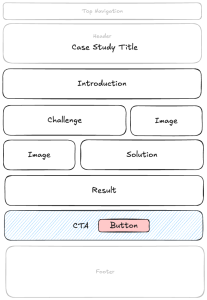
I like to draw layouts out using a tool like Excalidraw
Before I build anything, I think about the information architecture (IA) of a typical case study page. In other words, what sections do I want editors to follow every time?
For this example, I’ll structure it like this:
- Title
- Introduction
- Challenge
- Solution
- Result
- Call to Action (CTA)
Defining the structure first makes it much easier to build a logical, reusable layout.
Next, Create the default template in Templatera.
1. Create a new template
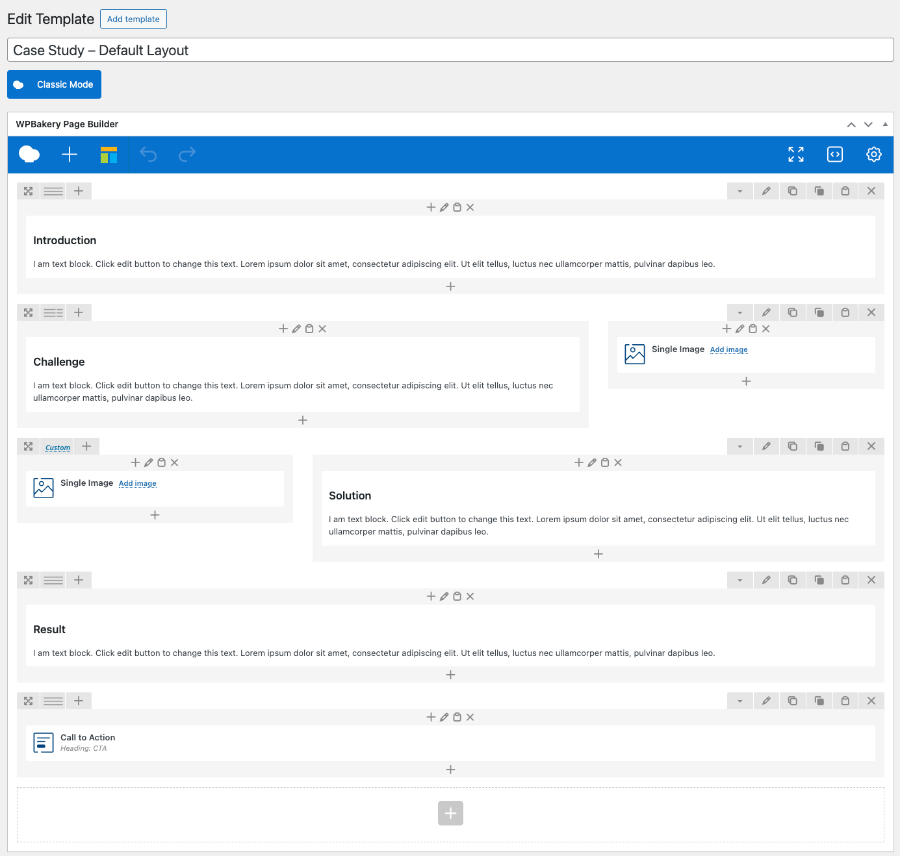
Go to Templatera → Add New and create a new template. I’ll name it something like Case Study – Default Layout.
2. Add content (rows and elements)
Using WPBakery, I build the structure based on the IA I defined earlier.
At this stage, I’m not adding real content – just placeholder headings and basic structure. The goal is to create a clear layout that editors can fill in.
3. Template Settings & Roles
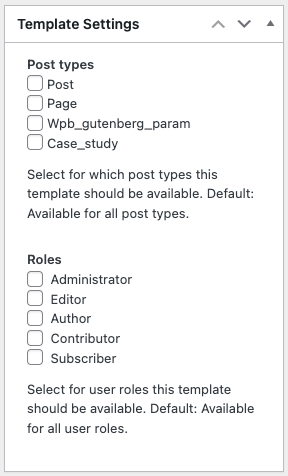
Choose which post types this template should be available for. By default, it’s available for all post types.
Choose which user roles can access this template. By default, it’s available for all user roles.
4. Assign the template to the Case Study CPT
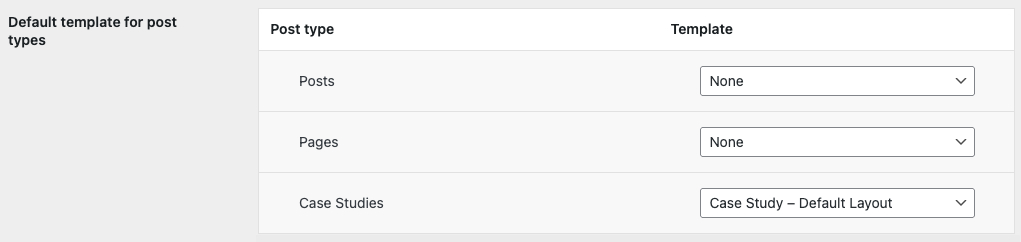
In the template settings, I define where this template should be available. Then, in WPBakery Page Builder → General Settings, I make sure WPBakery is enabled for the Case Studies post type and set the newly created template as the default for that CPT.
5. Test it!
Finally, I go to Case Studies → Add New and create a new post.
Instead of a blank page, the predefined layout loads automatically – with all rows and sections ready to be filled in.
That’s it. Setting up default templates with Templatera is a simple way to improve how content is created across a site. Instead of starting from scratch, editors begin with a predefined structure that guides them through the process.
This reduces layout errors, speeds up page creation, and keeps designs consistent. For teams especially, it creates a more predictable workflow — structure is standardized, expectations are clear, and content production becomes more efficient.
How to get Templatera
Templatera is available free of charge if you’re on our Support Plus subscription. Simple head over to our Customer Center and download it.
If you don’t have Support Plus, a subscription will get you Templatera and a lot more:
- Priority support
- Auto updates
- Easy Tables addons
- WPBakery AI
- Template Library
- Loyalty Discounts
You can also buy Templatera separately here.
