How to build a Successful WordPress Website
The idea of building a WordPress website might seem (too) easy at first: pick a theme, add some plugins, and that’s it, you’re done. If we’re being honest, you can get a site online in a few hours. However, if you want to create a website that works for you (and not against you), it definitely takes a bit more planning than that.
The truth is, most websites fail to grow because they’re built without thinking about structure, flexibility, or the future. You add a new feature, and suddenly your layout breaks. Or, you try to scale content, but the navigation gets messy. Want a booking system? Too bad, because the plugin doesn’t integrate with your forms. And just like that, the “simple” WordPress site is a tangle of themes, plugins, and custom tweaks.
That’s exactly why we’ve created this guide, so you can safely avoid that mess. We’ll break down the key building blocks you need for a WordPress site that works. We’ll cover the core setup, themes, visual builders like WPBakery, essential plugins, content structure, integrations, performance, and ongoing maintenance.
By the end, you’ll have a clear roadmap, and not only a list of things to install. You’ll get a practical approach for building a WordPress site that can grow, adapt, and actually work the way you need it to.
Define Your Goal and Scope
Before you even open WordPress, take a step back. Ask yourself a few simple questions: What am I actually building here? Who is going to use it? And what problem am I solving? The answers to these questions will guide every choice you make, including picking a theme, deciding which plugins to install, and structuring your content.
If you’re building a business website, your goal might be lead generation or showing off your services. A service-based site? You’re probably focused on bookings and managing clients efficiently. Content-heavy sites prioritize organization, search, and categorization. And if your site is data-driven, you need to think about structured content, filtering, and dynamic displays.
Defining the scope is just as important. What needs to be ready at launch, and what can wait? Trying to do everything at once results in plugin overload, broken layouts, and navigation that confuses more than it helps.
That’s why it is wise to start with what’s essential:
- List your primary goals: e.g., generate leads, allow online booking, display a product catalog.
- Identify core features: What is essential for launch? Booking forms? Payment processing? Advanced filtering?
- Define user roles: Who will manage the site? Who will use it? Editors, administrators, clients, or the general public?
- Plan content types: Pages, blog posts, guides, portfolios, directories. Use this to guide custom post types if needed.
Once you’ve got your goals and scope down, you’ll see how everything else falls into place and gets easier.
Choose the Right Hosting and Setup
Where your website lives affects almost everything, like speed, security, performance, and how easy it is to grow later. Truth be told, WordPress works on almost any host, but not all hosting is created equal. If you choose the right type from the start, you won’t have as many headaches down the road.
You can choose from several main hosting types:
- Shared hosting means that multiple websites share the same server. It’s cheap, yes, but slow, less reliable, and limited in resources. This makes it fine for small blogs or test sites, but probably not for anything serious.
- Managed hosting for WordPress happens when the host is the one who handles updates, security, performance optimization, and backups. Consider choosing this hosting type if you want to focus on running your site, not the tech.
- VPS (Virtual Private Server) gives you more control and resources than shared hosting. This is a solid option if your website is growing and you need more reliability and customization.
- Cloud hosting is scalable and flexible, and usually pay-as-you-go. It’s great for high-traffic or resource-heavy sites, but can get pricey.
When choosing the right hosting for you, think about a few things:
- Performance: How fast will your site load? Nobody likes waiting, and Google doesn’t either.
- Scalability: Can the host handle growth or traffic spikes? You don’t want to hit a wall as soon as your site gets popular.
- Security: SSL support, malware scanning, and automatic updates matter. A hacked site is a nightmare.
- Backups: Make sure your host offers frequent backups. Stuff happens, and you want to be able to restore quickly.
Match the hosting type to the website you are building
Not every WordPress website needs the same hosting setup. A small brochure website, a personal blog, a growing business site and an agency-managed client project will all have different needs.
For smaller websites or beginners, shared WordPress hosting can be a practical starting point because it usually keeps setup simple and costs lower. Providers like Hostinger are often used in this category, especially for users who want WordPress pre-installed, basic SSL, domain options and beginner-friendly setup tools.
For business websites that need more reliability, speed, support, and built-in WordPress management, managed hosting for WordPress is usually a better fit. This is where providers like Kinsta can make sense. Kinsta focuses specifically on managed hosting, with performance, security, backups, CDN and expert support handled at the hosting level.
For larger websites, high-traffic projects, or teams that need more flexibility and server-level control, managed cloud hosting can be another option. Platforms like Cloudways are built around managed cloud infrastructure, giving users more scalability and flexibility while still handling many technical server tasks.
Once you pick a host, it’s time to install WordPress. Most managed hosts do one-click installs. After that, take a few minutes to configure the basics, such as permalinks (use a readable structure (e.g., /post-name/) for SEO and clarity), timezone and date/time settings (keep them accurate for scheduling), and SSL certificate (enable HTTPS).
Get hosting and basic setup right, and you’ve got a solid foundation. The site will load faster, be more secure, and scale with your needs.
Select a Theme
Your WordPress theme is essential for your website. It is basically the visual foundation and controls how things look, how layouts behave, and how easy (or hard) it will be to build on top of it later. So yes, it matters more than people think.
When choosing a theme, you’ll usually run into two main types: lightweight and feature-rich themes.
Lightweight themes focus on speed and clean code. They load quickly and give you a solid foundation to add only the functionality you need. Good for performance-focused sites.
Feature-rich themes come with built-in functionality, multiple layouts, and pre-designed elements. They can be convenient but may include unnecessary code that slows down your site.
There’s no universal “best” option. It depends on what you’re building and how much flexibility you want.
Responsiveness and accessibility
Whatever you choose, it has to work well on mobile. That’s not optional anymore. Open the demo on your phone. Click through menus. Try buttons. Scroll around. If it feels clunky, your users will feel it too.
Web accessibility is just as important. Look for themes that support keyboard navigation, readable font sizes, and clear color contrast. And remember, it’s not only about compliance. It’s about making sure everyone can actually use your site without struggling.
Branding and customization
Your theme should be as customizable as it gets. It should let you adjust colors, fonts, and layouts without touching code. Most modern themes include global color settings, typography controls, and layout options for headers, footers, and page templates. That’s usually enough for most sites.
If you need more layout flexibility, that’s where a visual builder like WPBakery can help. It allows you to customize page layouts without breaking the theme structure underneath. The theme handles the base design, while the builder gives you more control over how content is arranged.
At the end of the day, the right WordPress theme for your business is one that looks professional, loads fast, and doesn’t get in your way. You want something stable that you can build on and not something you’ll need to replace six months later because it can’t handle new features or content.
Use a Visual Builder
At some point, you’ll probably ask yourself: Do I really want to tweak layouts with code every time I need to move a section up or change a column?
And that’s exactly where a visual builder comes in.
Tools like WPBakery let you design pages using a drag-and-drop interface. Instead of editing templates or touching CSS, you build layouts visually. Add a row. Split it into columns. Drop in text, images, forms, tables. Done.
If you decide to use a builder, creating more complex layouts becomes much faster. You don’t need a developer for every small change, and you’re not stuck waiting for someone to adjust spacing or move a button. For teams and agencies, that alone can make a big difference.
Another practical benefit: templates. Most builders let you save sections or full pages as reusable blocks. That means you can keep your landing pages consistent without rebuilding the same layout over and over again. It also reduces design drift, where every new page starts looking slightly different.
And yes, experimentation becomes easier. Want to test a new hero section? Change the order of sections on a service page? Try a different layout for a campaign? You can do that without affecting the entire site structure.
Add Core Functionality via Plugins
This is where WordPress really starts to shine. Plugins are what turn a basic website into something functional. Instead of writing custom code, you install a plugin, configure it properly, and extend your site without touching the core system.
That’s powerful, yes, but it also means you need to be selective. Installing ten overlapping plugins just in case is how sites become slow and unstable. The goal isn’t to add more but to add what actually solves a problem.
Let’s start with one of the most important pieces: forms.
Forms
Forms are essential. They’re how people contact you, request quotes, sign up, register, download resources, or complete surveys. If your site needs to generate leads or collect information, forms aren’t optional.
You want a form plugin that’s flexible, easy to manage, and integrates well with the rest of your stack. For example, IvyForms form builder lets you build contact forms, waiver forms, registrations, order forms, and more, without coding. You can use different field types, set up conditional logic, manage entries from the dashboard, connect to email tools, and embed forms anywhere on your site.
When choosing a form plugin, pay attention to a few things
- Ease of use: Can you build and edit forms without writing code?
- Integrations: Does it connect to your CRM, email marketing platform, or other tools?
- Submission management: Can you easily view, export, and track responses?
Also, think about long-term needs. Will you need multi-step forms later? File uploads? Payment collection? It’s better to choose a tool that can grow with you rather than switching later.
Booking & scheduling
If you run a service business, booking is not a “maybe later” feature. It’s the core of how your business operates.
People don’t want to call. They don’t want to wait for an email reply. They definitely don’t want to send three messages just to find a free time slot. They want to open your website, see availability, book, pay, and get a confirmation. That’s it.
If your site can’t do that smoothly, you’re adding friction. And that ultimately costs bookings.
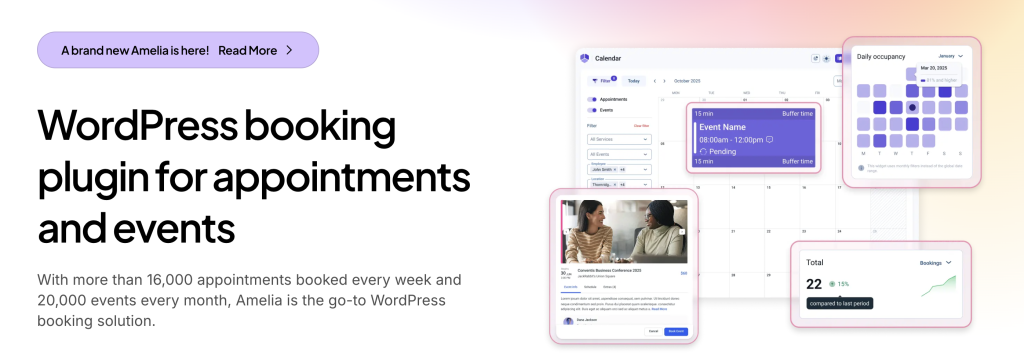
This is why you need a proper WordPress booking plugin, such as Amelia. A tool like that handles appointments, events, staff availability, automated reminders, and payments directly inside WordPress. So instead of sending clients to a third-party scheduling platform, everything happens on your site.
You can set up:
- Booking for both appointments and events
- Real-time availability management for staff or resources
- Notifications and reminders for clients
- Group booking, recurring services, and custom pricing
- Payment processing via Stripe, PayPal, and other gateways
One more thing: you should think beyond today. Maybe you only offer one service right now. Simple setup. But what happens when you add workshops? Classes? Multiple staff members? Subscription-based services?
If your booking system can’t handle growth, you’ll end up migrating later. And migrations are rarely fun.
When choosing a booking plugin, ask yourself:
- Can this scale if my business grows?
- Can I easily adjust schedules, services, and pricing?
- Does it automate confirmations and reminders so I’m not chasing people?
- Is the booking flow clean on mobile?
A good booking system should reduce admin work, not create more of it. It should make things smoother for you and for your clients. If it feels complicated during setup, imagine how it’ll feel six months from now.
Data & reporting
Not every website is just pages and blog posts. Some sites revolve around data. Listings. Directories. Pricing comparisons. Internal dashboards. Reports that actually change over time.
And this is usually where things start to get messy.
You could build static tables on individual pages. You could manually update them every time something changes. But let’s be honest, that simply doesn’t scale. The moment your data grows, it becomes a maintenance nightmare.
That’s where a WordPress table plugin like wpDataTables makes sense. It lets you create tables, charts, and reports from structured data sources, then display them in a way that users can actually interact with. They can sort, filter, search, and navigate large datasets without you rebuilding layouts every time you update information.
This is especially useful for business directories, product or service comparison tables, real estate listings, financial or performance reports, and internal dashboards.
Instead of designing each data view manually, you structure the data once and reuse it. That’s the difference.
And because it integrates with builders and other plugins, you can keep your design consistent while the data itself stays dynamic. If your website depends on structured information, treat it like structured information. Don’t fake it with static layouts.
Other essential plugins
Now, beyond forms, booking, and data, there are a few plugins that almost every WordPress site needs. Not because they’re trendy, but because they solve real problems.
SEO
If search traffic matters (and it usually does), use a tool like Yoast or Rank Math. They help you manage page titles, meta descriptions, sitemaps, and basic technical SEO without needing to dig into code. It’s not magic. But it gives you control.
Caching & performance
Speed matters. A lot. Plugins like WP Rocket or NitroPack help optimize how your site loads — caching pages, reducing unnecessary file size, improving delivery. Without performance optimization, even a well-built site can feel slow.
Security
WordPress is popular, which means it’s a target. Tools like Wordfence or Sucuri monitor suspicious activity, block common attacks, and give you visibility into what’s happening behind the scenes. You don’t need to panic, but you need to secure your WordPress site.
Backups
This is the one people ignore until something breaks. Updates conflict. Plugins crash. Someone deletes the wrong thing. A backup plugin like UpdraftPlus or BlogVault makes sure you can restore your site quickly instead of rebuilding it from scratch.
Structure Content and Data
Image by vectorjuice on Freepik
This is the part most people skip. They start building pages. Add blog posts. Maybe install a plugin or two. And everything looks fine at first. But then the site grows.
Suddenly, you have 40 pages and 120 blog posts. A few landing pages that don’t quite fit anywhere. Some content duplicated because “it was easier”. Navigation starts feeling crowded and filtering doesn’t work the way it should.
The problem here is structure.
Pages, posts, and custom post types
WordPress gives you multiple ways to organize content and each one has a purpose.
Pages are best for static content like “About Us,” “Services,” or “Contact”. They don’t change often and usually form the backbone of your website.
Posts are for time-sensitive or regularly updated content like blogs, news updates, or announcements. They appear in reverse chronological order and can be grouped using categories and tags. If you’re publishing consistently, posts are your engine.
But here’s where things get interesting.
If your site includes structured content like properties, team members, case studies, events, courses, or directory listings, posts and pages aren’t enough.
You need custom post types (CPTs).
Instead of forcing everything into blog posts, you can create dedicated content types. For example, if you have a real estate site, you can have a custom post type called “Properties”. Similarly, a portfolio site can have “Projects,” and a directory can have “Listings”.
Now each content type has its own structure, fields, filters, and display rules.
Taxonomies, categories, and tags
Structure doesn’t stop at content types. It continues with how you group and filter them.
Categories group similar content together and organize major topics. For example, a blog might have categories for “Tutorials,” “Case Studies,” and “News”.
Tags are more specific. They label details within content. Let’s say you have a tutorial about SEO. You could have tags like “WordPress SEO,” “Keyword Research,” and “On-Page SEO”.
When you use custom post types, you can also create custom taxonomies. For instance, a directory of restaurants could have taxonomies for “Cuisine Type,” “Location,” and “Price Range”.
Structured taxonomies make it easier for users to find the content they need. They also improve SEO by creating clear content hierarchies and internal linking opportunities.
Planning Content Hierarchy
Before you add 50 pieces of content, pause.
Ask yourself:
- What are the primary sections of this site?
- What belongs in the main navigation?
- What content types will exist long-term?
- How will users filter or search through them?
Map it out.
Because when your blog grows from 10 posts to 1,000, a clear content hierarchy is the only thing standing between “easy to navigate” and “impossible to find anything”.
Integrate Third-Party Tools

At some point, your WordPress site will need more than just pages and plugins. Maybe you want to capture leads, track user behavior, or process payments. That’s why you’ll need third-party tools.
These integrations let your site do more without having to hire a developer for every little feature. Done right, they make your workflow smoother, your reporting smarter, and your users happier. Done wrong… well, missing data, random bugs, inconsistencies, and hick-ups are just the beginning.
Marketing tools
If you’re running a business site or a blog, marketing tools aren’t optional. They’re how you reach people, stay in touch, and turn visitors into leads or customers.
Email marketing: Connect tools like Mailchimp, ActiveCampaign, or ConvertKit to capture leads and send newsletters straight from your site.
CRMs: Integrate your WordPress forms with platforms like HubSpot or Salesforce so every submission lands where it belongs.
Automation: Automation tools can handle repetitive tasks: follow-up emails, notifications, segmentation, or tagging based on user behavior. Once set up, you save hours every week.
Payment gateways
If you sell anything, products, bookings, or subscriptions, you need reliable payment options. WordPress supports popular payment processors including:
- Stripe – for credit card payments, subscriptions, and one-time transactions.
- PayPal – still widely used, especially for international payments.
- Mollie – great if you need multiple currencies or local European payment options.
Analytics and tracking
You can’t improve what you don’t measure. Analytics tools tell you what’s working, what’s confusing, and where people drop off.
- Google Analytics 4 (GA4): Track page views, user behavior, conversion events, and engagement metrics.
- Google Search Console (GSC): Monitor search performance, indexing issues, and website health.
- Other tracking tools like Hotjar, Crazy Egg, or ad pixels help you see behavior in real time and optimize user experience.
Connecting these tools properly gives you actionable insights, which then help you spot bottlenecks, measure campaigns, and make smarter decisions.
Optimize for Performance
You probably already know this, but it’s worth saying again: a slow website is a killer. Visitors leave. Conversions drop. Google notices. Basically, if your site is slow, nothing else really matters. Performance isn’t just a “nice-to-have,” it’s a must.
Page load speed
Pages that take forever to load frustrate everyone. The usual suspects? Huge images, messy code, and too many plugins/scripts running at the same time.
There are a few ways to fix this.
Begin by compressing images using plugins like Smush or ShortPixel. Use the correct formats (WebP for photos, SVG for icons). Next, make sure you minify CSS, JavaScript, and HTML. Cut unnecessary scripts or plugins that aren’t actually doing anything useful. Also, implement caching through plugins like WP Rocket or LiteSpeed Cache. Cached pages load faster because they are served directly to users without reprocessing on every request.
Mobile responsiveness
Over 60% of all web traffic comes from phones. So if your site doesn’t look right or breaks on mobile, you’re losing people before they even read your copy.
Check how your pages scale. Test buttons, menus, and forms. Builders like WPBakery let you tweak layouts separately for desktop, tablet, and mobile, so make good use of it.
And yes, check touch targets, font sizes, and spacing. People are impatient; if they can’t tap something easily, they move on.
Core Web Vitals
Google’s Core Web Vitals measure exactly how users experience your site. Three things to keep an eye on:
- LCP (Largest Contentful Paint): Time it takes for the main content to appear. Optimize images, server response, and render-blocking resources.
- CLS (Cumulative Layout Shift): Stability of the layout while the page loads. Avoid elements that shift unexpectedly, like ads or slow-loading images.
- INP (Interaction to Next Paint): How quickly the site responds to user interactions. Minimize heavy scripts and optimize JavaScript performance.
Use tools like Google PageSpeed Insights or Lighthouse to keep tabs. And don’t think of optimization as a one-off task; it’s ongoing. Every new plugin, page, or feature can affect speed.
Enhance User Experience
Image by vector4stock on Freepik
You can have a super-fast, beautifully designed site, but if people can’t find what they need, it doesn’t matter. UX (or user experience) is all about making your site easy to use and clear.
Clear navigation and hierarchy
Organize pages in a logical structure. Use main menus, submenus, and breadcrumbs to tell people where they are and how to get where they want. Group related content and services together. Include clear call-to-actions (CTAs) like “Book Now,” “Get Your Copy,” or “Subscribe” to guide users. If someone has to hunt for information, you’ve already lost them.
Visual consistency
Maintain a consistent design throughout the site. Use uniform colors, fonts, and button styles. Don’t make users guess what’s clickable or why one page looks different from another. Consistency makes your site feel professional and keeps the focus on your content, not your layout.
Whitespace and layout
Whitespace isn’t wasted space; it’s your friend. Give text, headings, and images room to breathe. Cluttered pages overwhelm users and make scanning impossible. Proper spacing makes your site easier to read and less stressful to navigate.
Accessibility compliance
Ensure the site is usable by everyone, including people with disabilities. Add alt text to images, write descriptive link text, make sure colors contrast enough to read easily, and support keyboard navigation.
Accessibility isn’t just ethical, it’s also very practical. A site that works for everyone keeps more visitors engaged.
Optional Advanced Blocks
Once you’ve got the basics down, you don’t have to stop there. WordPress can do a lot out of the box, but sometimes you need a little extra magic to make your site really work for your business. These advanced blocks are optional, but they can really extend what your site can do.
Memberships and subscriptions
Want to lock certain content behind a paywall? Offer premium access or recurring services? Membership or subscription plugins let you do that. They handle user roles, control who sees what, and even automate recurring payments. Basically, they turn your website into a smart, self-managing platform.
eCommerce or marketplace functionality
Selling products or services online? WooCommerce is your go-to. It adds product pages, shopping carts, payment gateways, and order management, which is basically everything you need to run an online store. Need a marketplace with multiple vendors? That’s possible too, with the right extensions.
Multilingual or multi-region sites
Got an audience in different countries or languages? Multilingual plugins let you translate content and handle regional differences. Users see the right language, pricing, and options for their region, without having to manually switch anything.
Custom integrations via API
Sometimes, you’ll need your website to connect with external systems such as CRMs, ERP software, or analytics platforms. WordPress supports custom API integrations, allowing data to flow between systems without manual intervention.
You can push and pull data automatically, connect workflows, and sync everything without touching spreadsheets or copy-pasting info.
Test, Iterate, and Maintain
Building the site is only half the battle. Once it’s live, you’ve got to make sure everything actually works. That means testing. All of it. Forms, bookings, payments, buttons, interactive bits — check them on different devices and browsers. Run a quick performance test to spot slow pages or heavy images.
Next, pay attention to how people actually use your site. Analytics aren’t just numbers, because they actually tell you what’s working, what’s confusing, and where visitors drop off. That insight is your ticket for figuring out what to tweak.
WordPress website maintenance isn’t glamorous, but it’s non-negotiable. Keep WordPress, your theme, and plugins up to date. Watch backups, security logs, and performance metrics. Catch problems early, before they turn into bigger headaches.
And don’t be afraid to iterate. Small changes over time, such as adjusting layouts, refreshing content, and improving load times, make a big difference. The site you launch is never the site you’ll keep forever. Treat it like a living project, and it’ll keep growing with you and your business.
Takeaways
Building a WordPress site isn’t just about picking a theme and installing plugins. The sites that actually last (meaning the ones that grow with you instead of breaking apart at the first change) are modular and flexible. That means keeping presentation, functionality, and data layers separate so you can swap things out or add new features without tearing the whole thing down.
Think about usability at every step. Make navigation clear, layouts intuitive, and content structured so people can actually find what they came for without getting lost. Friction kills engagement, so don’t let it sneak in.
Keep in mind that your site will grow over time. Custom post types, taxonomies, and the right plugins let your site scale with your content, audience, and business. And make sure your hosting, performance, and integrations can keep up, since changing platforms mid-growth is a headache you simply don’t need.
Don’t ignore maintenance. Keep themes and plugins updated, watch performance, and make sure backups are running. A well-maintained site isn’t flashy, but it saves you from emergencies and makes tweaking things faster and less painful.
If you put all these pieces together, you’ll get a WordPress site that doesn’t just work today, but always.