How to build fundraising pages using WPCharitable and WPBakery
Building a fundraising page is not hard. But getting people to donate is the real challenge. A good fundraising page is clear. It feels trustworthy. And it makes it easy to donate. Building a fundraising page is not hard, but getting people to donate is the real challenge. A good fundraising page is clear, feels trustworthy, and makes it easy for people to donate.
In this guide, you will learn how to build fundraising pages in WordPress. You will also learn how to set up a fundraising page using WPBakery, a popular page builder for WordPress.
We will use WPCharitable and WPBakery together, in which WPCharitable will handle donations, and WPBakery will help you design the page visually.
What makes a fundraising page effective
Most people do not read every word on a fundraising page; instead, they scan the page first and look for a clear message. Then, they look for signs that the fundraiser is real, and finally, they look for a simple way to donate.
If your page answers these questions fast, more people will take action.
It has one clear goal
A fundraising page works best when it has one main goal. That goal is getting a donation. If you add too many actions, people may stop and leave. Keep your main call to action simple and direct. A fundraising page works best when it has one main goal: getting a donation. Adding too many actions, people may stop and leave – it’s called the paradox of choice. Keep your main call to action simple and direct to evoke.
Good examples are:
- Donate now
- Support this cause
It tells a story people can understand
You do not need a long story. Need a real story that is easy to follow. Explain what happened, what is needed, and what the donation will do. Try to use simple details that make the cause feel real.
For example, you can say:
“Your donation helps provide meals to families this winter.”
You don’t need a long story, but a story that is real and easy to follow. Explain what happened, what is needed, and what the donation will do, the transformation. Try using simple details that make the cause feel connected, relevant, and real.
It builds trust
Trust is a big part of fundraising. People want to know their money is safe. They also want to know it will be used in the right way.
You can build trust by showing real details. Add your organization name. Add a short update. Add photos if you have them. If you can, share a way to contact you. Trust is a big (some would say essential) part of fundraising. People want to know their money is safe and that it will go for the right thing.
Trust is built by showing real details: your organization name, a short About and an update, photographs of real people – not stock ones are also helpful. If possible, share a way to contact you as well.
It makes donating easy
Your donation section should be easy to find. Do not hide it at the bottom of the page. Do not make people click through too many steps.
The easier it is to donate, the more donations you can get. Your donation section should be easy to find, so don’t hide it all the way at the bottom of the page. Don’t make people click through too many steps – it will only drive them away.
The golden rule of fundraising sites is this:
The easier it is to donate, the more donations you can get.
5 Essential elements every fundraising page needs
A fundraising page does not need a fancy design. It needs the right content in the right order.
When people land on your page, they should understand the cause quickly. They should also see how to donate without searching. A fundraising page is not about a fancy design; it just needs the right content in the right order. Because when people land on your page, they should understand the cause quickly and learn how and where to donate without searching.
A strong headline
Your headline is the first thing people notice. It should say what the fundraiser is for. It should also feel specific. Your headline is the first thing people notice and it should instantly state what the fundraiser is and who it is for. It should also feel specific.
For example:
- “Help us raise funds for school supplies.”
- “Support emergency shelter for families.”
A short description of the cause
Right under the headline, add a short paragraph. Tell people what the fundraiser is about. Keep it simple.
A good description answers these questions:
- Who needs help?
- What is the goal?
- Why does it matter now? Right under the headline is where a short paragraph, explaining the why – stating the problem, your solution and an urgent need for support, needs to be.
With that in mind, a good description answers these questions:
- What is the problem?
- Why does it matter now?
- What is your solution?
- How will their support make a difference?
- Why should people trust this campaign?
A donation form or donate button
This is the most important part of the page. Make it easy to find. Many people decide to donate in the first few seconds. If your story is longer, add a donate button near the top. You can also repeat the donate button later on the page. This section is the most important part of the page, so it needs to be instantly visible and impossible to miss. Many visitors decide whether to donate within the first few seconds of landing on the page so, if your story is longer, make sure to add a donate button near the top and repeat it later on the page.
The bottom line is, when someone feels ready to give, they shouldn’t have to search for how to do it.
A clear goal and progress
A goal gives your fundraiser a clear target. Progress can also motivate donors. It shows that other people are already supporting the cause. A well-defined, specific goal gives your fundraiser a clear direction and credibility. On top of that, showing progress is motivating and might just persuade people to donate when they see others have already contributed and supported that goal. Consider having a visible progress bar, current amount raised, maybe even the number of supporters, and similar triggers, to make the campaign feel active and supported.
Trust signals
Trust signals help people feel confident. They can be small, but they matter.
For example, you can add a photo, a short testimonial, or a simple update about the fundraiser. Progress bars and other above-mentioned tools are what are called trust signals. They are designed to help people feel confident and more willing to participate. Think of them as small signals that make a big difference, that can also include a photo connected to the cause, a short testimonial, or a simple update on how funds are being used.
How to set up a fundraising page in WordPress using WPBakery and WPCharitable
Now that you know what makes a fundraising page effective, it’s time to put it all into practice. And this is where WPCharitable and WPBakery fall into place. One handles the donations, the other shapes the page. Let’s walk through how to set everything up step by step.
Why these tools are a go-to choice for building fundraising pages on WordPress
WordPress is a practical choice for building fundraising pages. It gives you control over your content. It also lets you extend your site with plugins made for specific tasks. For fundraising, this means you can design the page and manage donations in one place.
WPBakery handles the page layout. It lets you build pages visually using rows, columns, and elements. You can see changes as you make them. This is helpful when you want to focus on clarity and structure instead of code.
WPCharitable handles donations and fundraising campaigns.
It is built for WordPress. It manages donation forms, campaigns, goals, and payments in the background. You do not need to build these features yourself.
Why WPCharitable works well with WPBakery
WPCharitable is built for WordPress pages. It is designed to work inside normal WordPress content, not as a separate system, and comes with quick setup for donation forms and campaigns. This makes it a good fit for page builders.
WPCharitable also includes an integration with WPBakery. This means you can add Charitable elements directly inside the WPBakery editor.
These elements include donation forms, campaign displays, and donate buttons. They appear and behave like native WPBakery elements.
You can place them inside rows and columns, move them around, and design the page around them without switching editors or relying only on shortcodes.
WPBakery controls how the page looks. WPCharitable controls how donations and campaigns work in the background. This clear split makes the setup easier to manage.
What you control in WPBakery and what Charitable manages
In WPBakery, you control the visual layout. You decide where sections appear. You adjust spacing, alignment, and content order. You control how the page looks on desktop and mobile.
In WPCharitable, you manage the fundraising logic. This includes campaigns, donation amounts, payment options, and form behavior. These settings work in the background and connect to the elements you place on the page.
Why these tools are a go-to choice for building fundraising pages on WordPress
If you’re already using WordPress, it makes sense to build your fundraising page there too. You want to keep control, not send traffic to a third-party platform and, that way, the campaign lives on your site, under your brand.
That’s the first advantage.
The second is how naturally WPCharitable and WPBakery divide the work.
WPBakery gives you control over the structure, the visual layout. You decide what people see first, decide where the donation form sits, shape the flow of attention: headline, message, proof, call to action. Everything is visual, so you’re focusing on clarity and hierarchy and not code.
WPCharitable is what handles the fundraising logic in the background. Campaigns, donation amounts, payment processing, goals – that part is already built. You’re not patching something together or forcing a form plugin to behave like a fundraising system – it already exists within this one and works perfectly with WPBakery.
Donation forms, campaign blocks, buttons behave like native WPBakery elements. You drop them into rows, move them around, design around them – just like any other element on the page.
By using these two plugins the whole setup becomes easier to manage and scale when (not if) needed.
Setting up the Charitable plugins and customizing fundraising pages with WPBakery and its elements
Once both plugins are installed, you can start building the fundraising page. Before starting, you have to set up your Charitable plugin. To do that, you can follow their Charitable setup wizard, which helps you configure the most important settings. It guides you through choosing who you are raising funds for, setting your base country and currency, enabling emails, connecting a payment gateway, as well as creating your first campaign.
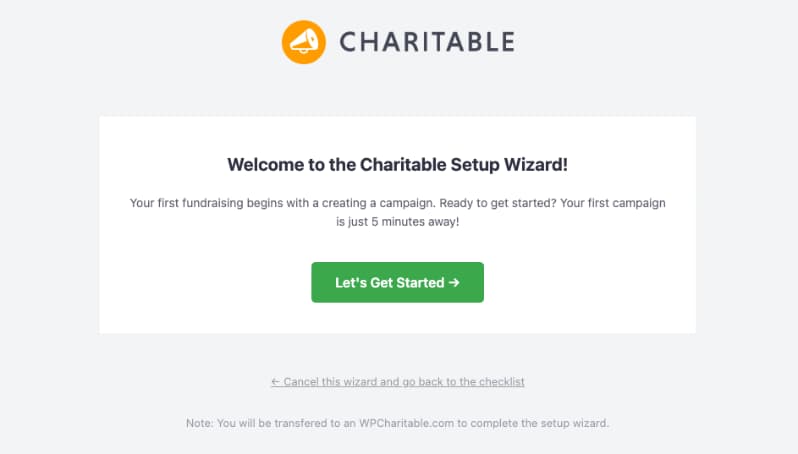
It only takes a few minutes and helps you avoid missing key settings.
Configure general settings
You can manage your main settings under Charitable » Settings in your WordPress dashboard.
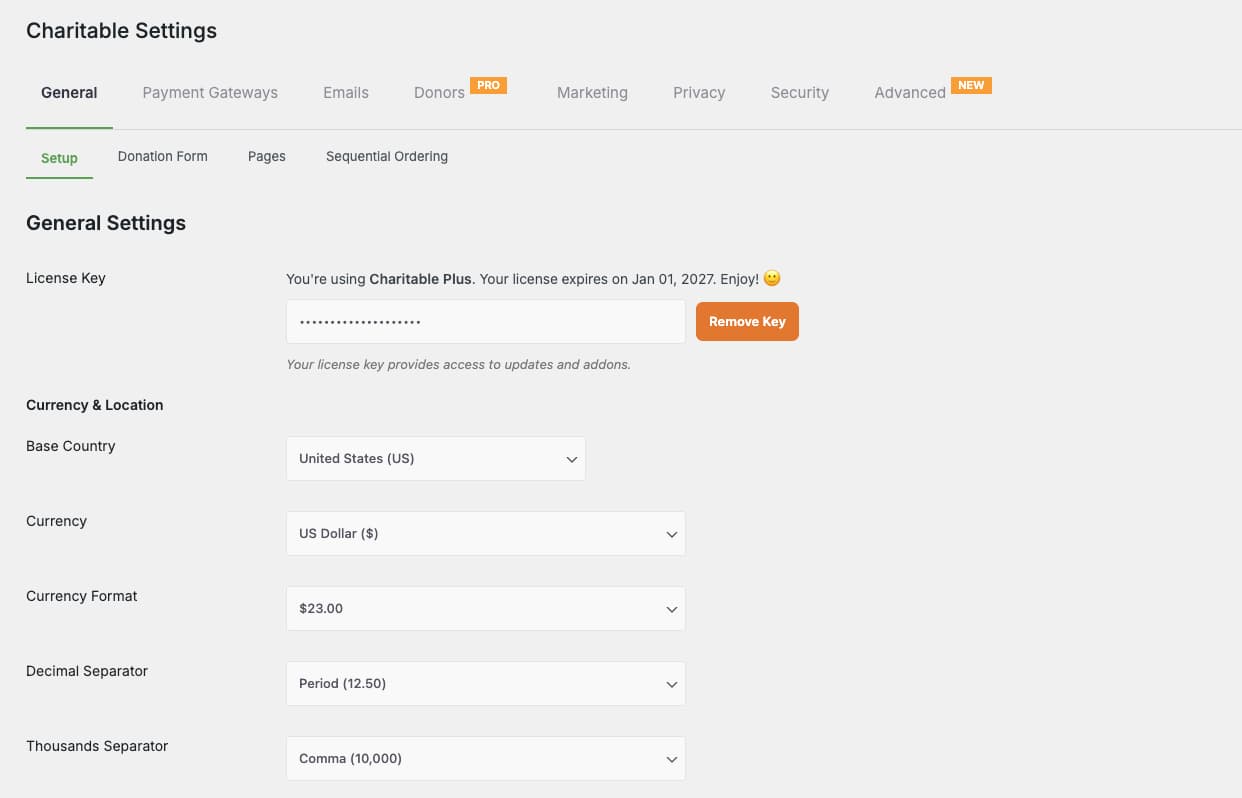
Here you can set your base country and currency and also control how donation forms appear on your campaigns.
For example, you can choose whether the donation form appears on the same page, on a separate page, or inside a modal. You can also choose a simple form template and limit fields to only required information for a faster donation experience.
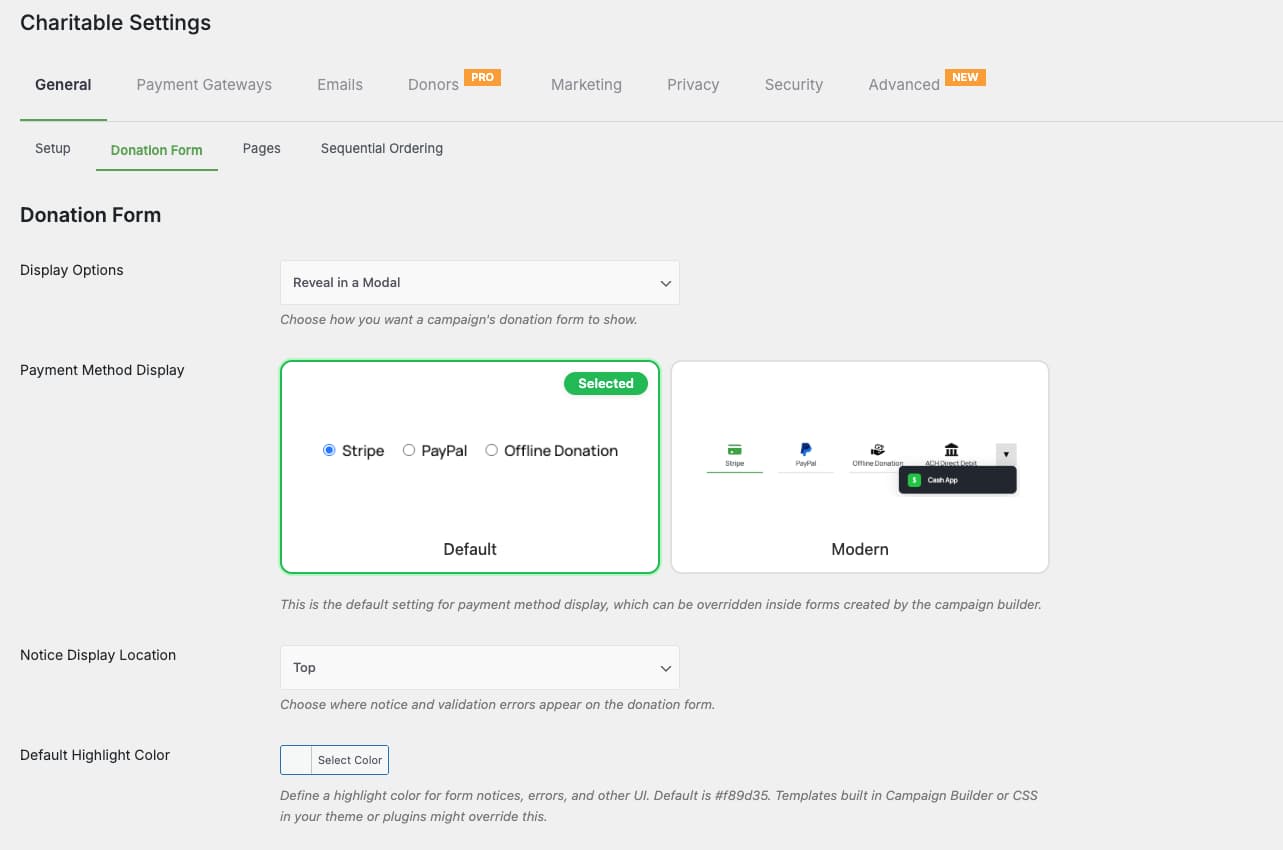
Charitable also creates important system pages for you, such as login, registration, donation receipt, privacy policy, and terms pages. You can keep the defaults or replace them later with custom pages.
Set up payment gateways
Charitable includes built-in payment gateways like Stripe, Square, PayPal, and offline donations.
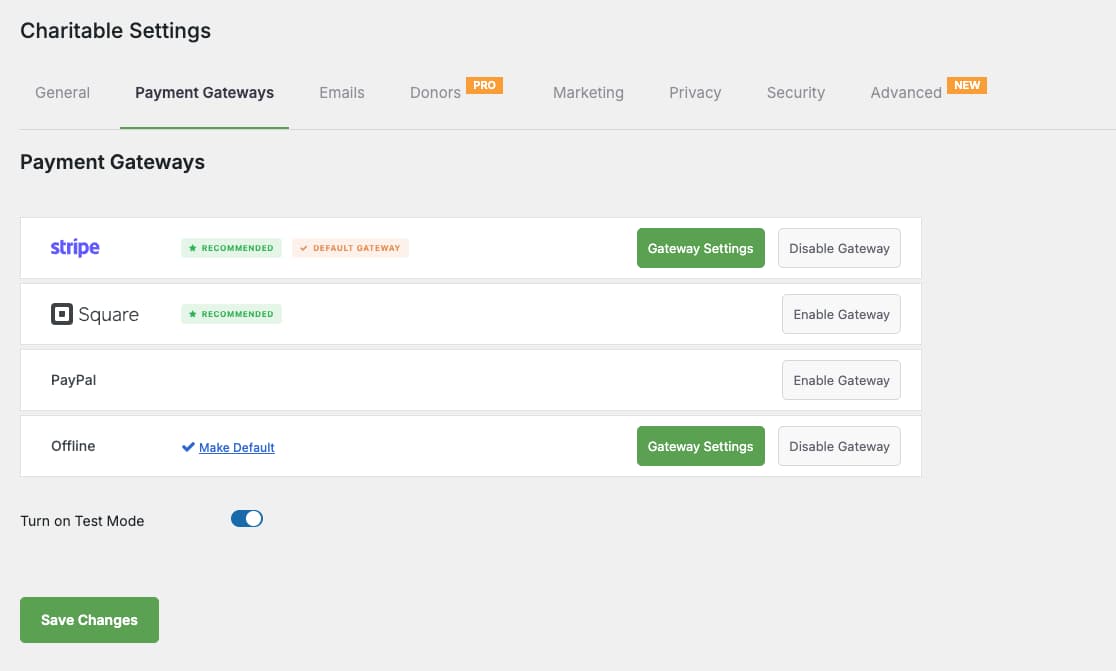
Stripe is enabled by default in test mode when you first install the plugin. Test mode allows you to simulate donations without processing real payments.
Before going live, make sure test mode is turned off, and your real API keys are connected.
You can choose which gateway appears first on your donation form. This is called the default gateway.
Enable email notifications
Charitable allows you to send automated emails to donors and administrators.
You can enable donation receipt emails, admin notifications, and other alerts inside Charitable » Settings » Emails.
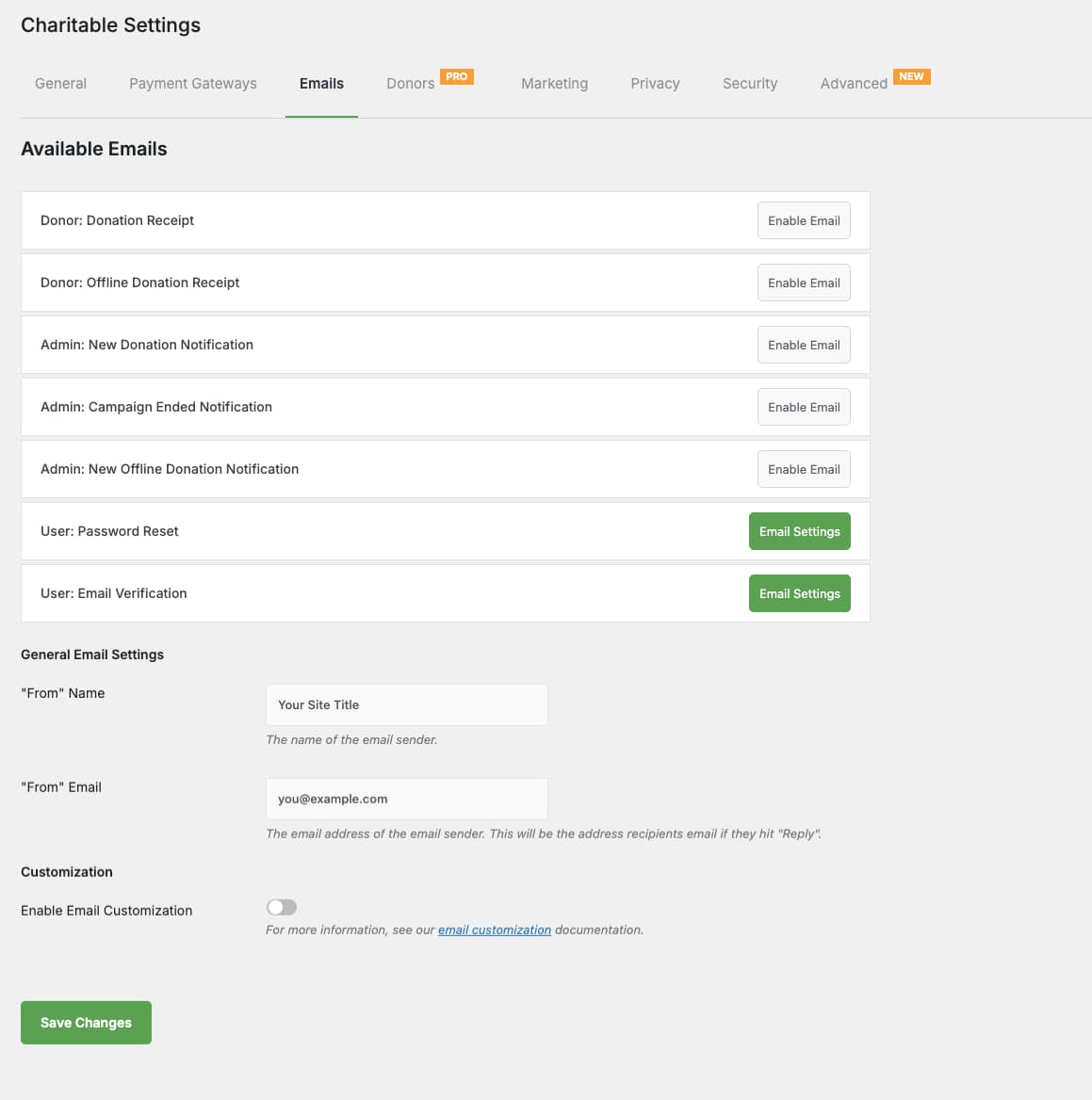
Each email can be customized. You can edit the subject line, headline, and message body and also use dynamic tags to insert donor details and donation information.
Preview your email before saving it to make sure it looks correct.
Create your first campaign
To create a campaign, go to Charitable » Add New Campaign.
You can choose a template or start with a simple layout.
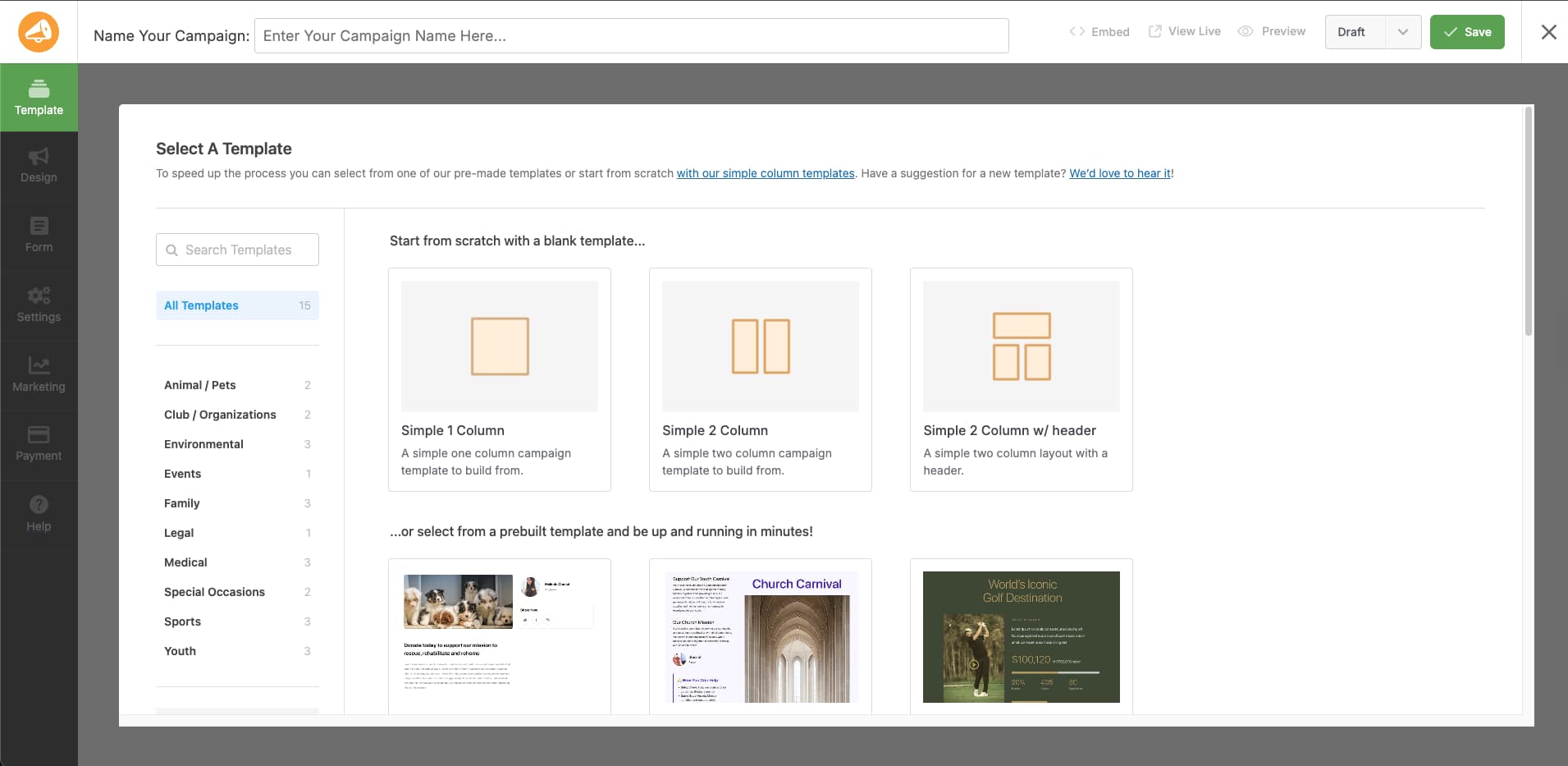
Inside the campaign builder, you can edit content directly in the preview area, drag and drop layout fields from the sidebar and adjust settings for each section.
In the campaign settings, you can set a fundraising goal, define an end date, and choose donation options.
When you are ready, save the campaign as a draft or publish it to make it live.
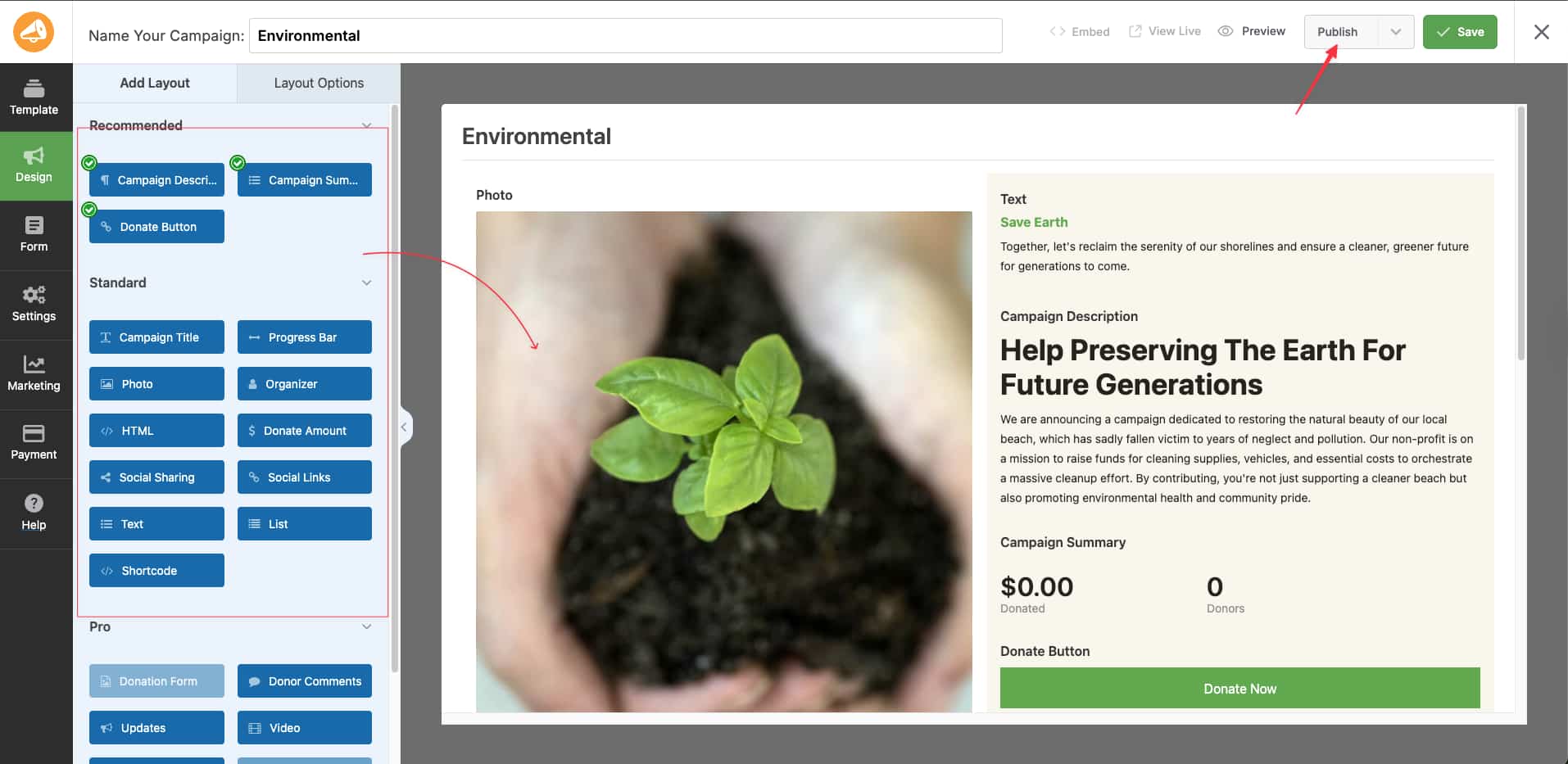
Once your campaign is live, you can place it on your fundraising page using WPBakery elements.
Create a fundraising page with the Charitable Campaign element
Use the Charitable Campaign element when you want to highlight one specific fundraiser.
This works well for a dedicated campaign page or a featured section on your homepage.
Step 1: Create a new page
Go to Pages » Add New in your WordPress dashboard.
Click “Edit with WPBakery.”
Step 2: Add the Charitable Campaign element
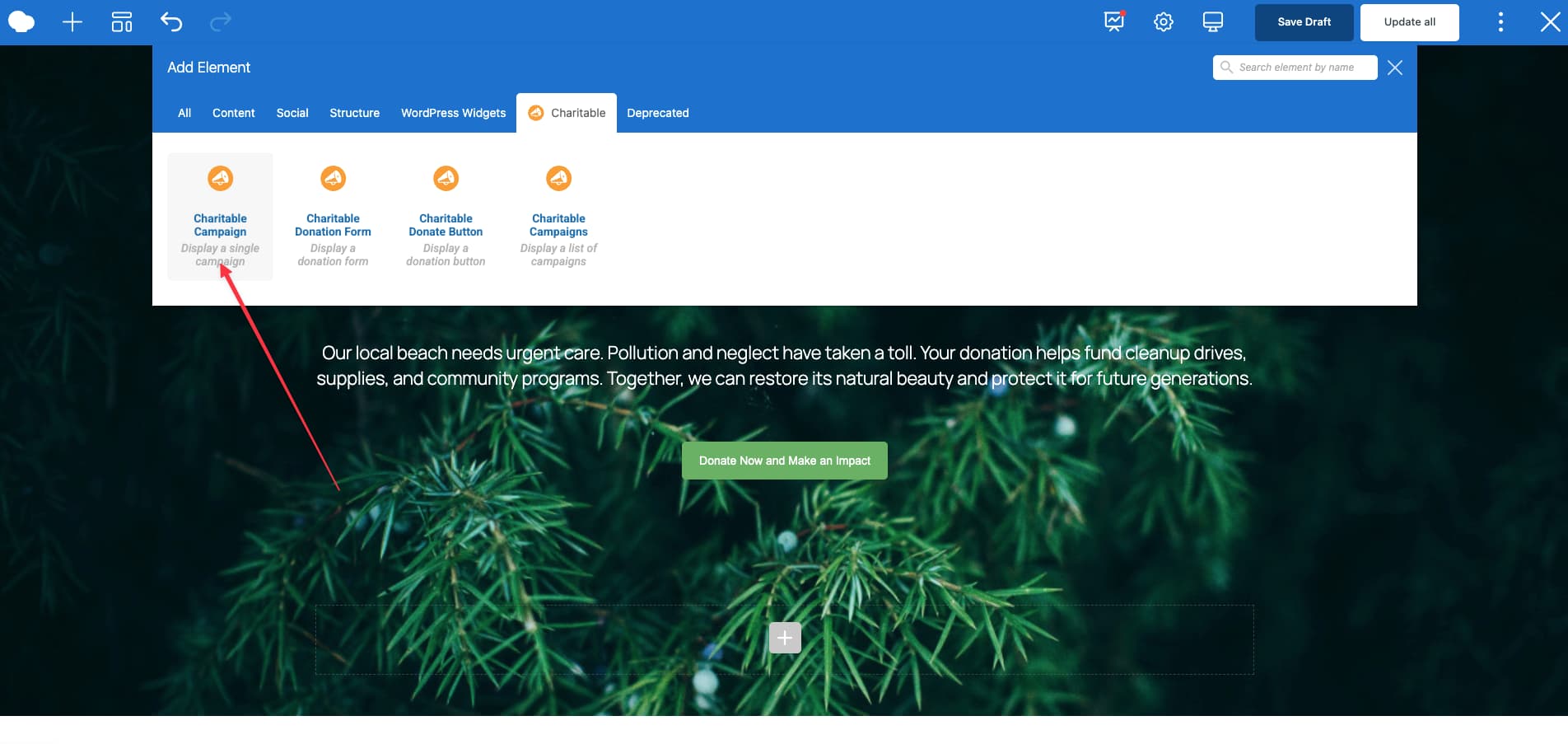
Click the “+” button inside WPBakery. Open the “Charitable” category. Select Charitable Campaign.
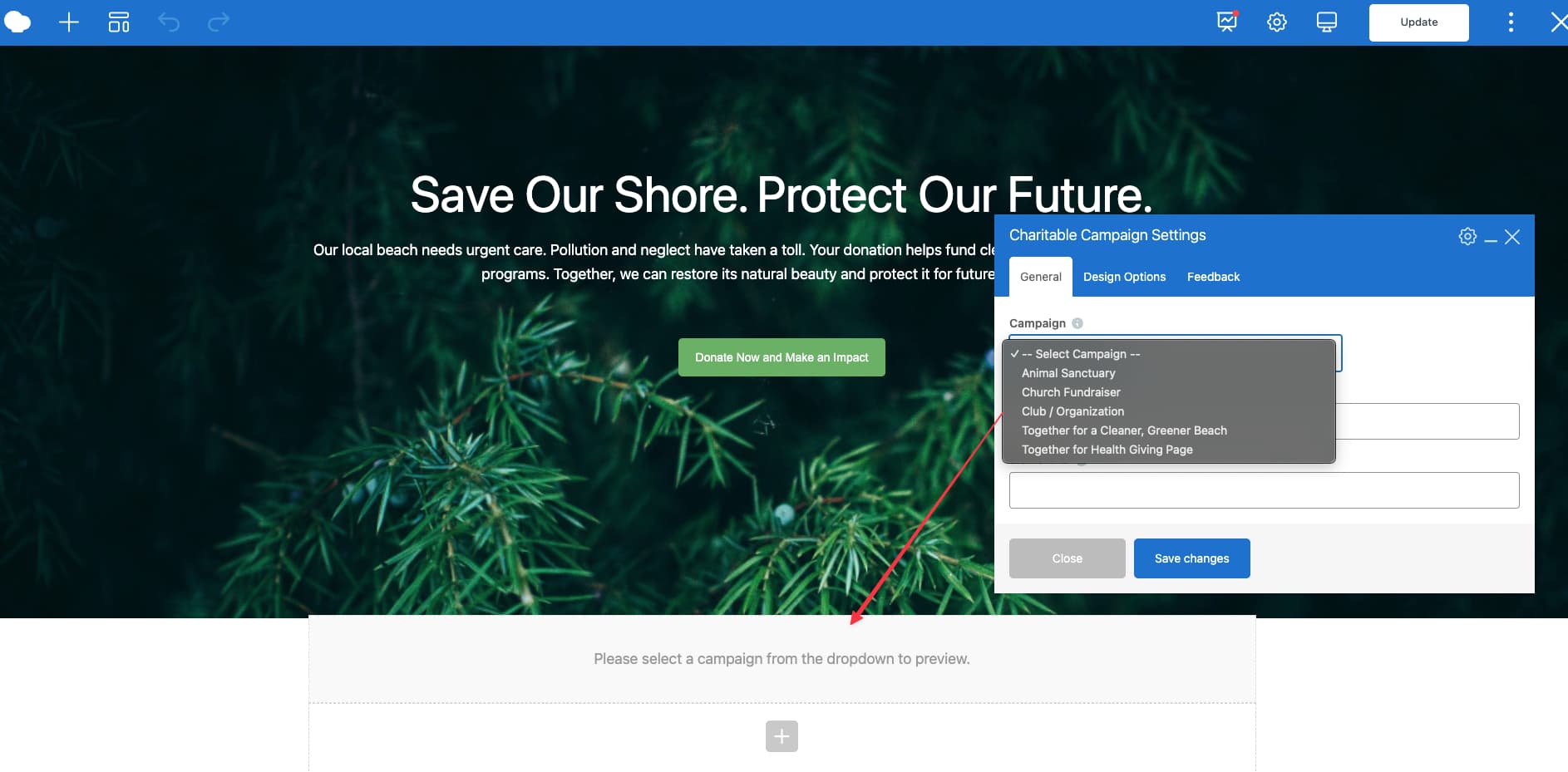
Choose the campaign you want to display from the dropdown menu. Only published campaigns will appear.
Step 3: Adjust layout and styling
After placing the element inside a row, you can use WPBakery’s Design Options to adjust spacing, margins, and background color.
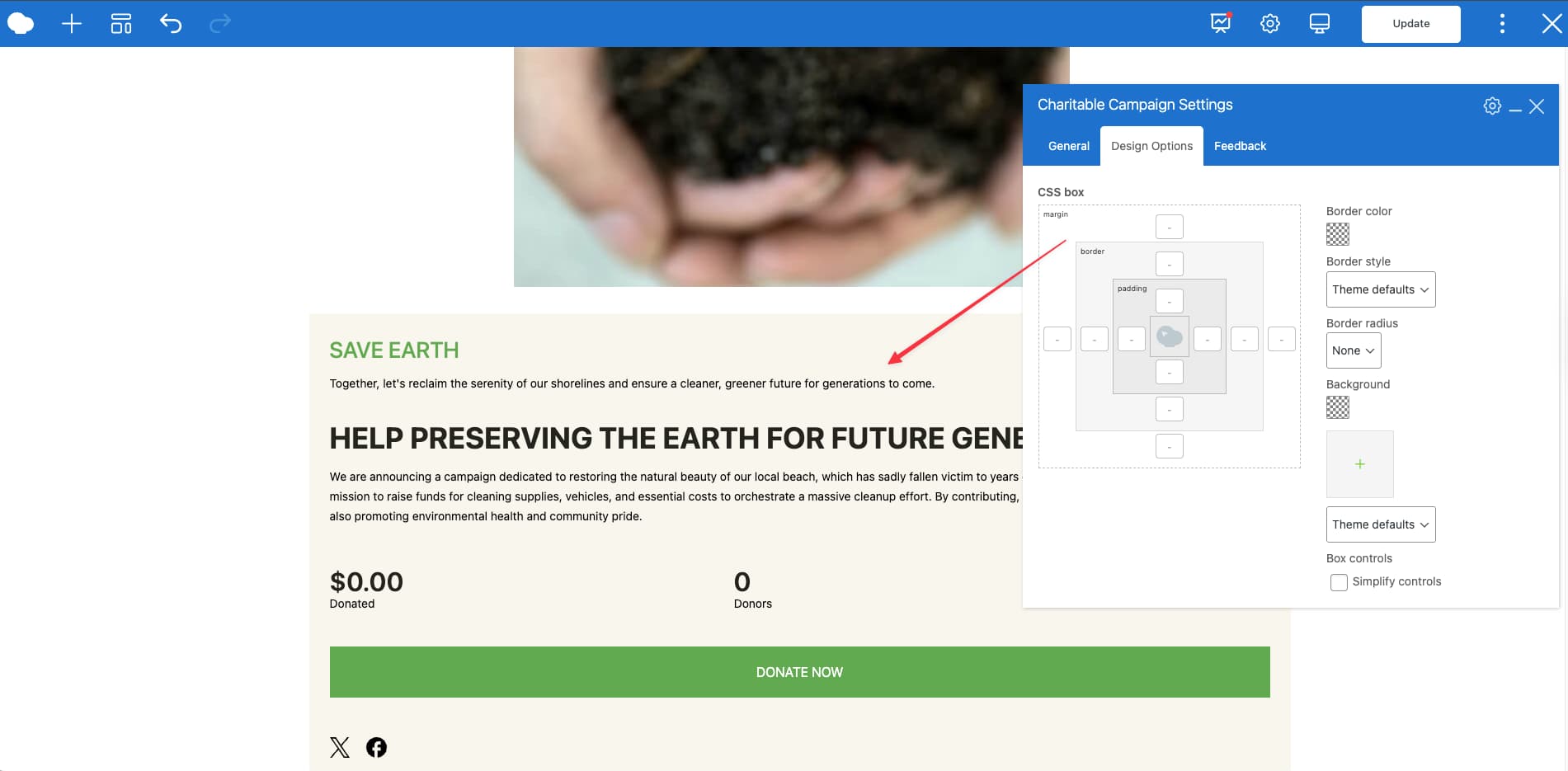
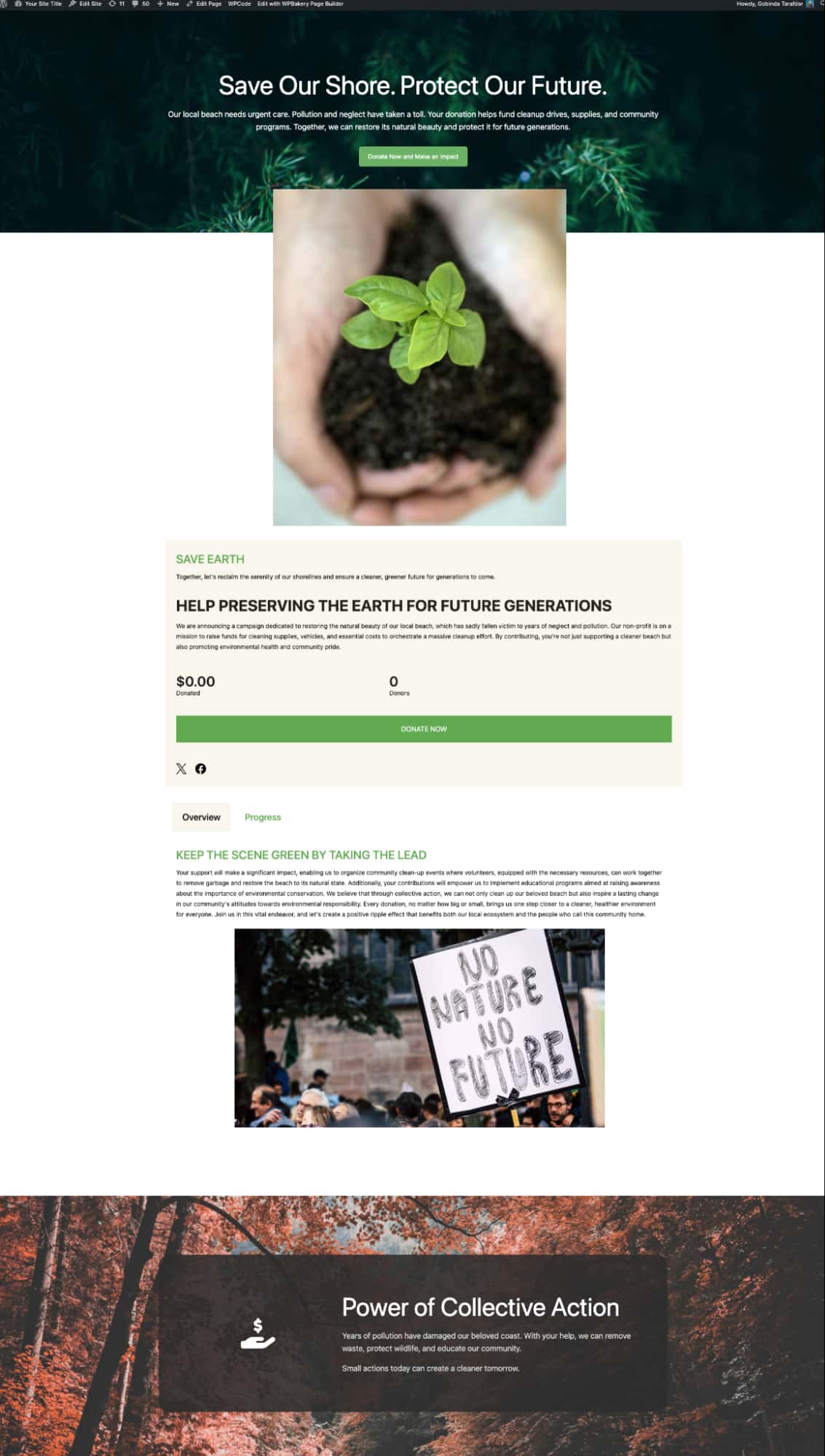
The element will display the full campaign template, including description, progress bar, and other campaign details based on your campaign settings.
Save the page and preview it on the frontend to see the full campaign layout.
Display multiple campaigns using the Charitable Campaigns element
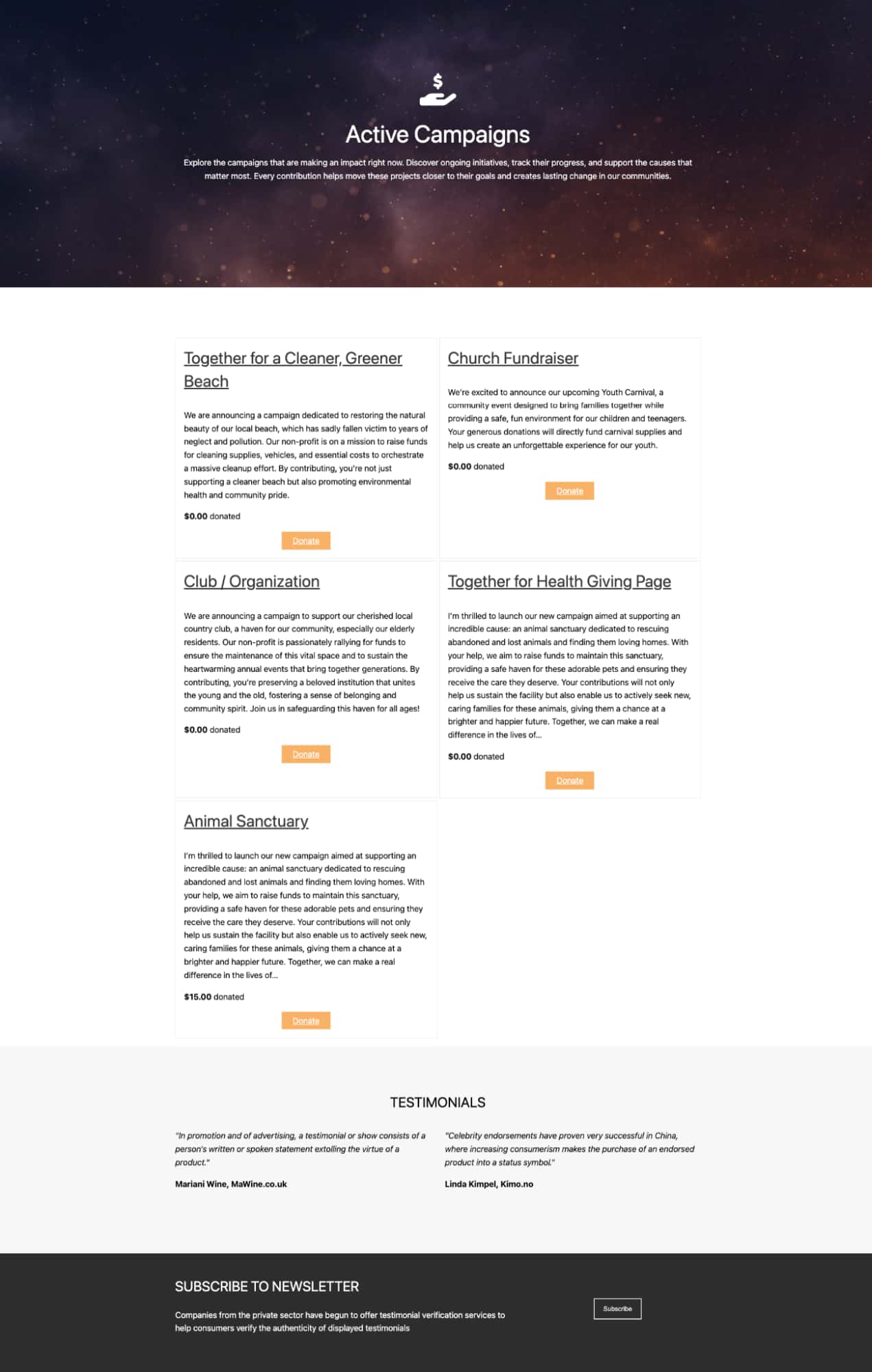
If your site runs more than one fundraiser, you can show them in a grid or list layout. This is useful for a campaign archive page or a homepage section.
Step 1: Add the Charitable Campaigns element
Open your page in WPBakery. Click the “+” button and select Charitable Campaigns from the Charitable category.
Step 2: Configure display settings
Choose how many campaigns to show. Select the number of columns for the grid.
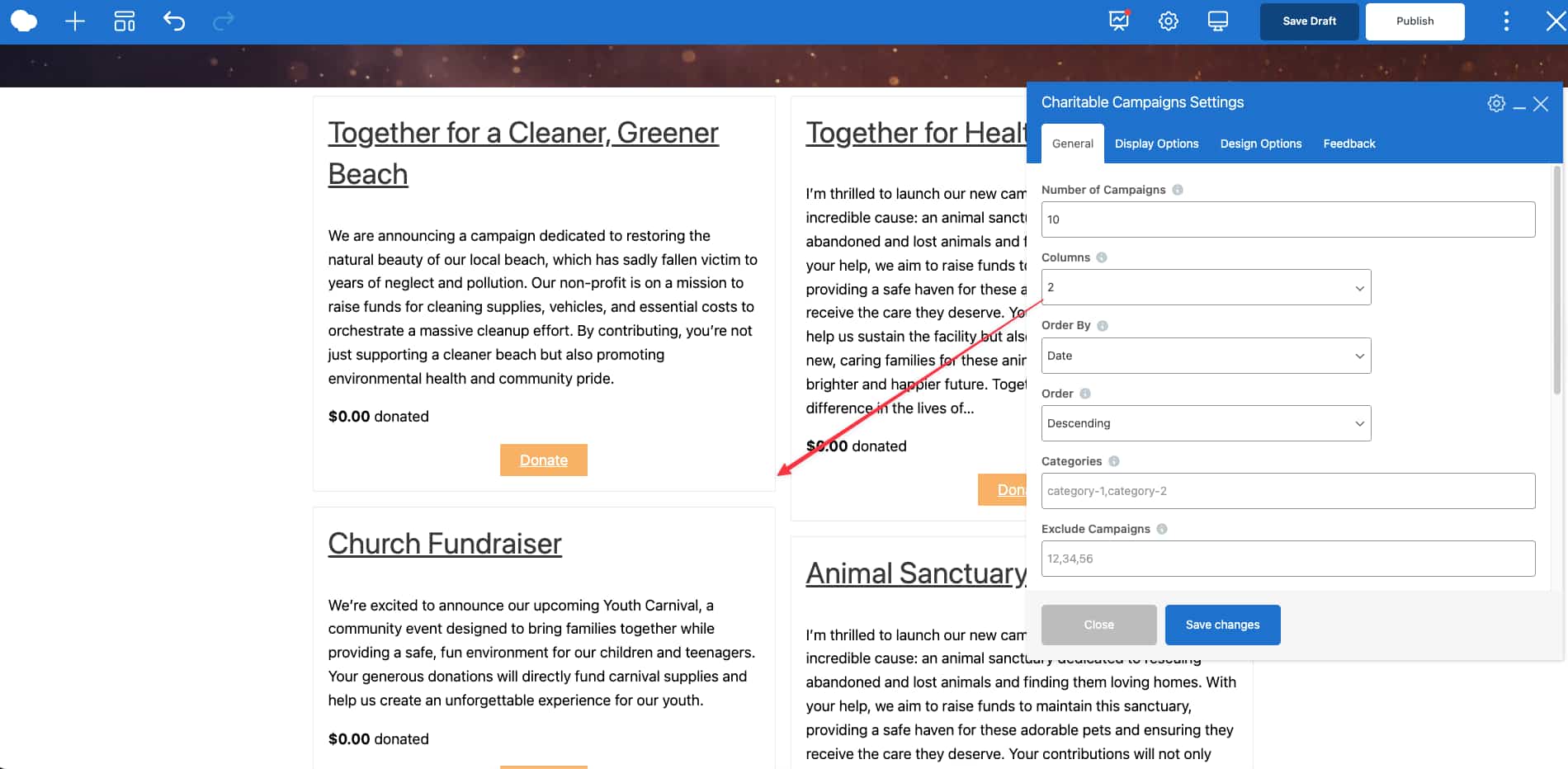
Choose how to sort them. You can order campaigns by date, popularity, ending soon, title, random order, or amount raised.
You can also filter by categories or tags if needed.
Step 3: Choose button display
You can show a Donate button, a Read More link, or no button on each campaign card. Adjust the description length if you want shorter previews.
Save and preview the page to confirm the layout looks correct on desktop and mobile.
Add a donation form to any page
Sometimes you want visitors to donate without leaving the page. In that case, you can use the Charitable Donation Form element.
Step 1: Insert the donation form element
Edit your page with WPBakery. Click the “+” button and choose Charitable Donation Form.
Select the campaign whose form you want to display.
Step 2: Position the form
Place the form near the top of the page or after a short introduction. Keep the surrounding area clean so the form stands out.
In the backend editor, the form appears as a preview. The full functionality is visible on the frontend.
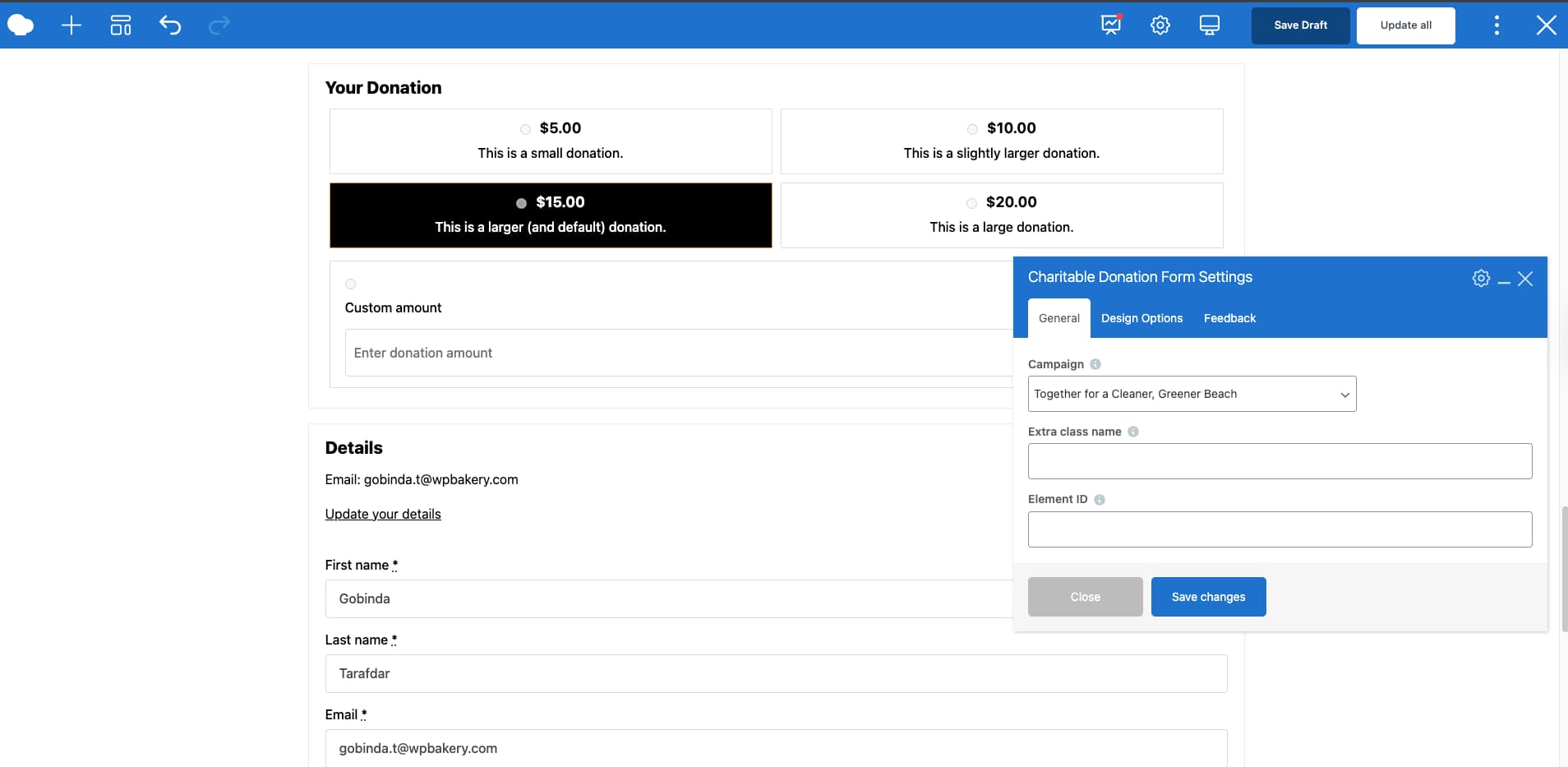
Always test the live page to confirm the donation process works as expected.
Add a donate button to any section
If you do not need a full form, you can add a simple donate button. This works well in call-to-action sections, banners, or sidebars.
Step 1: Insert the Charitable Donate Button element
Edit your page with WPBakery. Click the “+” button and select Charitable Donate Button.
Choose the campaign the button should link to.
Step 2: Customize button settings
Edit the button text if needed. Choose whether it appears as a styled button or a simple text link.
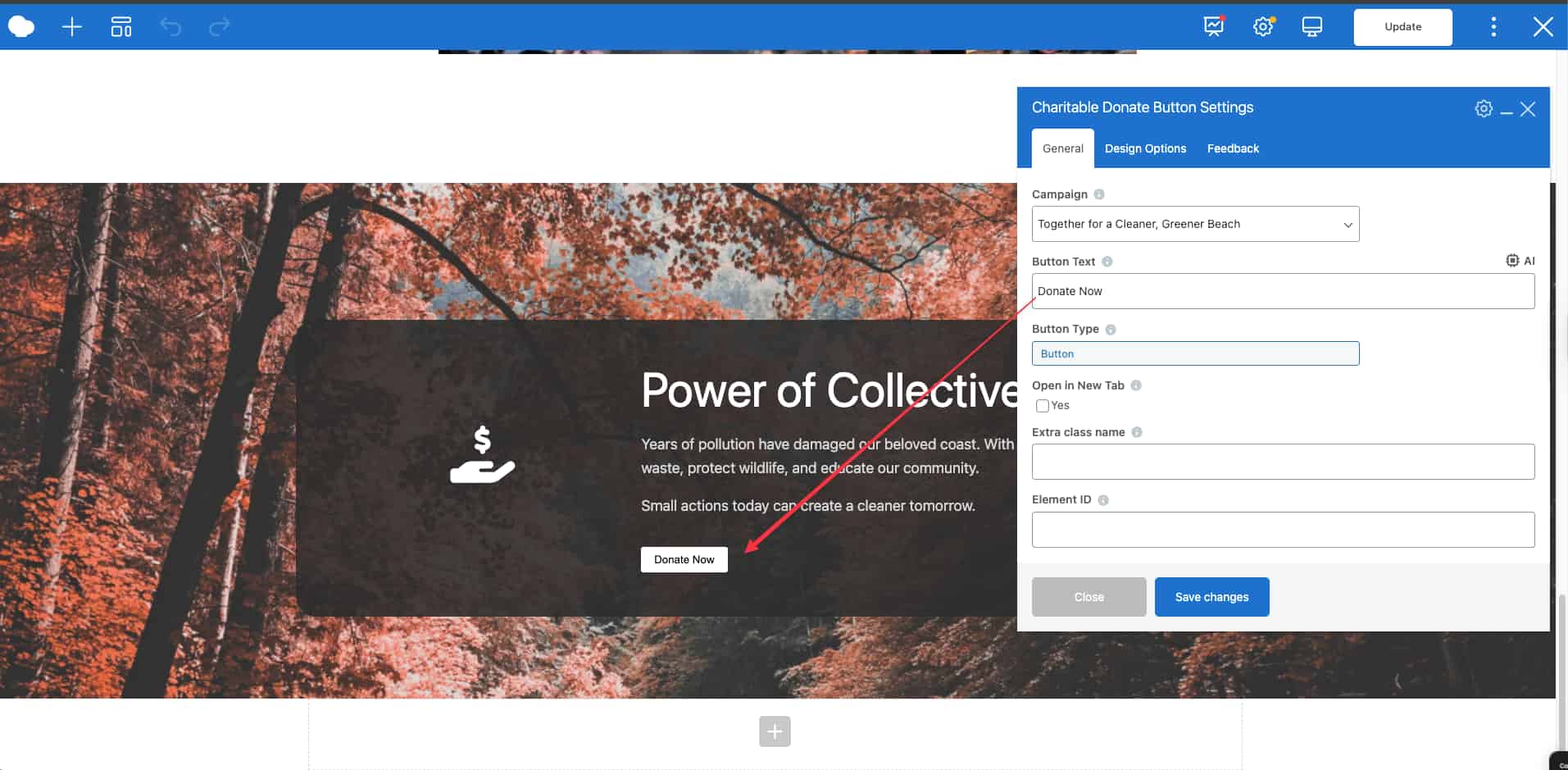
You can also choose to open the donation page in a new tab.
Use WPBakery’s Design Options to adjust spacing and alignment so the button fits your layout.
This is how you can add Charitable elements the same way you add other WPBakery elements and create lucrative fundraising pages.
Design tips to improve donations
Good design supports your message. It helps people read the page and encourage them to take action. You do not need a complex design to get donations, just aa page that feels clear and easy to use.
Keep the page easy to scan
Most people scan before they read so make sure to use short headings and small paragraphs and add space between sections.
This makes the page feel calm and professional.
Use clear calls to action
Your call to action should be direct. Avoid vague text like “Click here”.
Use donation-focused CTAs like:
- Donate now
- Help today
- Support this fundraiser
Make it mobile-friendly
Many people will donate from a phone. Before you publish, check your page on mobile – make sure buttons are easy to tap, and the form is easy to use.
Common mistakes to avoid
A few small mistakes can lower your donations. The good news is that most mistakes are easy to fix.
The page has too much text
Long pages can work. But long pages must be easy to scan. If your page feels heavy, shorten your paragraphs and break text into smaller sections.
The donation action is not clear
If people cannot see how to donate, they will leave. Make the donation form visible. Use clear donation buttons. Also, avoid weak calls to action like “Learn more”.
The page does not feel trustworthy
If people are unsure, they will not donate. Add a real name, a photo, and at least one update. Even small trust signals can make a big difference.
Real use cases
Here are simple examples of how fundraising pages are used in real sites like Volo Kids and the Play5K campaign by Volo Kids.
Campaign landing page
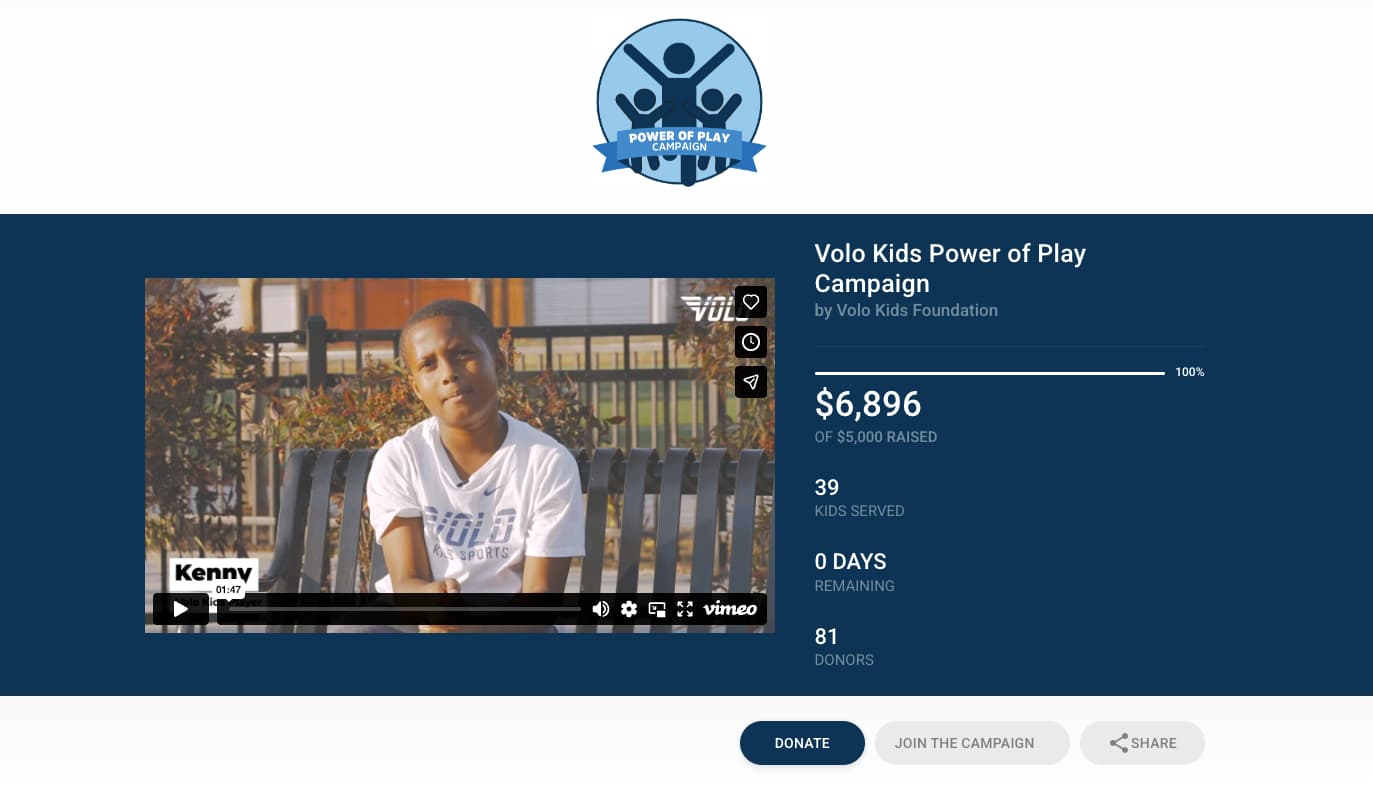
Source – Volo Kids Power of Play Campaign
This page supports one specific event or fundraiser. It highlights the campaign details, shows progress, and includes a donation form or button. The message stays focused on one goal.
Homepage donation button
On the Volo Kids website, a simple Donate button appears in the header and footer. It links directly to a dedicated donation form page.
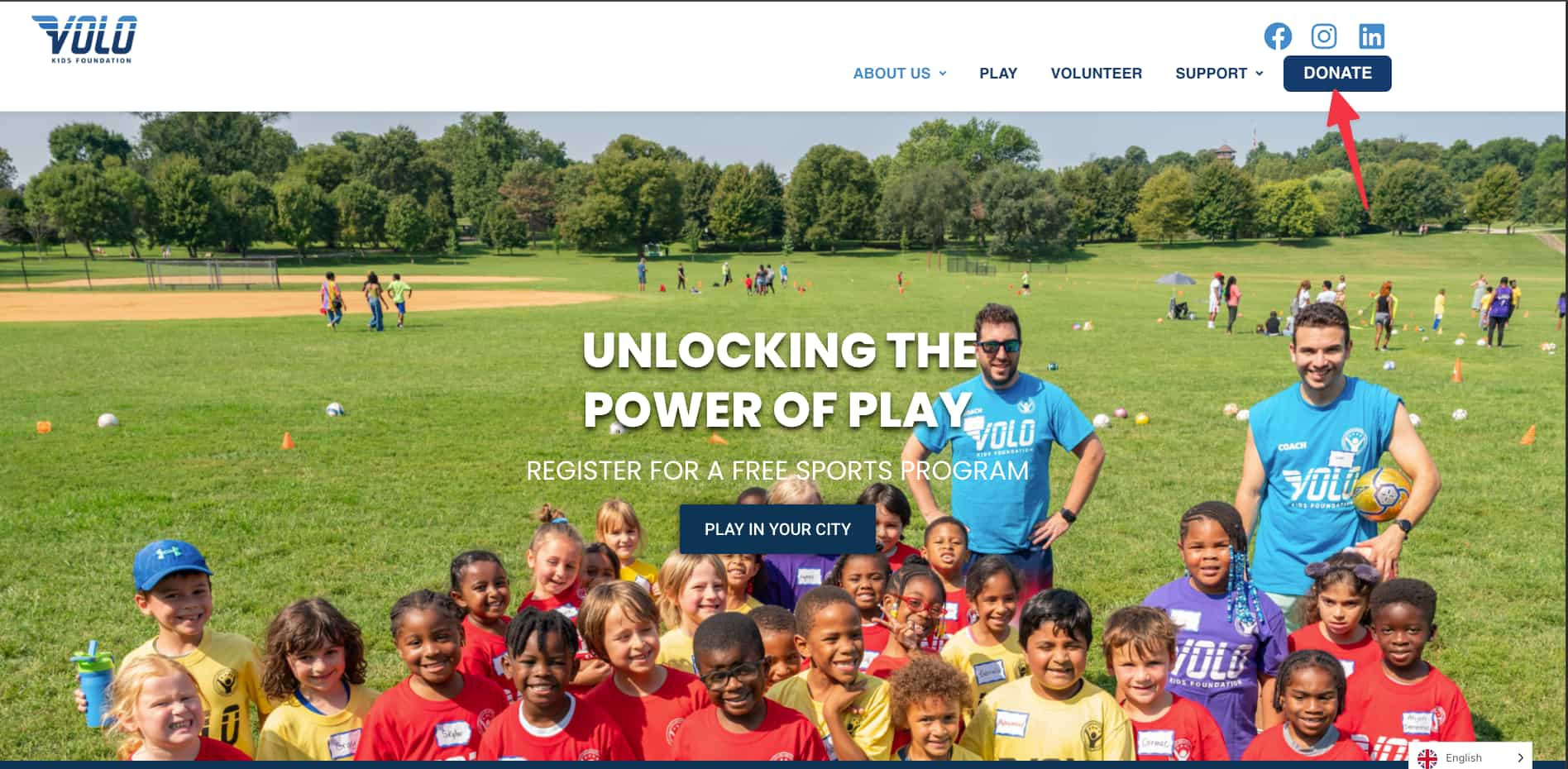
Source: volokids.org
This approach keeps the homepage clean while still making the donation action visible at all times.
In each case, the structure stays simple. The message is clear. The donation action is easy to find. And the good thing is, you can create the same setup with WPBakery and WPCharitable.
Next steps
Now you know how to build fundraising pages in WordPress. You also know how to set up a fundraising page using WPBakery and WPCharitable.
If you want to start today, follow this simple checklist.
First, build your layout in WPBakery. Then add your donation elements using WPCharitable. Finally, test the page before you share it.
Here is a quick checklist.
- Install WPBakery
- Install WPCharitable
- Create your fundraising page layout in WPBakery
- Add Charitable donation elements
- Test the page on mobile
- Publish and share
You can get started by having WPBakery here, exploring Charitable, and reviewing the WPBakery integration documentation to learn more.
