Top drag-and-drop website builder for beginners
Discover why WPBakery is a top drag-and-drop website builder for beginners who want to create modern responsive WordPress pages without coding.
Building a website for the first time can feel overwhelming – is what we realized while talking with newcomers to the WordPress environment. There are themes, plugins, hosting, layouts, responsive settings, technical phrases to understand before you even start thinking about the page, let alone publish it.
WPBakery removes one of the biggest barriers by letting beginners build and edit WordPress pages visually. So, instead of writing code, users work with familiar content elements, rows and columns and see how the page comes together as they build it. Here are some more details around it to help you make an informed decision before choosing the builder you’ll fall in love with 😊
Why drag-and-drop building is ideal for beginners
When building your first website, learning HTML, CSS or PHP shouldn’t be the thing standing in between you and your idea for a published page. By working with a drag-and-drop website builder, you can focus on what you want to say, how you want the page to look and what visitors should do next – without worrying about using the code.
Instead, you build the page from clear, understandable sections. Add a row, choose the column structure, place the content elements you need inside it, whether that’s text, an image, a button, a video, or something else. And that’s all you need to know and use to do so.
The drag-and-drop page builder helps you move elements around, edit content, duplicate a section you want to reuse, or remove something that no longer works. As you build, you start to see how all these elements work together to create a complete page and, in time, understand how websites are structured, which makes it easier to build.
WPBakery turns the WordPress editing experience into a whimsical visual building process that many first-timers love and appreciate. At least, that’s the feedback we’re getting – more and more now with our 9.0 release.
Why WPBakery is a top choice for beginners
One of the hardest parts when building a site for the first time is imagining how changes made in the editor will look on the actual page. WPBakery’s frontend editor removes much of that guesswork by letting you work directly on the page itself. You can click on a text block, image, button, or another element to update it, see the changes as you make them and move content to a different position without touching the code behind the page.
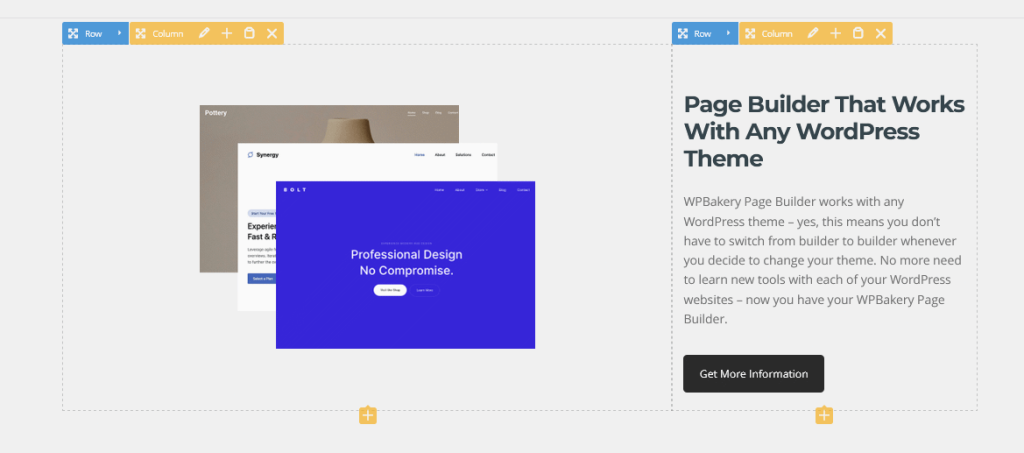
WPBakery Frontend Editor
So, instead of switching back and forth between the editor and the preview, you’re seeing how the page is coming together as you work and can adjust it along the way. As a result, you have less guessing, fewer unnecessary steps and a much clearer connection between what you change and what visitors will eventually see.
A visual editor that shows what you are building
WPBakery’s Frontend Editor lets you work on the page your visitors will eventually see, rather than building it through a separate screen full of code and settings.
With it, the structure becomes editable and by hovering over elements, rows and columns, you can open their editing controls. Once you save the change, you can see it in the context of the rest of the page instead of repeatedly switching between editing and previewing. WPBakery’s documentation explains how rows, columns and content elements work together, and how to add elements to the editing canvas.
You’ve changed your mind in the middle of building? No worries! Simply drag elements and columns into a new position, copy/paste rows and elements elsewhere on the same page, onto another page, or even between websites. See how drag and drop works in WPBakery and how to copy and paste rows and elements.
This means that every action within Frontend Editor has a visible result. You can add a section, see how it fits on the page, move it, edit it, or remove it and then continue from there. Instead of having to understand the code behind the layout, you learn how the page is put together by working with its actual building blocks. As simple as that!
A structured backend editor for a clear view of the entire page
WPBakery also includes a Backend Editor that lets you build and manage the page from the WordPress dashboard, as a clear structure of rows, columns, and content elements.
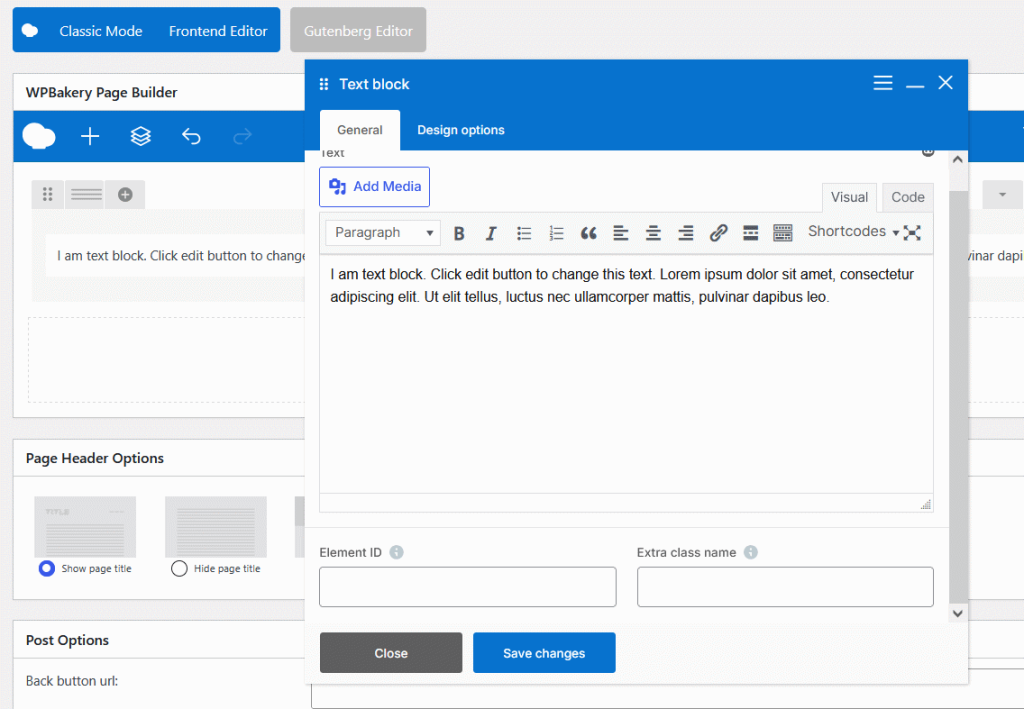
WPBakery Backend Editor
Each row represents a separate section of the page, with columns defining the layout, while elements (such as headings, text blocks, images, and buttons) indicate exactly where the content is placed. You can find a detailed explanation of how rows, columns and content elements work in WPBakery.
This type of view is particularly useful when working on longer pages (one-pagers and/or landing pages). Instead of scrolling through every image and paragraph as a visitor would see them, you can quickly identify the section you need and edit only the relevant element. Rows can also be collapsed to reduce the amount of content visible in the editor, giving you a cleaner overview of the complete layout. See the collapsible row feature in the Backend Editor.
Layouts can also be reused instead of rebuilt. WPBakery allows you to copy and paste complete rows or individual elements within the same page, between different pages and even between different websites. You could create a contact section once, duplicate it across several service pages and then adjust the text where necessary. The WPBakery Copy/Paste guide shows how this works in both editing modes.
Ready-to-use content elements
WPBakery comes with more than 50 ready-to-use content elements that you can add to a page from the Add Element window and place them inside any row or column.
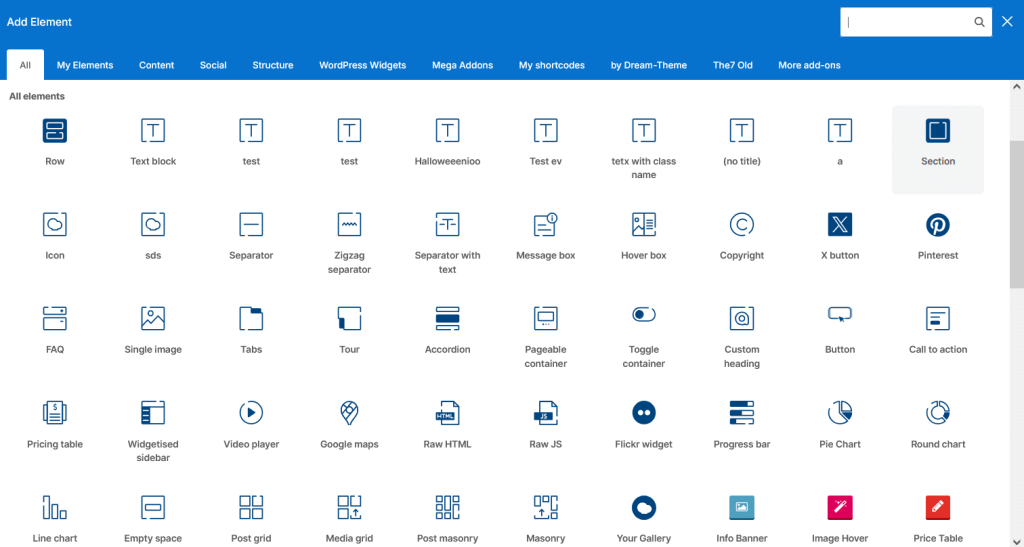
WPBakery Content Elements
The available elements cover both basic content and more advanced website sections. You can add text blocks and custom headings for written content, single images and image galleries for visuals, buttons and calls to action for important links, and video players for embedded video content. WPBakery also includes tabs and accordions for organizing larger amounts of information, post grids for displaying blog posts or other content and social elements for adding social sharing or links to your profiles. You’ll find the complete list in the WPBakery Content Elements documentation.
Templates make the first page easier
Knowing that, for many beginners, the hardest part is not learning how the editor works but what to put on a completely blank page and how to arrange it, we came up with the WPBakery Template Library. This feature gives you ready-made page layouts that you can add directly to your page or website and adapt them to your own content.
You can access the library through the Templates window inside the editor, preview the available layouts and download the one you want to use. The Template Library guide and video tutorial show the complete process.
Responsive controls for mobile-friendly pages
Responsiveness is still something that needs to be highlighted when building for a modern internet. Whatever type of page and/or site you’re building, you need to make sure it is properly usable across desktop, tablet, and mobile screen sizes.
WPBakery includes responsive settings that let you control how columns behave across all of it and you can easily define their width and offset for different devices, or hide the column completely on selected screen sizes. The responsive width and offset tutorial demonstrates how these controls work. Then, before publishing, you can use WPBakery’s responsive preview to switch between device views and check how the page will appear on different screen sizes. This allows you to identify crowded sections, awkward column arrangements, or excessive spacing while you are still editing. The responsive design preview tutorial shows how to review the page before it goes live.
Works inside WordPress
WPBakery is built specifically for WordPress and is designed to work with any properly coded WordPress theme, making it easy to use for your page or site building. The WPBakery installation guide shows how to add and activate it directly through the WordPress admin area. You can read more about WPBakery’s compatibility with WordPress themes and its broader theme support.
The same applies to plugins, too. WPBakery is compatible with widely used WordPress plugins, including WooCommerce and Rank Math SEO, and its functionality can also be extended through additional add-ons. The current compatibility information is available in the WPBakery pre-sales questions.
Try WPBakery before building your website
The best way to know whether a page builder feels right is to use it. With the WPBakery live demo, you can open the editor directly in WordPress and test the workflow before buying. Add content elements, move sections, edit text and images, explore the interface and see how the page comes together as you work.
If you are building your first WordPress website and want to see whether WPBakery suits the way you think and work, start there.
