7 common WPBakery issues and how to fix them
Over the years, we have seen some issues that are frequently reported by users. In this guide, we cover some of the most common WPBakery issues they report, including the frontend editor not loading, backend editor missing, elements not saving, custom CSS not applying, Template Library access problems, license activation errors and shortcodes showing on the frontend.
1. Frontend Editor not loading
This is one of the most commonly reported WPBakery issues that is being reported. In this case, the editor may keep spinning, fail to render or stop before the page becomes editable.

The most common cause to this scenario is a JavaScript conflict. Such a conflict can arise from either a theme or a third-party plugin. You can debug this by taking a site backup and then deactivating the plugins one by one while checking the issue. If deactivating any plugin loads the frontend editor correctly, then we can say with certainty that the conflict is arising from it. The same can be checked by switching to a default WordPress theme like Twenty Twenty-Five to avoid any conflicts arising from the theme.
A few other causes of such an issue can be the use of minification plugins or the use of outdated plugins/themes. Both of these can be identified using the above debugging method.
2. Backend Editor missing
Sometimes the WPBakery backend editor is completely or partially missing when the page/post is being edited. The most common cause of such an issue is that the backend editor is disabled for the particular user role or post type.
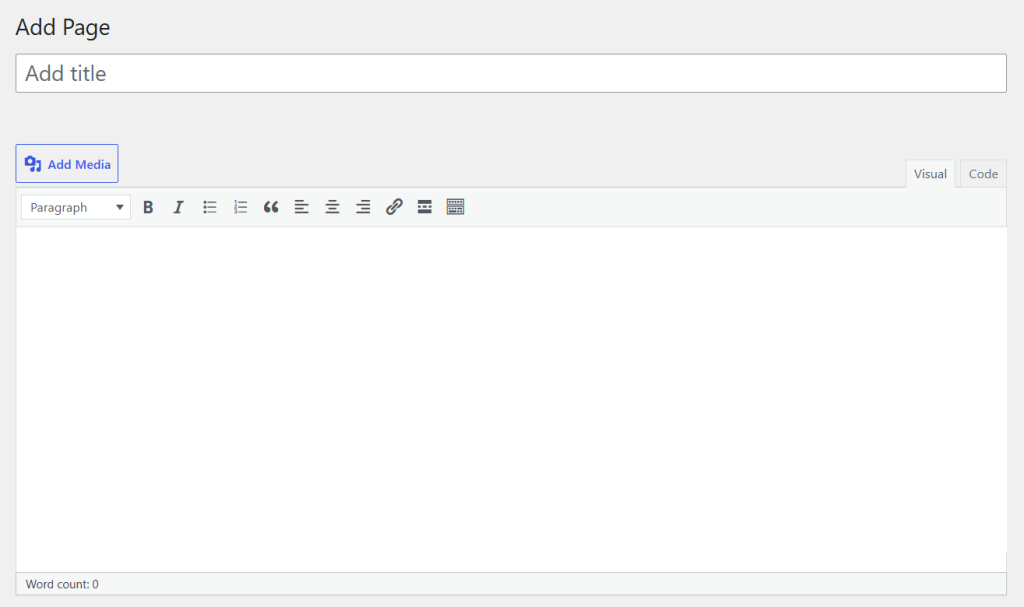
To solve both the above cases, you can check this under:
WPBakery Page Builder -> Role Manager.
From there, make sure WPBakery is enabled for the user role you are using and for the post type you want to edit, such as pages, posts, or custom post types.
Another common reason is that the Gutenberg editor is active. When enabled, it takes over the backend editing, and hence, the backend editor can be in a non-active state by default. In such a case, the Gutenberg editor can be disabled under:
WPBakery Page Builder -> General Settings -> Disable Gutenberg Editor.
This does not mean WPBakery and Gutenberg cannot work together. It simply depends on how your editing workflow is configured.
Lastly, If the backend editor is still missing, check for plugin conflicts, especially plugins that add another page builder, editor, admin interface, or custom editing experience. Temporarily deactivating those plugins can help identify the source of the conflict.
3. Elements not saving properly
In this case, the WPBakery element fails to save any changes that are being made to its settings.
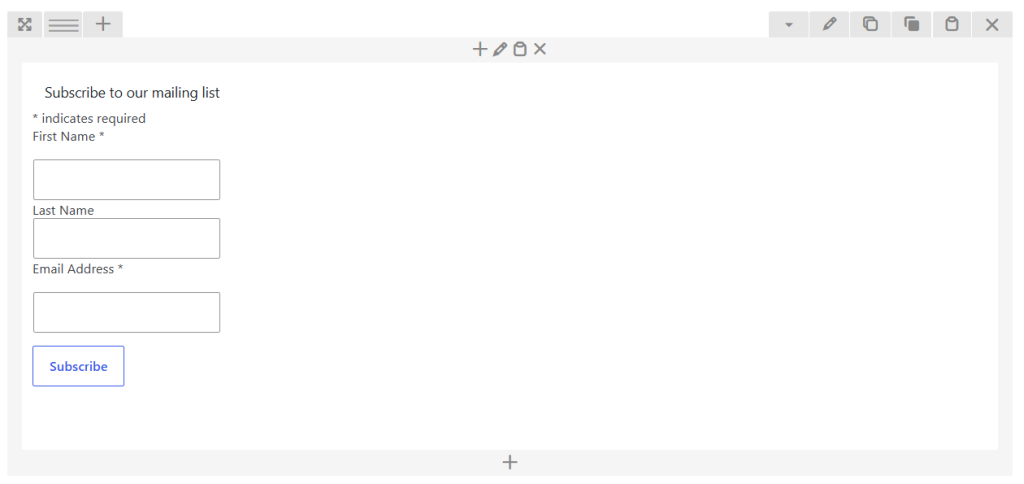
The most common cause is the JavaScript code that is being added via the text block element. Such a code gets rendered in the editor and can conflict with element saving. To avoid such an issue, it is always recommended to add any JavaScript code via a Raw JS element instead of the text block element.
Other causes of such an issue can be server-side, especially ModSecurity/firewall restrictions or PHP limits. In both cases, you can contact the Hosting provider support to check ModSecurity restrictions, increase max_input_vars, and increase the memory limit.
4. Custom CSS not applying
If you are adding a custom CSS code and the result is not reflected on the actual page output, then it can be categorized under this issue.
A normal cause of such an issue is that the CSS selector used is not specific, due to which the code is getting overridden. To avoid this, you can add an extra CSS class to the element and then use it within the CSS selector. This will make it more specific.
Another common cause is the cache. Always clear the cache and check via browser incognito mode to avoid any cache interference.
If any optimization/minification plugins are used, then such plugins can be temporarily deactivated to check whether it’s interference in the issue.
5. WPBakery Template Library not working
If the WPBakery Template Library does not load or templates cannot be downloaded, the first thing to check is your license and Support Plus status.
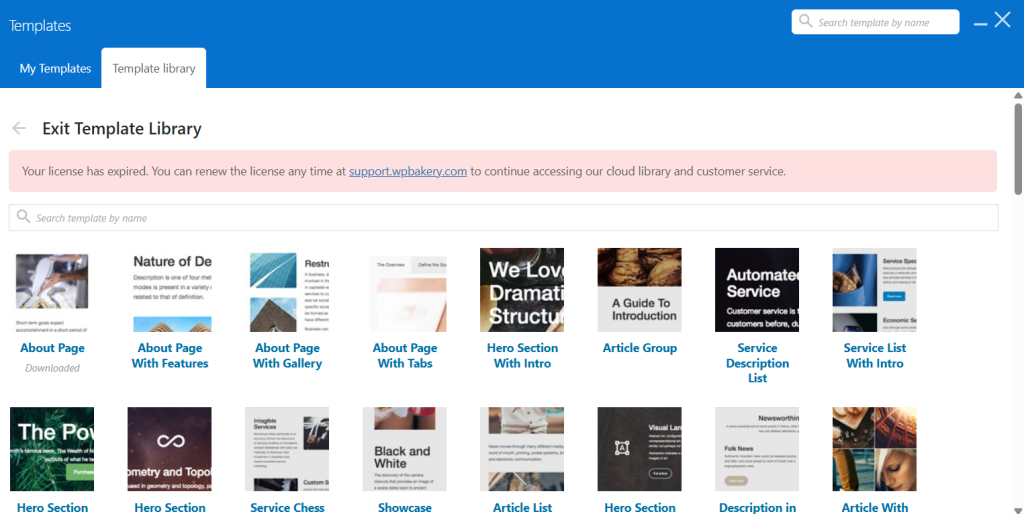
The template library feature is available with a direct WPBakery license and active Support Plus access. A direct WPBakery license includes Support Plus for the first year, giving access to ticket support, auto-updates, Template Library, WPBakery AI, and typography features.
If WPBakery came bundled with your theme, you can use the plugin as included by the theme author, but you do not receive a separate WPBakery direct license if the support tenure of the license has expired.
If your direct license is active but the Template Library still doesn’t work, the issue may be connected to your hosting environment or firewall. Ask your hosting provider to check whether outgoing requests to WPBakery services are being blocked and whether those requests can be allow-listed.
6. License activation fails
The plugin license can only be activated if it is purchased directly from our website or from CodeCanyon. If WPBakery was included with your theme, it does not come with a separate direct license that can be activated through your WPBakery account.
If the website is hosted on WordPress.com hosting, then the plugin should be purchased from its plugin directory: https://wordpress.com/plugins/js-composer
This will automatically activate its license once the plugin is installed.
Another common reason license activation fails is that the license is already active on another site, such as a staging website. If you activated the license on staging first, deactivate it there before activating it on the live website. If you no longer have access to the site where the license was activated, check your WPBakery customer account or contact support for help with license management.
7. Shortcodes displaying on frontend
If your page shows WPBakery shortcodes instead of the actual page elements, it usually means the shortcodes are not being processed.
The most common reason is that WPBakery Page Builder is deactivated. Go to:
Plugins → All Plugins → WPBakery Page Builder
Then make sure the plugin is active.
Sometimes the shortcodes can appear in post excerpts on blog pages. To solve this, custom excerpts can be entered. This will ensure that custom excerpts will be displayed on the blog instead of default shortcodes from its content.

Some themes add custom elements. Such elements can fail to render and hence display their shortcodes if the theme is switched to a different one. In such a case, the previous theme developer can be contacted to see if the custom elements can be transferred to a newer one.
Final troubleshooting checklist
If you are not sure where the issue comes from, start with the basics:
- Update WPBakery, your theme and other plugins.
- Clear all cache layers.
- Test in an incognito browser window.
- Temporarily deactivate optimization plugins.
- Check for plugin conflicts.
- Test with a default WordPress theme.
- Review WPBakery Role Manager settings.
- Check your license and Support Plus status.
- Ask your hosting provider to review firewall, ModSecurity and PHP limits.
Most WPBakery issues can be traced to settings, conflicts, caching, license access, or hosting restrictions. Working through these checks step by step usually helps narrow down the cause faster and gives support teams better information if you still need help.
Use this article as a guide the next time you stumble upon WPBakery related issues and feel free to contact our Support if needed.