How to convert HTML to WordPress using WPBakery GPT (step-by-step)
Learn how to convert HTML pages to WordPress using WPBakery and AI. Follow a simple step-by-step workflow to turn static designs into editable WordPress pages.
The revolution in AI models has changed the way websites are built. It’s now becoming the new norm; clients are no longer sending rough ideas, sketches, or long documents. They are sending full layouts and, in many cases, those layouts are generated by AI. Because it’s becoming handy with AI tools like ChatGPT, Claude, and Gemini, anyone can create a beautiful landing page with just a single prompt.
As an agency owner or freelancer, you receive a complete HTML page that looks good and has the structure to ship faster. But then comes the real question:
How do you turn that into a working WordPress page without rebuilding everything from scratch?
That’s where most of the time gets lost.
In this guide, you’ll learn a simple process to convert HTML into a WordPress page using WPBakery and GPT. The goal of this guide is not to replace your workflow but to make it faster and easier to manage.
Why agencies need a faster way to convert HTML to WordPress
Working with static HTML is not new. What has changed is how often it now shows up in client work.
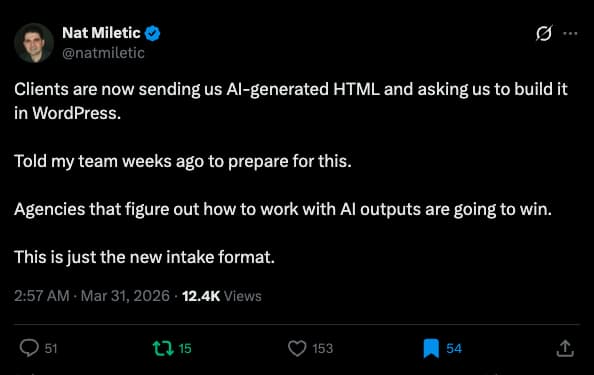
Nat Miletic, Founder of Clio Websites, recently shared that clients are now sending AI-generated HTML instead of rough ideas or reference links and expecting it to be turned into a real WordPress page quickly. He pointed out that this is becoming the new intake format, not an exception, and that teams need to be ready because the volume will only increase.
Victor M Ramirez, Senior Software Engineer (Data, CMS, Martech & CDP), supported this on LinkedIn, saying it is already better than dealing with poorly structured docs or Google Docs. Others in the discussion also confirmed they are seeing the same pattern in their workflows.
So this is not a future trend. It is already happening. The challenge is what comes next.
HTML may look complete, but it still needs to be converted into something editable and maintainable inside WordPress. To do that manually every time means lost time and revenue – as result. That is why having a faster workflow matters.
Overview of the HTML to WPBakery workflow
Once we saw this shift, the problem became clear. Clients are now bringing in structured HTML, but the gap remains in turning it into a usable WordPress page. Rebuilding it manually every time simply does not scale.
So the idea was simple. Instead of treating HTML as something to rebuild, we treat it as a starting point and convert it into structured WPBakery elements.
The flow looks like this:
HTML → GPT → WPBakery → Final page
You take that HTML and pass it through GPT to turn it into WPBakery elements. Then you assemble and refine everything inside WordPress.
This way, you are not starting from scratch but working with structure and not raw code. It keeps the original layout intact and reduces the time spent on repetitive work.
Step 1: generate an HTML page using AI
In our case, since we did not have an HTML file from a client, we chose to create one using ChatGPT. We kept it simple and tried to think from a client’s perspective (as per best practices advice). Instead of giving detailed instructions, we used a single-line prompt and let ChatGPT generate the layout. ChatGPT then created a complete page with a proper HTML structure, like the one below.
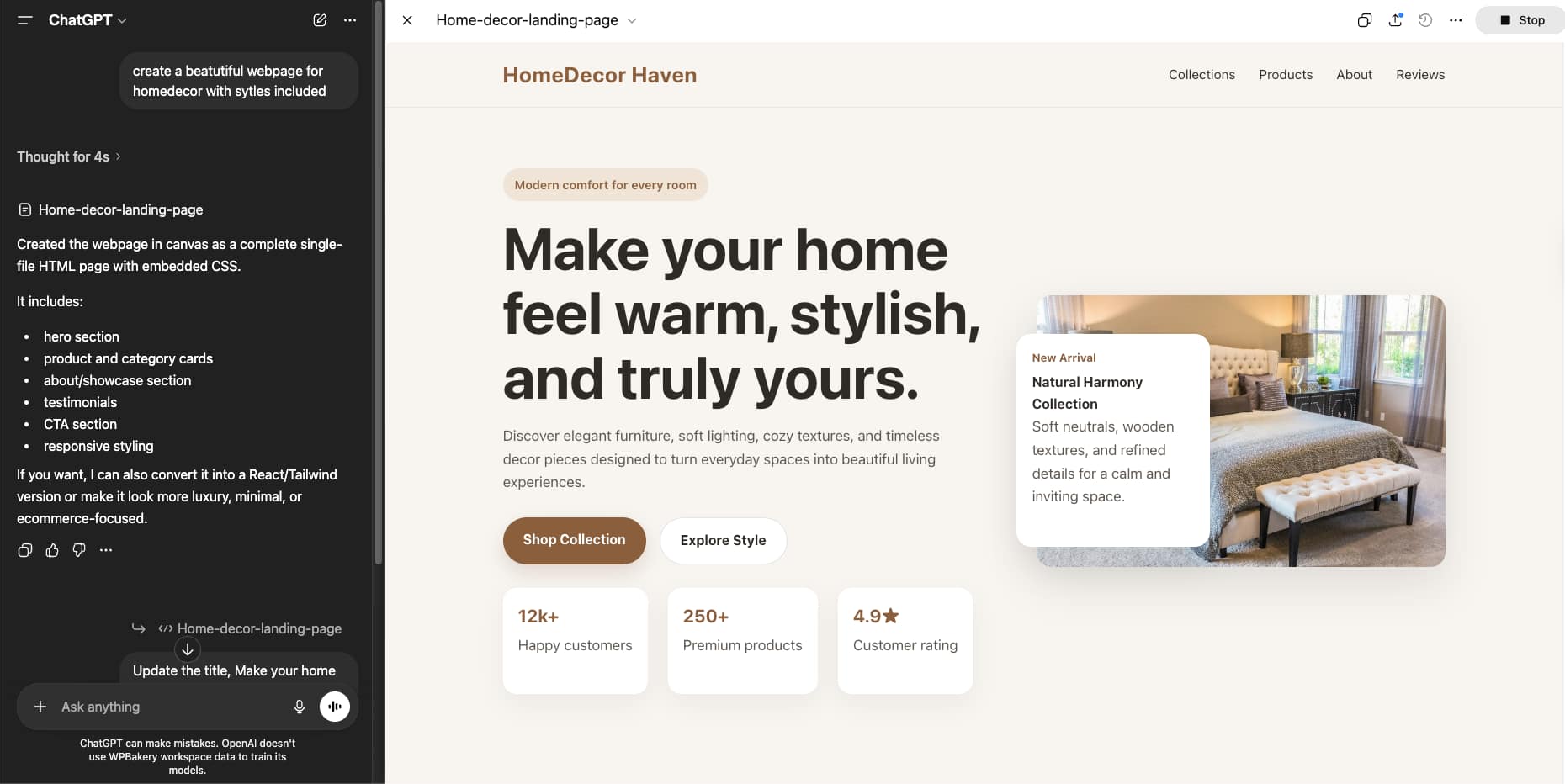
In your case, the structure may not always be clean or complete, which is why it is important to review the HTML first. If anything is missing, it is better to fix the structure before moving forward. You can do this manually or with the help of AI.
If you choose to use AI, make sure your prompt is clear about what you want. Also, review the output carefully to ensure the structure is correct and the code is not broken.
Step 2: convert HTML to WPBakery Elements using GPT
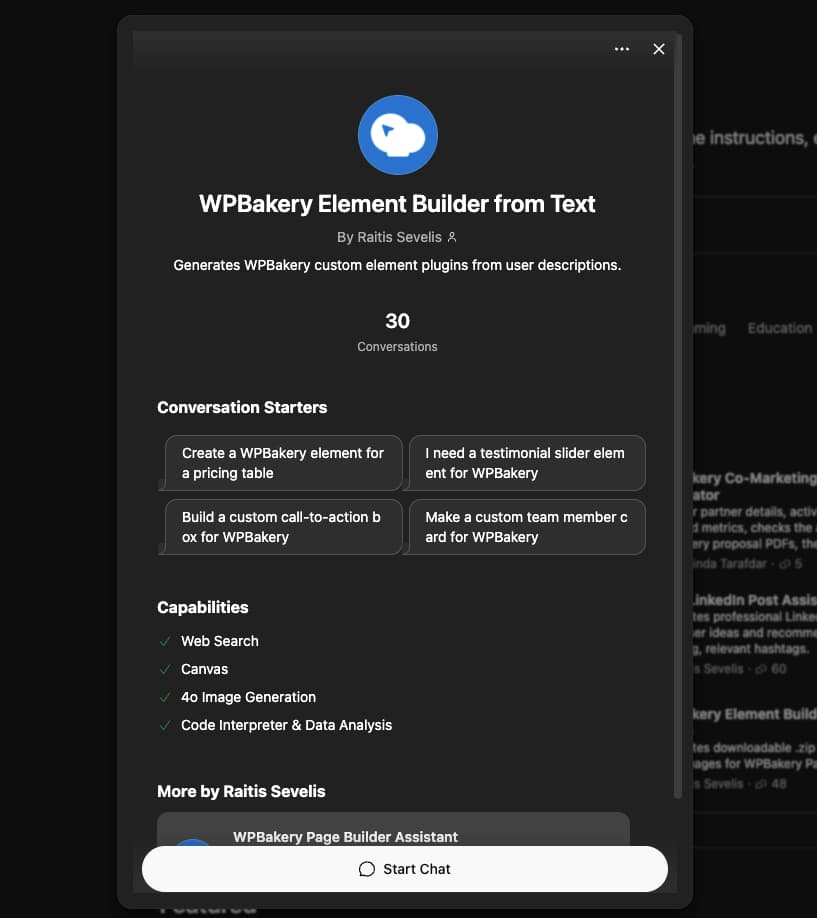
This is the core step. Open our GPT and upload your HTML file there to convert the HTML to WordPress page elements, and then describe what you want to build with it.
In our case, we pasted the HTML code into our GPT and asked it to create the necessary elements. The reason we did this was to test our GPT at its limits and see how it performs. The good part is that our GPT analyzes the input, suggests the best approach, and asks for confirmation – it’s designed to work this way. But we suggest you provide a bit more context to help GPT better understand your needs and create the best elements for them.
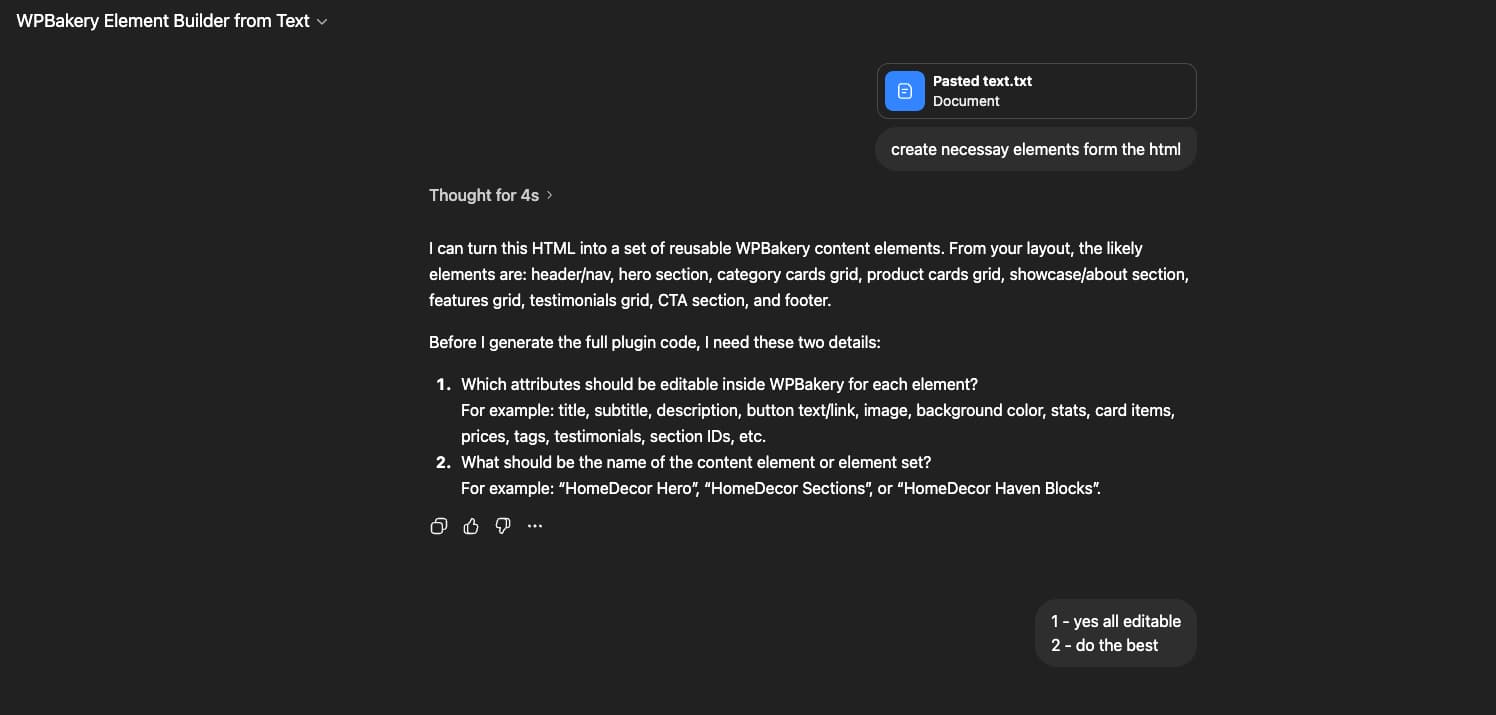
Finally, within a few seconds, WPBakery text to element GPT Builde converted the HTML code to WPBakery Element, along with the file structure. It also explained how to set and use the elements properly.
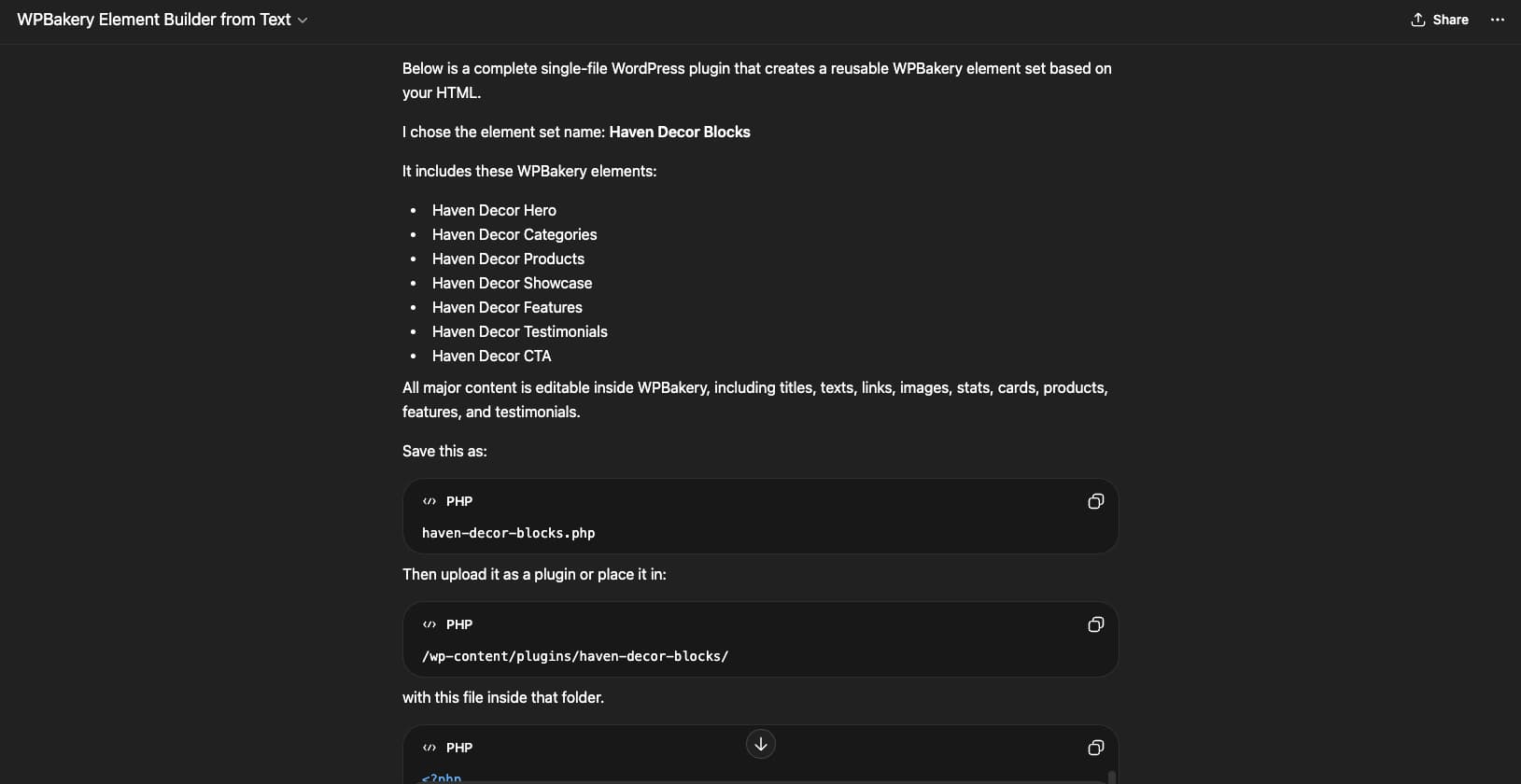
Now you need to do some manual work. Copy the code and use your IDE or any text editor to create the required folders and files. Then place the code as suggested by GPT, following its structure. You can ask GPT to generate a ZIP file, but in some cases, it may fail or return errors. That is why doing it manually is a safer option.
Step 3: build the page with WPBakery & GPT generated Elements
Now this is the interesting part. You can start building the elements in your project. It is better to test everything on a staging or test site first, instead of using a live client site on your first attempt. You can try it directly on a live site, but sometimes the generated elements may not work as expected. The overall page creation process with WPBakery is simple, so we are not going into detailed steps here.
For our home decor landing page, GPT generated the elements, which are available in a separate tab within the “Add Element” window.
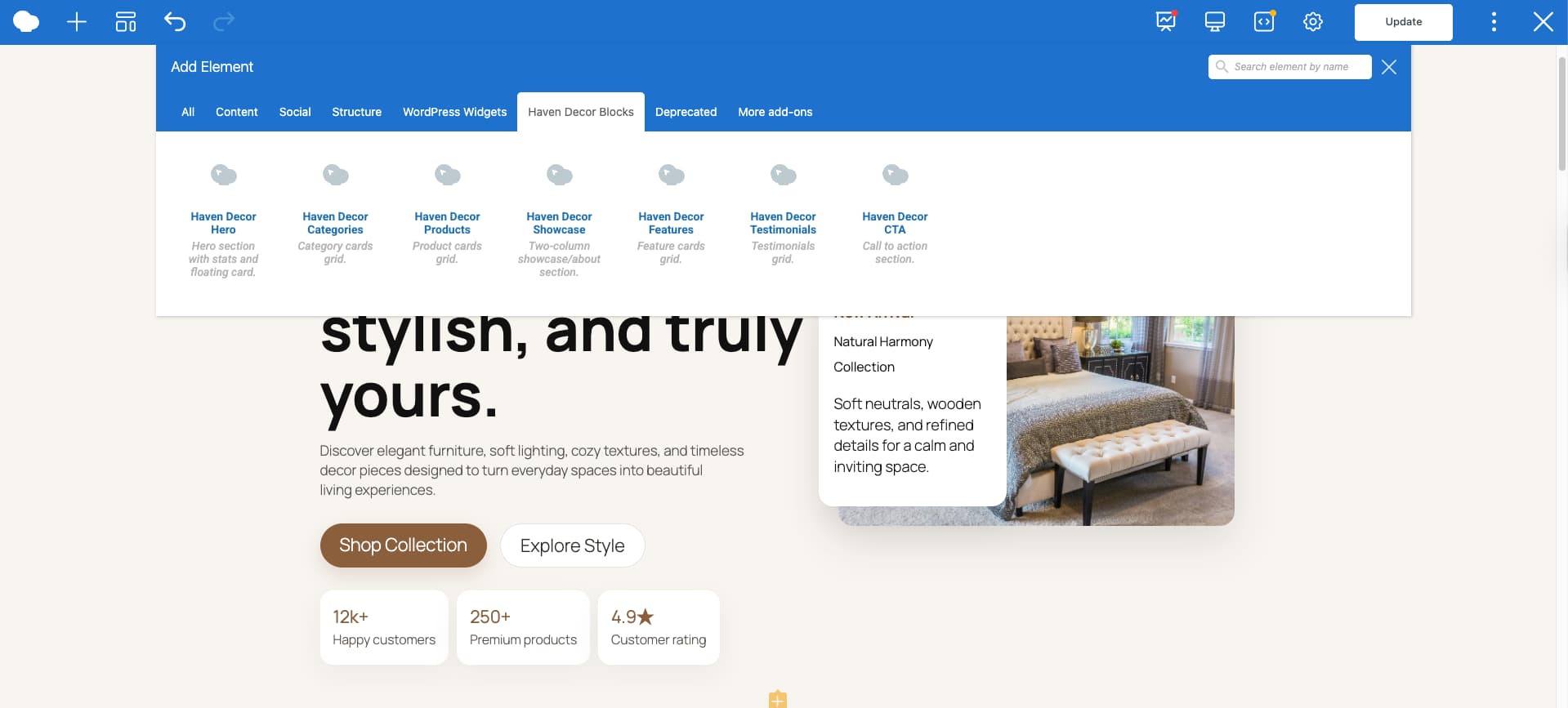
It was good to see that it generated elements for each section. In your case, the output may vary depending on your prompt and requirements. If you write a more detailed prompt and request more controls, you will get better, more flexible elements.
Now we will add and edit the hero section. One thing we noticed is that the images were missing in the generated elements, as they were originally pulled from Unsplash links while creating the page with ChatGPT. In case you have the same issue, you’ll need to upload your own images to complete the design.
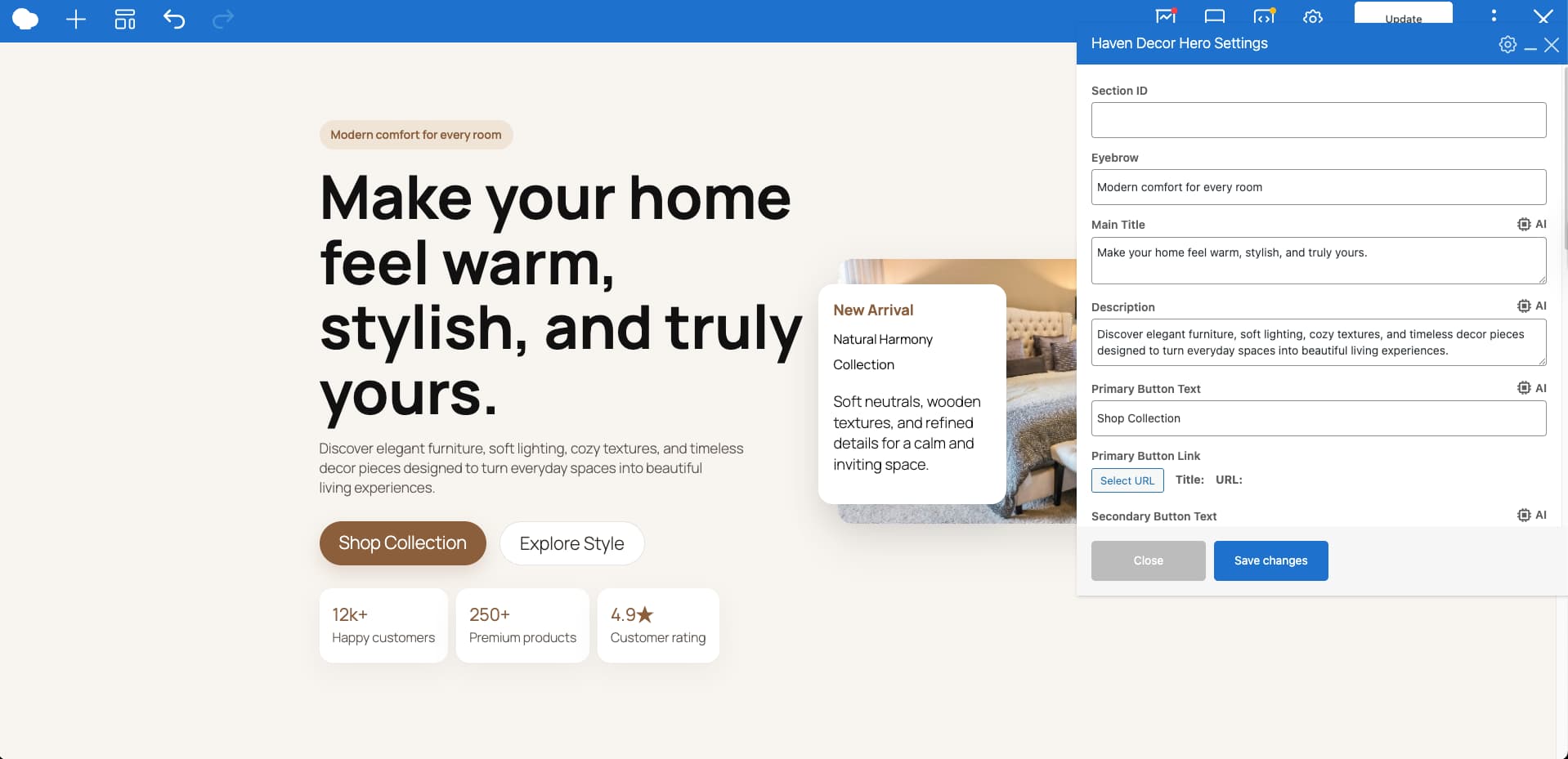
WPBakery GPT converts HTML into WordPress page elements very accurately, even from a simple prompt. You can edit content directly from the editor, update text and replace images easily. If you include styling instructions in your prompt, the GPT will also add styling controls to the elements.
Step 4: customize and finalize the design to make it perfect
This is where your experience comes in. As the layout is already there -at this stage – you only need to refine the layout. Make small adjustments like spacing, alignment and typography to match your final design.
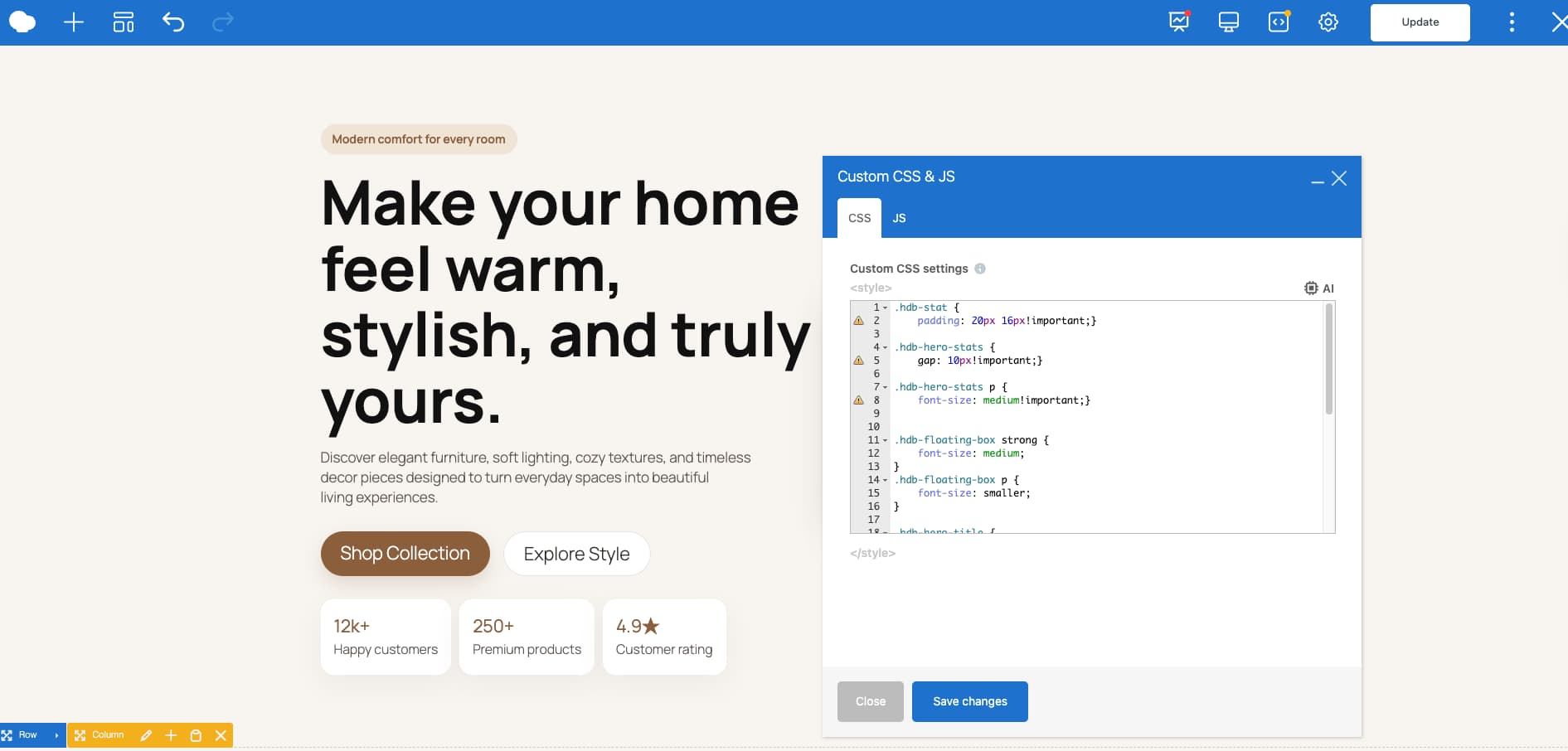
If any styling is missing, you can add it easily using the WPBakery Additional CSS panel. Just place your CSS there, save the changes and you will see the updates instantly on the page.
Most of the work here is minor as you are not rebuilding anything, just making the design ready for final use.
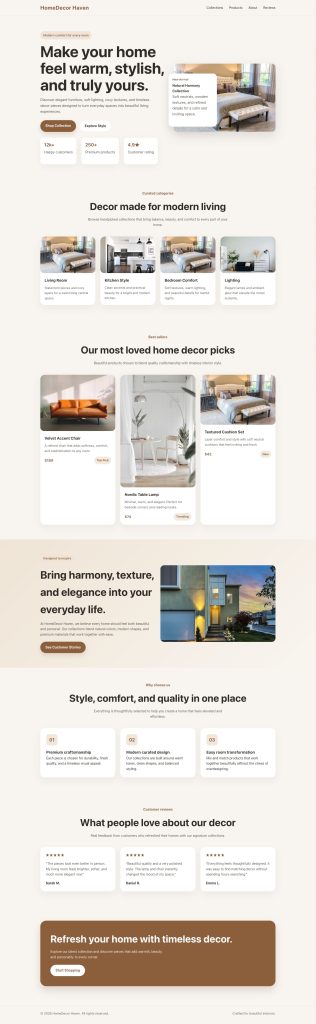
This is the HTML design generated with ChatGPT
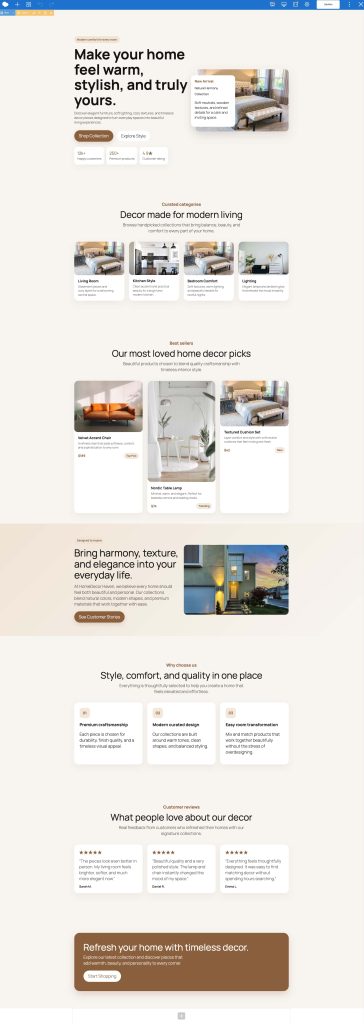
This landing page is created with WPBakery, using elements converted from HTML via WPBakery GPT.
What to expect after converting HTML to WordPress
After completing the process, you will have a fully editable WordPress page built with WPBakery elements. The layout stays very close to the original HTML, but more importantly, it becomes flexible. You can edit content, replace images, and adjust sections without touching code.
From our home decor example, the conversion was not 100% filled with HTML-wise data. Some parts, such as product prices, images, headings, descriptions, and tags, were missing in the “best sellers” section. The good thing is – WPBakery GPT added all editable options to fill the data. We added those manually with the WPBakery editor edit element window.
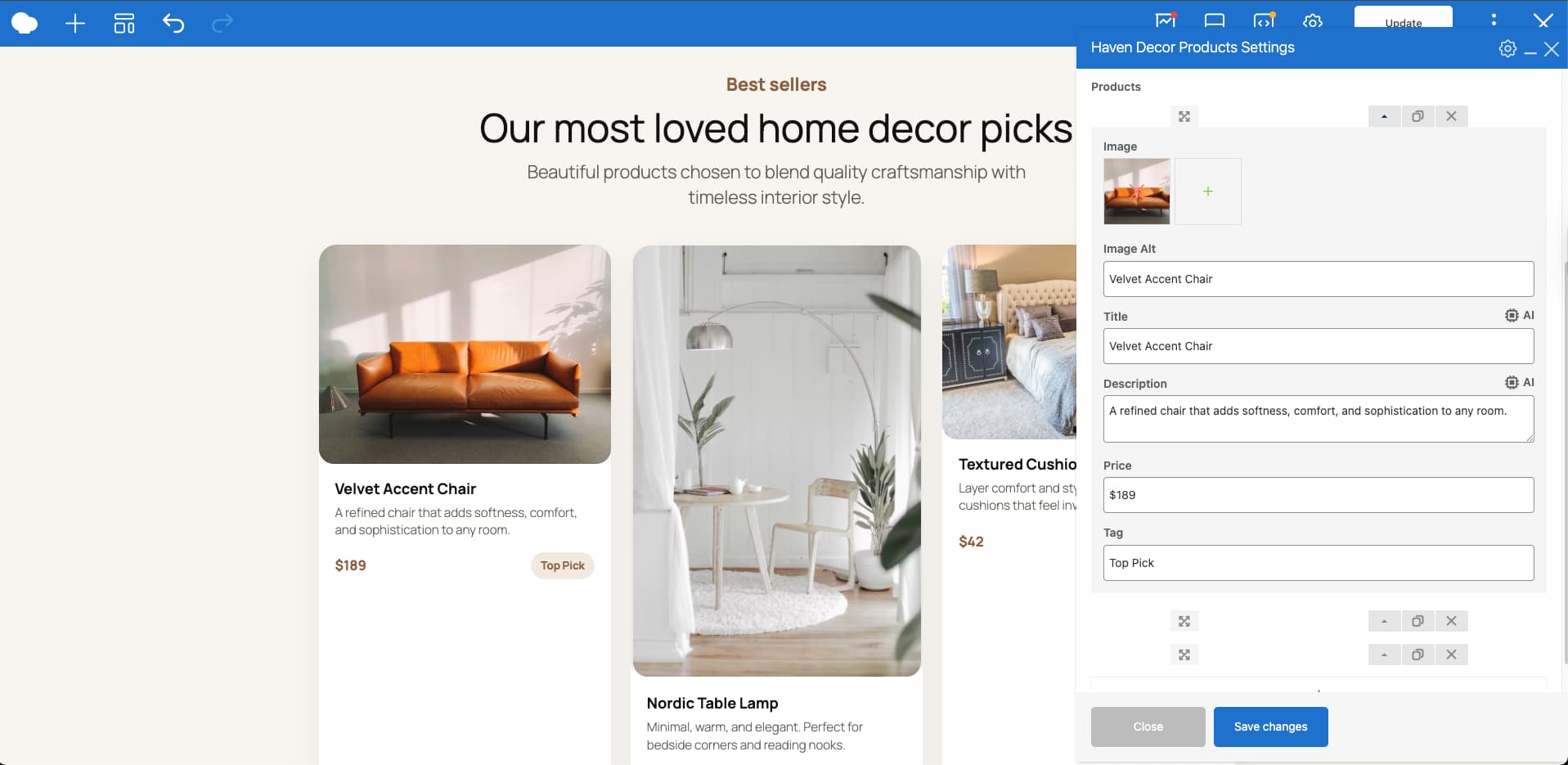
The interesting part is that, once added, everything matched the original design style without extra effort.
This is what shows the real value of the workflow. It does not just convert HTML but gives you a strong base that is easy to extend, adjust, and complete. So, instead of rebuilding everything, you are working with a structured layout that is already close to final. That makes the whole process more practical, faster, and easier to manage.
Watch the full HTML to WordPress conversion workflow
If you want to see the full process in action, watch this short tutorial. It shows how the HTML layout is converted into editable WPBakery elements and finalized inside WordPress.
Why is this workflow faster than traditional HTML to WordPress conversion?
Traditional conversion means rebuilding the layout manually inside WordPress. You copy sections, recreate structure and adjust styling one by one.
With this workflow, the structure is already created. GPT converts HTML into WPBakery elements, so you start with a ready layout instead of an empty page.
You only refine and adjust. That removes repetitive work and saves time, especially when handling multiple pages.
How does WPBakery simplify HTML to WordPress conversion?
WPBakery turns layouts into visual, editable elements like rows, columns and content blocks.
Instead of working with raw HTML, you work inside a visual editor. You can update text, images and layout without touching code.
When combined with GPT, it bridges the gap between static HTML and a working WordPress page, making the process easier to manage.
What are common issues when converting HTML to WordPress and how can you fix them?
Converting HTML to WordPress is not just copying code. The main challenge is turning a static layout into a dynamic system.
The most common issues are:
- Static structure vs dynamic system
- Missing functionality and content mapping
- Styling and layout differences
- High manual effort and time
HTML pages are static, while WordPress uses templates, dynamic content and reusable components. Because of this, layouts often need restructuring, content needs to be mapped properly and styling may require adjustments.
To fix this, start with a clean HTML structure and break it into logical sections. Instead of rebuilding everything manually, use a structured approach to manage content and layout more efficiently. Small fixes in spacing, responsiveness and missing content are normal during this step.
This is where WPBakery GPT helps.
It converts HTML into structured WordPress elements, such as rows, columns and content blocks. Instead of starting from scratch, you get a ready-made layout you can build on in WPBakery.
From there, you complete the missing parts and refine the design. This makes the whole process faster, more practical and easier to manage compared to traditional conversion methods.
What are the limitations of AI in HTML to WordPress conversion?
AI can generate structure and elements, but it does not always fully understand design intent.
Some sections may be incomplete. Styling may not be perfect. Dynamic parts, such as product data or interactions, may be missing. AI provides a strong foundation, but final quality still depends on manual review and adjustments.
How can you convert HTML to WordPress online for free?
You can convert HTML to WordPress using a mix of free tools and manual setup. A common approach is to use AI tools to generate or clean your HTML, then rebuild the layout inside WordPress using a page builder. Some tools also try to automate the conversion, but most of them still require manual fixes.
A more practical option is to use a structured workflow. For example, you can use WPBakery GPT to convert your HTML into editable WPBakery elements. This part is free to use and helps you turn static HTML into structured WordPress-ready content without rebuilding everything.
After that, you can use WPBakery Page Builder to assemble, edit and finalize the page based on your needs. This way, you reduce manual effort while still keeping full control over the final result.
What is a better approach to converting HTML to WPBakery elements?
Instead of rebuilding everything manually, use a structured workflow. Take the HTML, pass it through GPT, generate WPBakery elements, and then build the page inside WordPress.
This keeps the layout consistent and reduces the effort needed to recreate sections.
What is the problem with using static HTML in WordPress?
Static HTML is not flexible. Every change requires code editing, which slows updates. It’s also harder to manage content, especially for clients who are not technical.
WordPress solves this by making content editable. Converting HTML into WPBakery elements brings that flexibility while keeping the original design.
Final Thoughts
AI is already changing how websites are handed off to Agencies and Freelancers. Clients are no longer sending ideas – they’re sending ready layouts. That part is now solved. The real challenge is turning those layouts into something usable inside WordPress without slowing down or breaking your workflow.
From our experience, this process works well. It is not about getting a perfect result in one click as it is about getting a strong starting point that saves time. Even when some parts are missing, like in our home decor example, the structure is already there. You just fill in the gaps and move forward.
That’s the shift: you’re not rebuilding pages anymore – you are refining them.
With WPBakery and GPT together, converting HTML to WordPress becomes less about effort and more about speed, structure and control. And that is what makes this workflow practical for real client work.
Now, test this guide yourselves and share results in our Community!
