How to Create a Modern WordPress Post Archive Page with WPBakery
A WordPress archive page can be useful without looking like a plain list of old posts. With the right structure, it can help readers find a topic, scan recent articles, and move between sections without getting lost.
We have prepared a modern archive design before creating the archive page with WPBakery. It included a short introduction, search, category links, two featured posts, and a second row with three posts. Then we recreated that design with WPBakery elements, one custom grid template, and a small amount of CSS.
You can follow the same process with your own design. If you do not have one yet, browse current blog archive page layouts for ideas or ask an AI image tool to create a visual concept. Treat the result as a reference, then build it with your own content, colors, and spacing.
How we structured our blog archive page
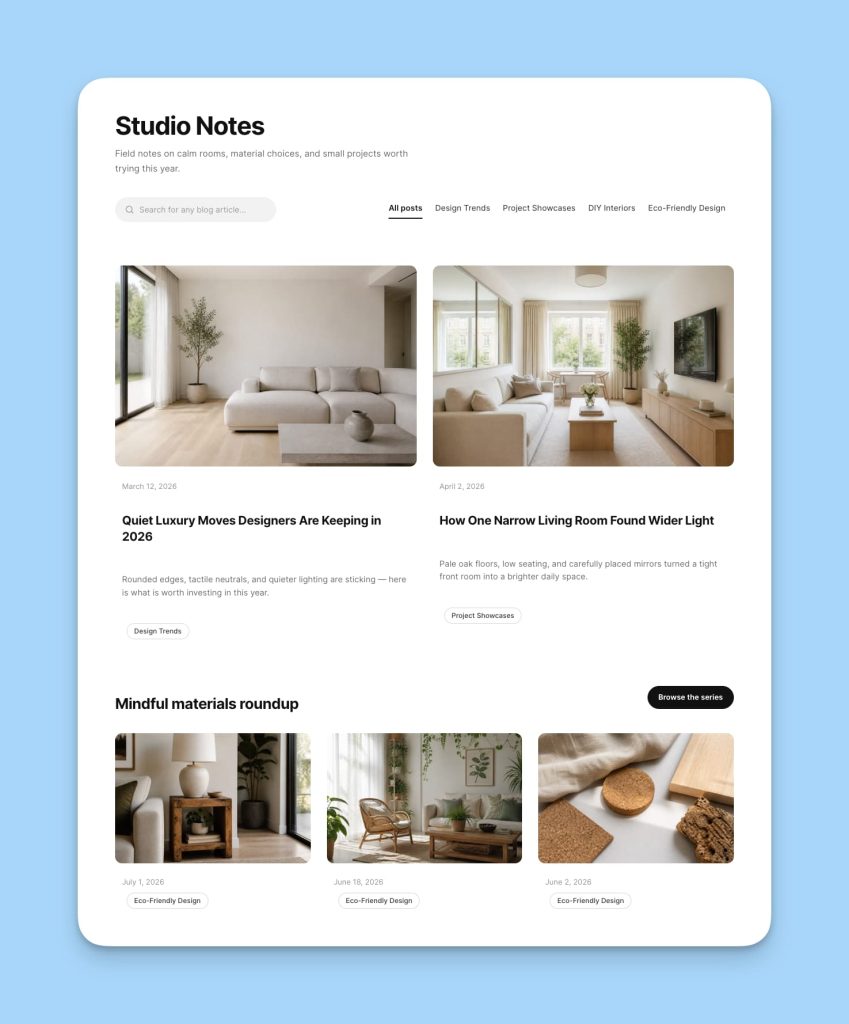
We planned to show the post archive page within three sections. Here are the things we kept in mind while designing the modern WordPress archive page layout.
- A page heading, description, search field, and category links
- Large two-column grid with two selected posts
- Topic heading, button, and three-column post grid
And in this blog, we will show how WPBakery rows and elements create the page structure. WPBakery Grid Builder controls the design of each post card. Post Grid controls which posts appear and how many columns the grid uses.
Before opening the editor, make sure the site has published posts. If you are working on staging, add enough sample posts to fill the two-card and three-card sections.
Step 1: Create the post archive page and top section
The first section introduces the archive and gives readers two ways to find content: search and category links.
Go to Pages > Add New, enter a title such as Blog or Resources, and open WPBakery.
Add the archive page heading and description
Start with one row and one column. Add these WPBakery elements:
- Custom Heading for the H1
- Text Block for a short description
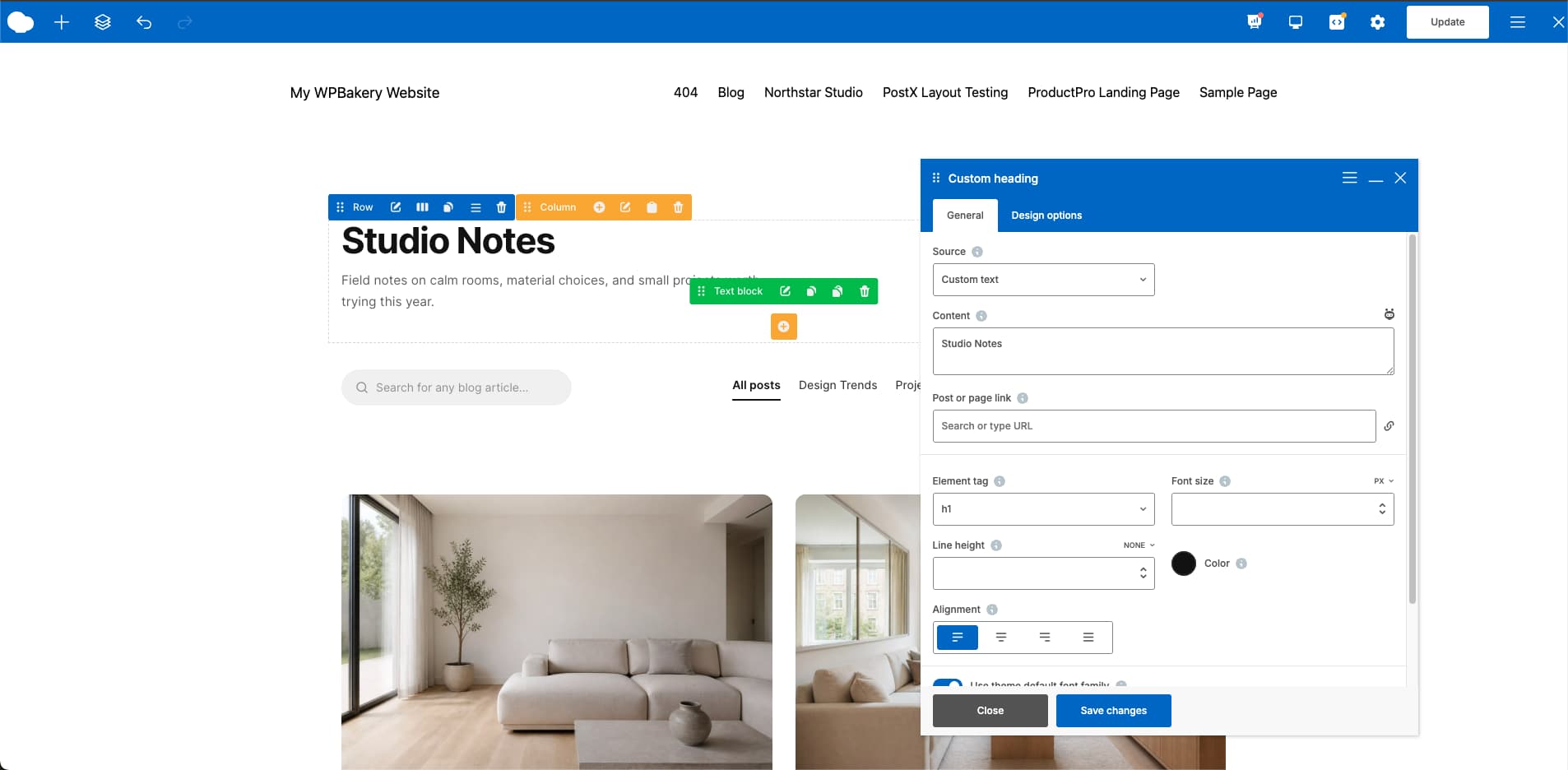
Keep the description brief. One or two sentences are enough to tell readers what they can find on the page.
Add the search bar and category links
Add another row below the introduction. Use two columns if the design places search on the left and categories on the right.
For search, add a Raw HTML element with a standard WordPress search form, or you can use the WordPress default search element. We have used the custom HTML here.
Example:
<form role="search" method="get" class="archive-search-form" action="https://yoursite.com/">

<label class="screen-reader-text" for="archive-search-input">Search articles</label>

<input

type="search"

id="archive-search-input"

class="archive-search-input"

placeholder="Search for any blog article..."

name="s"

value=""

autocomplete="off"

/>

</form>
Replace https://yoursite.com/ with your real site URL, or use /.
This uses core WordPress search and opens results at /?s=your-keywords.
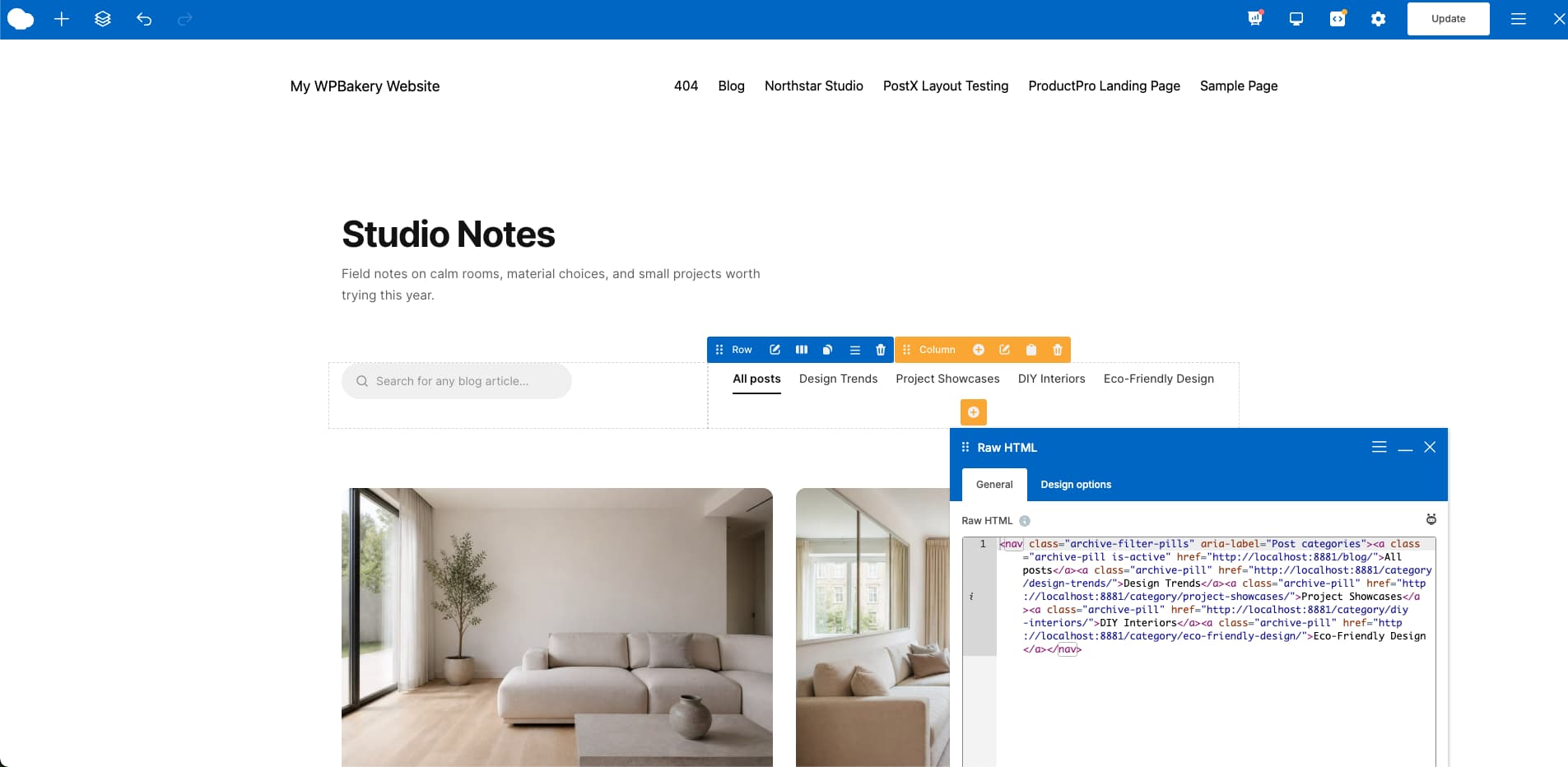
For the category navigation of the blog archive page, you can use separate WPBakery Button elements and style them through the element settings. If your design needs more control over spacing, active states, or mobile scrolling, use a Raw HTML element instead.
We used Raw HTML for our design, for example, you can have a look:
<nav class="archive-filter-pills" aria-label="Post categories">

<a class="archive-pill is-active" href="/blog/">All posts</a>

<a class="archive-pill" href="/category/design-trends/">

Design Trends

</a>

<a class="archive-pill" href="/category/project-showcases/">

Project Showcases

</a>

<a class="archive-pill" href="/category/diy-interiors/">

DIY Interiors

</a>

<a class="archive-pill" href="/category/eco-friendly-design/">

Eco-Friendly Design

</a>

</nav>
Replace the category names and URLs with the ones used on your website. The All posts link should point to your main archive page. These are the HTML only; you have to add styled CSS as per your design requirements.
Step 2: Add the first Post Grid element to archive page
The first Post Grid displays two selected articles in a large two-column layout.
Add a new row below the category links. Click Add Element, choose Post Grid, and start with a basic grid design.
Do not spend too long choosing a default card. We will change its item design in Grid Builder. WPBakery also includes predefined grid templates within the post grid element, so if you like one of those can select it and skip most of the card work.
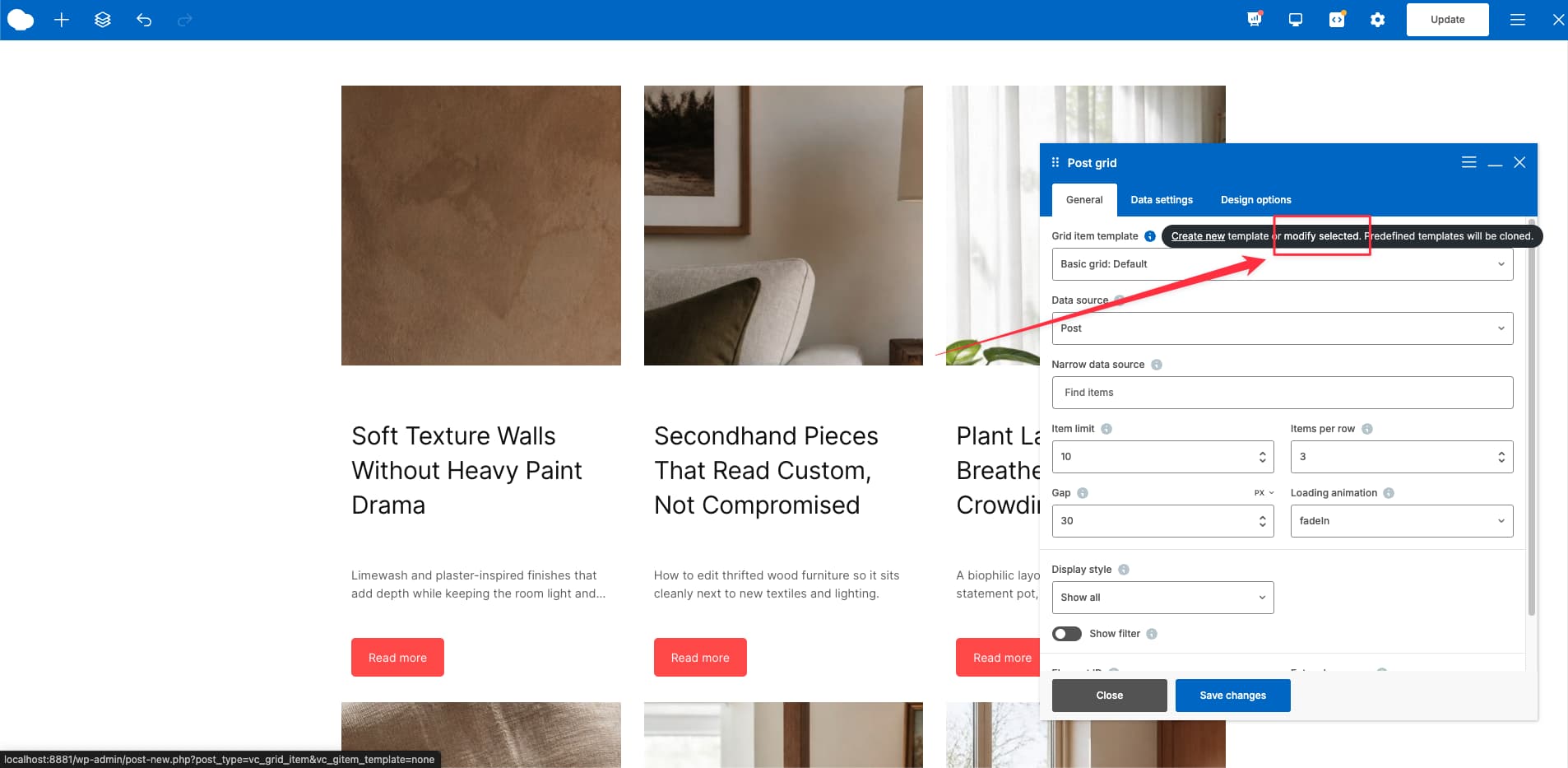
Open the Post Grid element settings and from the Grid item template control area, hover the tooltip icon and click the modify selected link. This will directly open the selected template in the WPBakery grid builder for editing. You can also open Grid Builder from the WordPress dashboard of the WPBakery settings menu.
Step 3: Create the post active single card design in Grid Builder
Grid Builder controls the content and appearance of one card. The same saved card can be used in both post archive sections.
Give the template a clear name, such as Modern Archive Card. You can begin with the basic template already selected or choose another predefined item as a starting point.
The WPBakery Grid Builder documentation describes three areas:
- Normal is what the card readers see before hovering.
- Hover appears when an animation preset uses a hover state.
- Additional places content around the Normal or Hover area.
Our design does not need a text overlay. Keep the content in the Normal area and leave the Hover and Additional areas unused.
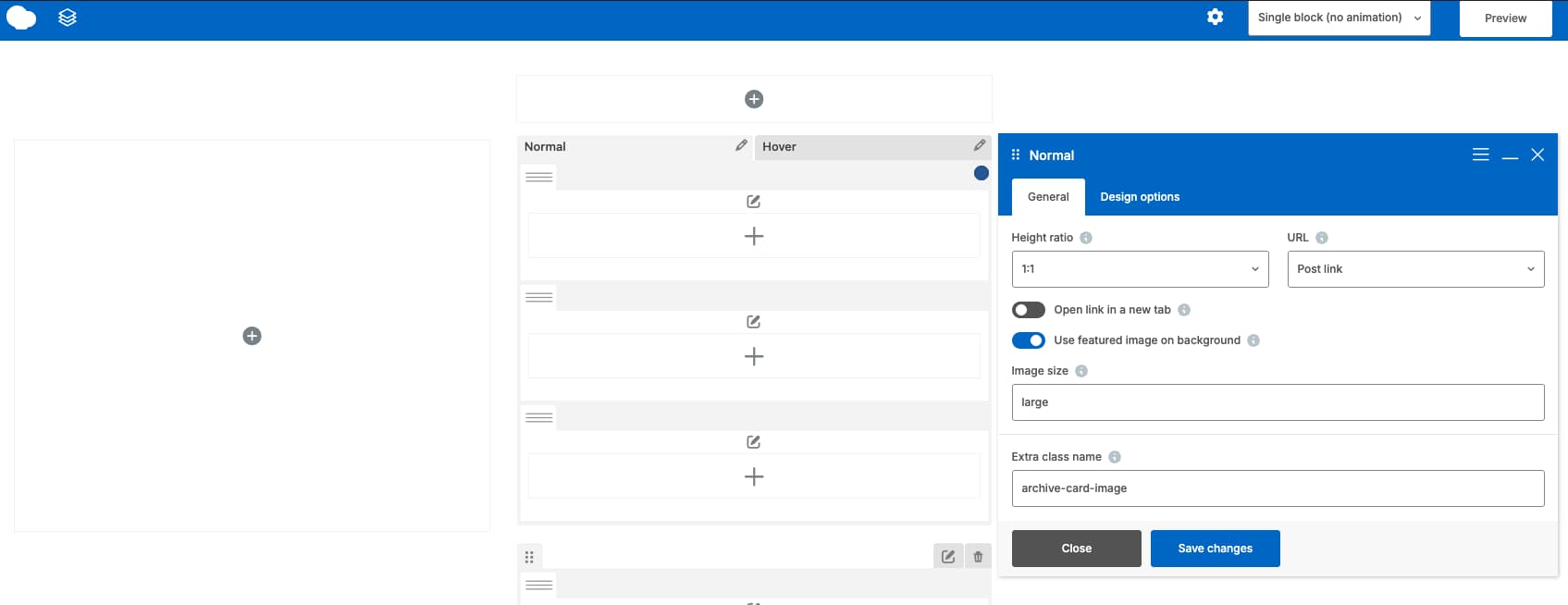
Build the image area for the post archive card
Use the post featured image at the top of the card. Set its link to the post, so clicking the image opens the article.
Choose a landscape height mode that fits the design. Use the same image size for every card. This keeps the two-column and three-column rows even when the original uploads have different dimensions.
Build the content area for the post archive grid card
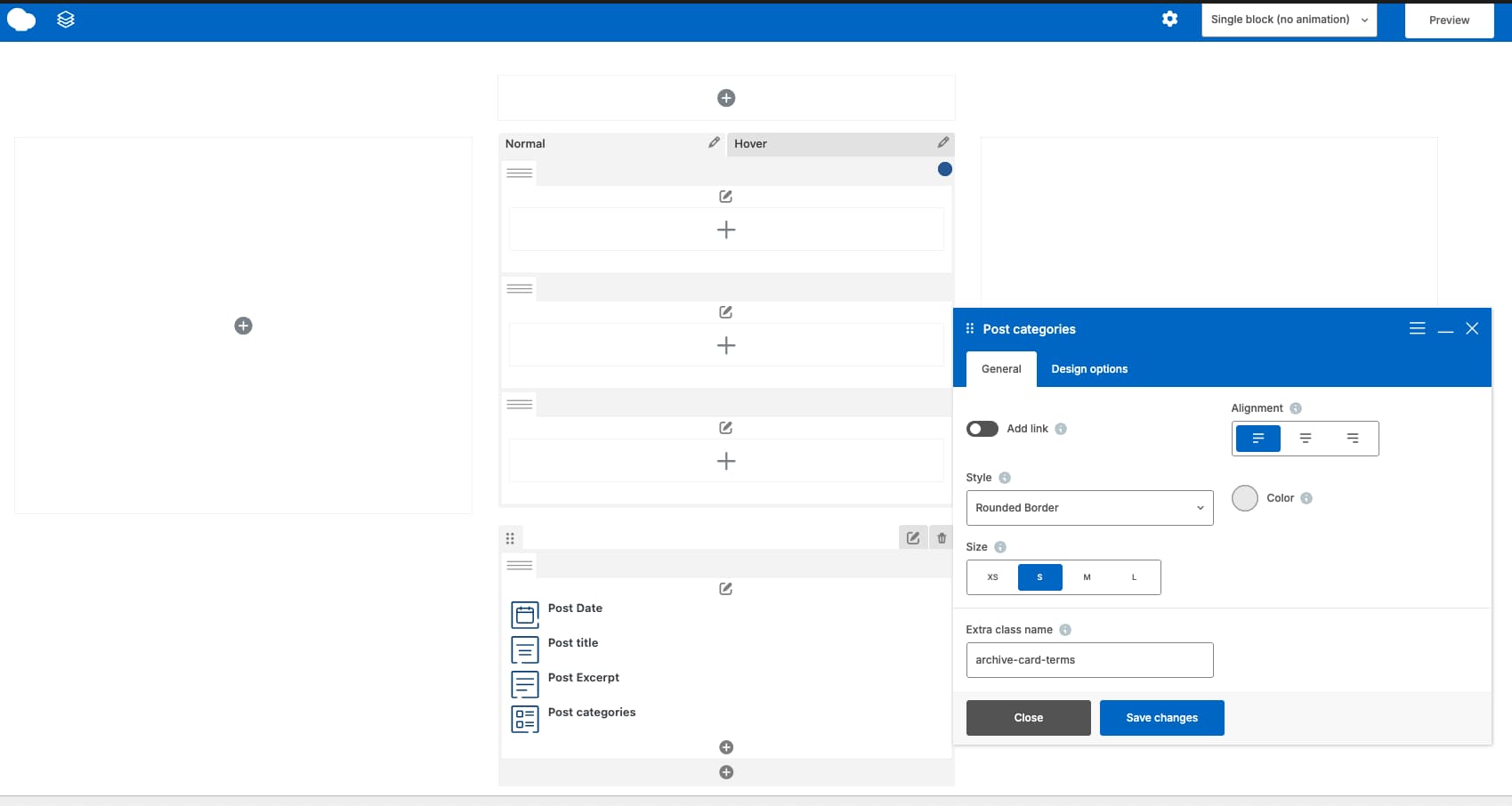
Make sure the content position is Bottom (under the image), then add these elements in this order:
- Post Date
- Post Title linked to the post
- Post Excerpt
- Post Categories
Use an H2 or H3 tag for each card title based on the page hierarchy. Our WordPress archive page uses an H1 for the page name and an H2 for section headings, so H3 works well for the post titles.
Choose a simple category style. A rounded border is a good starting point if the design uses category chips. Avoid adding another border in several places, or each category may look double outlined.
Step 4: Select the saved post archive grid template and show two posts
Return to the archive page and reopen the first Post Grid. Select your saved grid item template in the Item template field.
Now set the content for this section:
- Data source: Individual posts or a custom post-ID selection
- Source: Individual posts or a custom post-ID selection
- Include only: Choose the two articles you want to feature
- Items per row: 2
- Gap: As per your design
- Display style: Show all
- Filter: Off
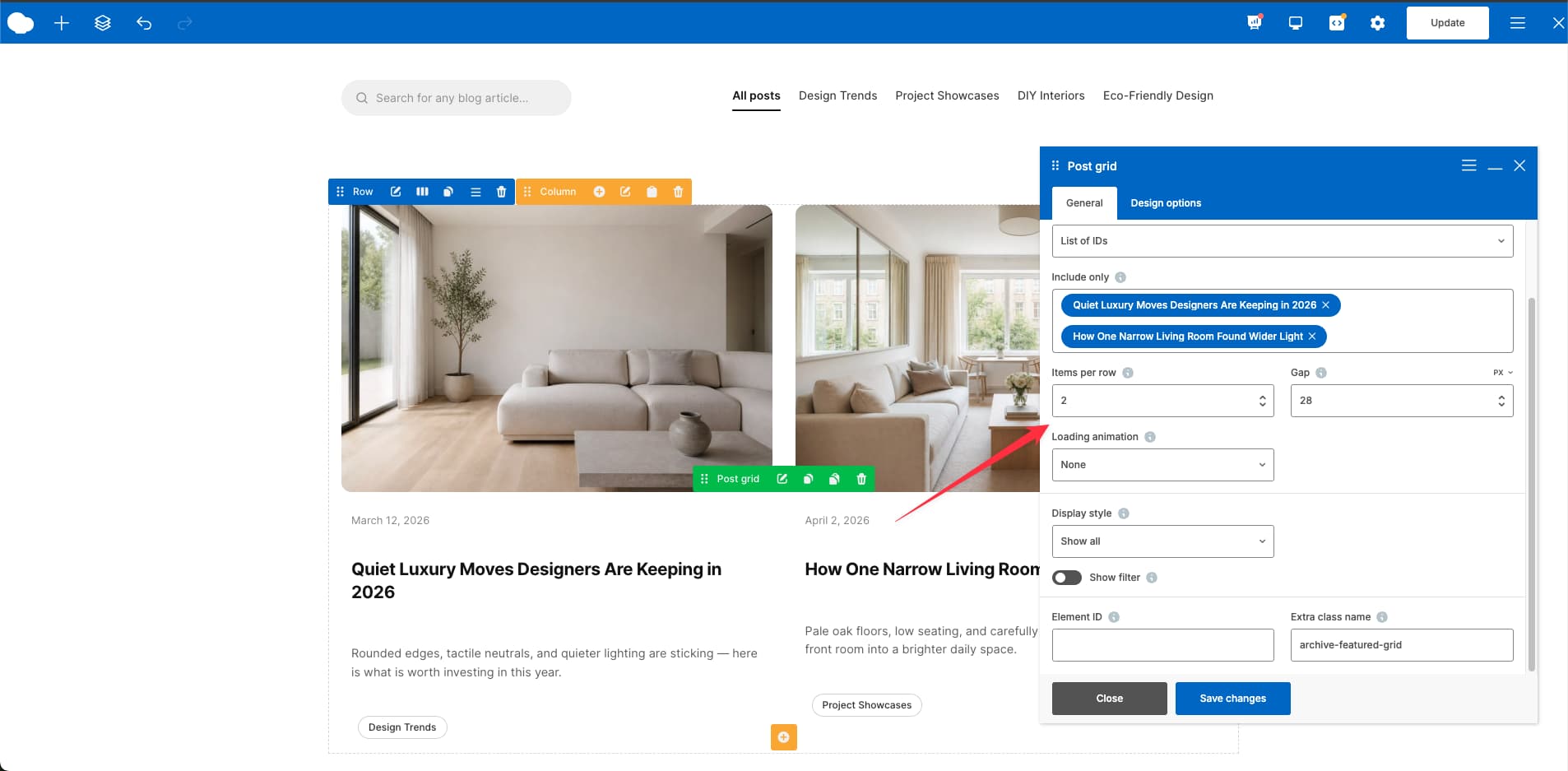
The exact setting names may differ slightly by WPBakery version. The goal stays the same: two selected posts, two columns, and the saved card template. But we recommend updating to the WPBakery 9.0 or later to see the exact settings.
Update the page and check the front end. If the cards still use the basic design, reopen Post Grid and check the Item Design selection.
Step 5: Add the category blog archive section and second post grid
The third-page section is for one category, without creating another post grid’s card design.
Add a row with two columns. Place a Custom Heading in the left column and a Button in the right column. The heading can name the category, while the button links to its archive.
Add another row underneath and insert a second WPBakery Post Grid element. Select your saved grid template again, then use these settings:
- Grid item template: Select the saved grid template
- Data source: Post
- Narrow data source: Choose the topic category
- Item limit: 3
- Items per row: 3
- Gap: As per your design
- Display style: Show all
- Filter: Off
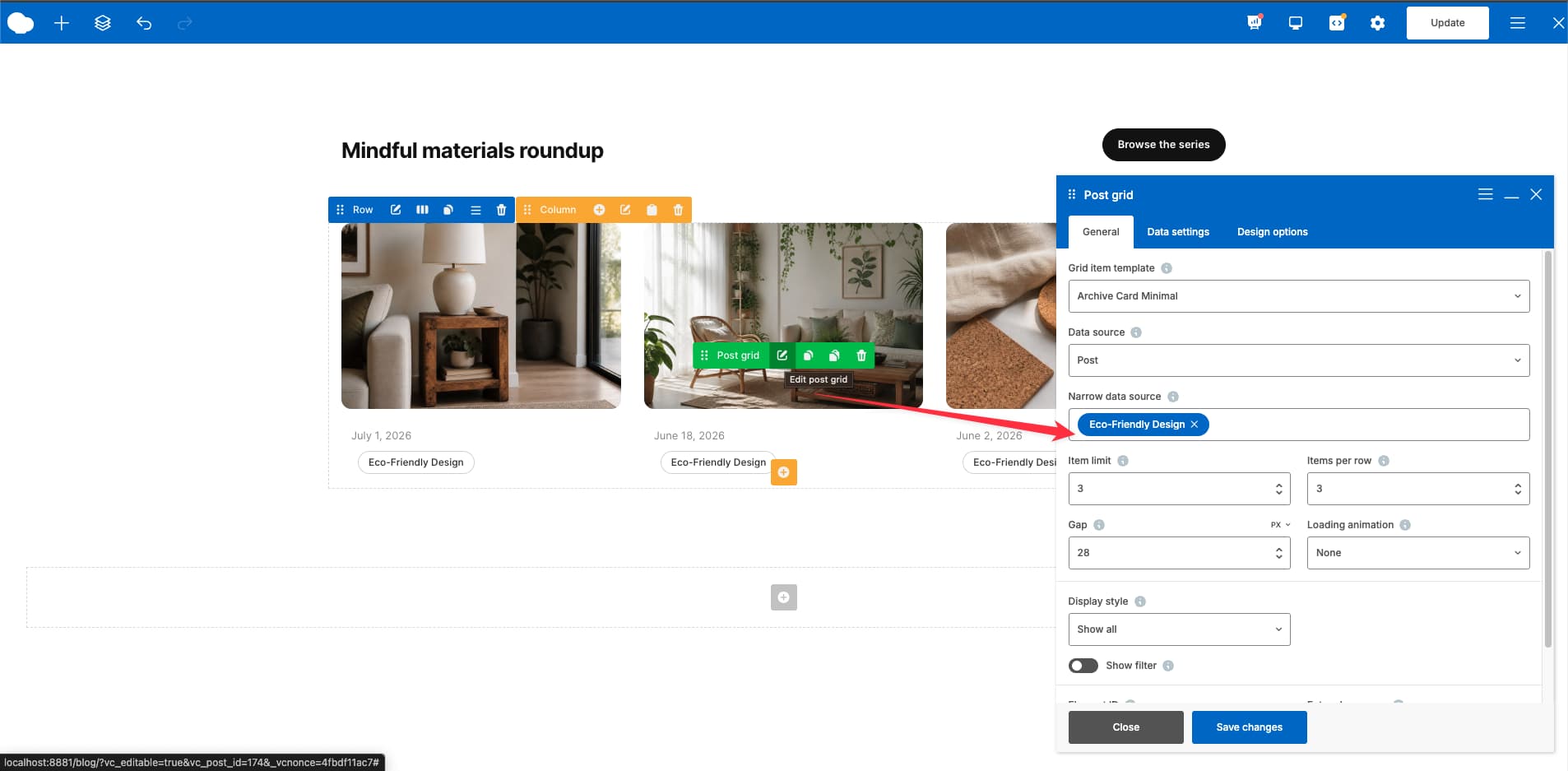
This second grid uses the same design but a different post query. If you edit the saved Grid Builder template later, both grids will use the updated card.
You can also choose one of the default WPBakery grid templates for this section. We used our own template because it matched the design we had prepared.
Step 6: Polish the archive page with CSS
CSS handles the final visual details that do not need another content element. We used it for the search field, category buttons, image corners, spacing, and card text.
Open the CSS panel above the WPBakery editor and add page-specific rules. WPBakery also lets you add an extra class name to individual elements. The Custom CSS documentation explains both options.
Don’t forget to check the page on desktop and mobile after adding the styles. The featured grid should move from two columns to one, and the topic grid should stack cleanly. Test the search field, category links, buttons, images, and card titles before publishing.
Bonus: Add a PostX Grid template to WPBakery
PostX provides another way when you want to build a post archive section with a premade PostX design. It’s a post archive builder plugin. It has native WPBakery integration, which allows you to add their premade design within the WPBakery editor.
You can follow this process to add PostX templates within WPBakery:
- Install and activate PostX.
- Turn on the Saved Templates and WPBakery Page Builder addons.
- Create a PostX saved template with premade design.
- Publish the template.
- Open the archive page in WPBakery.
- Add the PostX Template element.
- Select the saved template and update the page.
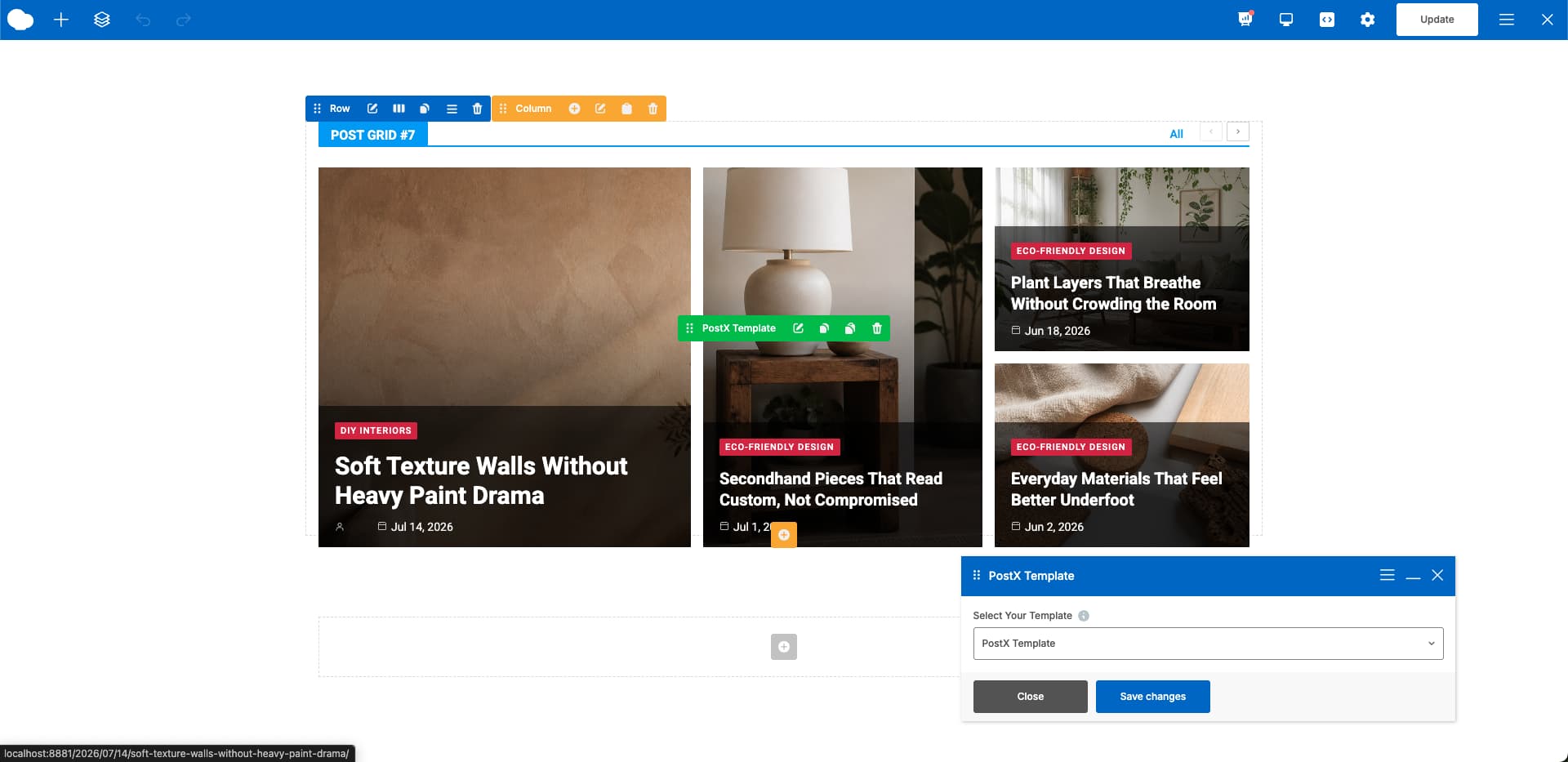
This is not a requirement for the archive we built above. Visit the PostX product documentation page if you want to learn more about it’s working process with the native WPBakery method.
Frequently asked questions about WordPress archive pages
What is an archive page in WordPress?
A WordPress archive page basically groups posts so readers can browse them. WordPress creates archives for categories, tags, authors, dates, and post types when the theme supports them.
The page built here is a custom archive-style landing page. It displays queried posts through WPBakery Post Grid but does not replace every archive template.
How do I create a custom archive page in WordPress without coding?
Create a normal WordPress Page and edit with WPBakery, then add headings, category links, and Post Grid elements. Use Grid Builder to design the cards. A small amount of CSS can adjust the visual details without editing PHP.
What is the difference between WPBakery Post Grid and Grid Builder?
Post Grid controls the content query and grid layout. It decides which posts appear, their order, item count, and columns.
Grid Builder controls one post card. It decides where the image, date, title, excerpt, and categories appear. For learning more about this, read our detailed article on the grid builder.
Can I use the same Grid Builder template in several Post Grids?
Yes. Select the same saved item design in each Post Grid. Each grid can use a different query and column count while keeping the same card design.
Can WPBakery show only two selected posts?
Yes. Use the Post Grid option for individual posts or post IDs, then choose two posts and set the total item count to two. The option name may differ by version.
Can I filter WPBakery posts by category?
Yes, a Post Grid query can be limited by taxonomy terms such as categories. WPBakery grid filters may also be available with the chosen grid setup.
Buttons linked to category archive URLs are navigation, not live filters. They open a different archive page when clicked.
Can I add pagination to a WPBakery Post Grid?
Yes. Post Grid includes paging controls for longer lists. Our two small sections do not need pagination, but a larger all-posts grid can use it.
Can I add a search bar to the archive page?
Yes. Add a standard WordPress search form through Raw HTML, or use a search element supplied by your theme or addon. The search field must submit a value named s to the WordPress home URL.
Why is my custom grid template not showing?
Check that the Grid Builder item was saved or published. Then reopen the Post Grid and select it under Item Design. Clear the page cache if the old card still appears.
Does this method replace my category and tag archive templates?
No. A normal WPBakery Page does not automatically replace the templates used for category, tag, author, and date URLs. WordPress selects those through the active theme’s template hierarchy.
Do I need PostX to create this archive page?
No. The main page uses WPBakery rows, headings, buttons, Raw HTML, Post Grid, Grid Builder, and page CSS. PostX is an optional method for placing a saved PostX template inside WPBakery.
Your modern WordPress post archive page is ready
A modern WordPress post archive does not need a new custom element or a large stack of plugins. Build the page structure with WPBakery, design one card in Grid Builder of WPBakery, and reuse it across both Post Grids.
The result is easy to update. Change the selected posts or category query when the content changes. Edit the saved card once when the design needs an update.
If you already use WPBakery, try this layout on a staging page first. If you are new to it, try the WPBakery demo and build the blog archive structure for yourself.
